PyCharm Configuration for Windows OS

For installing PyCharm in your System go through the following steps:

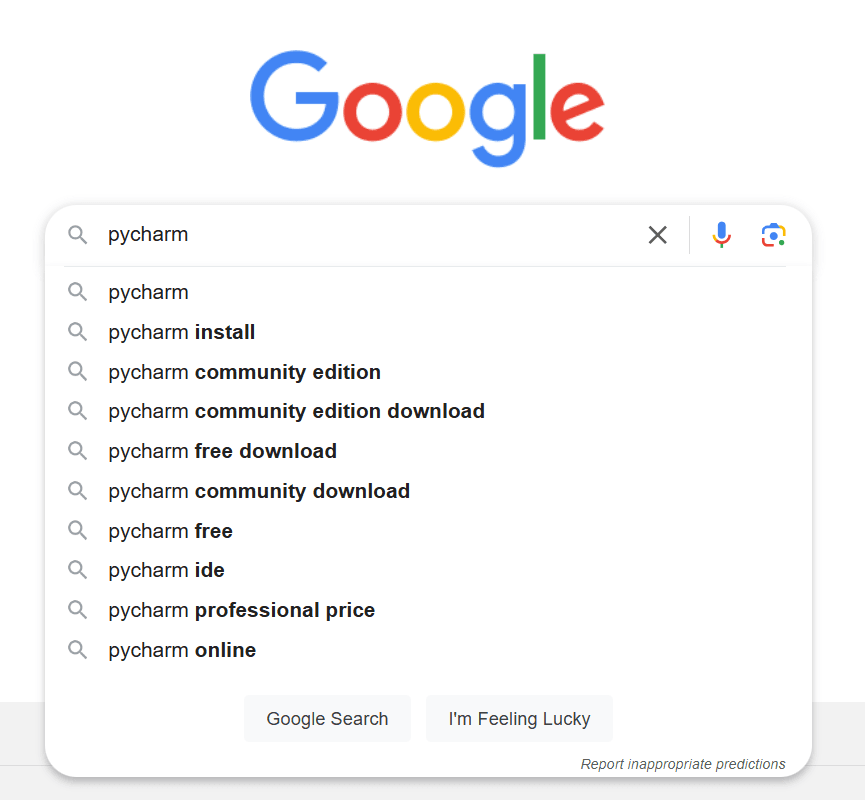
  • Open a web browser (e.g., Google Chrome, Firefox, or Edge).1 2
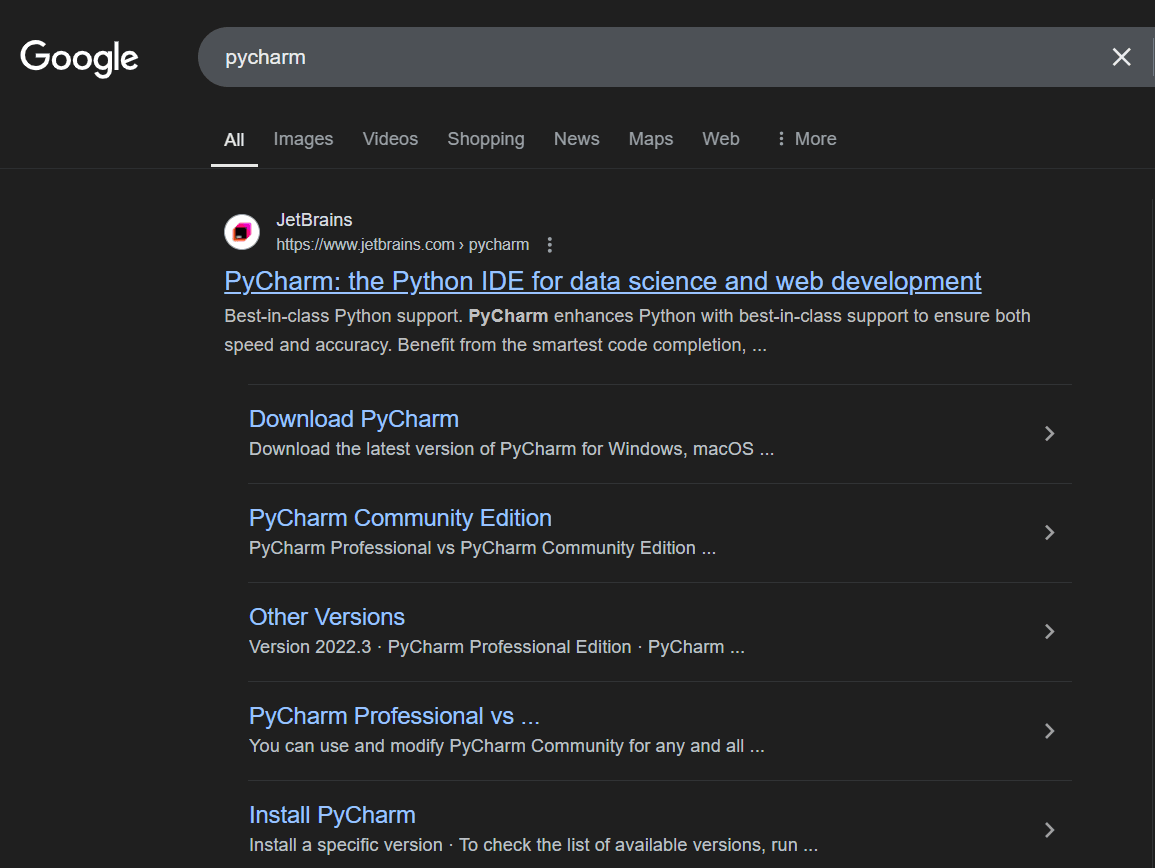
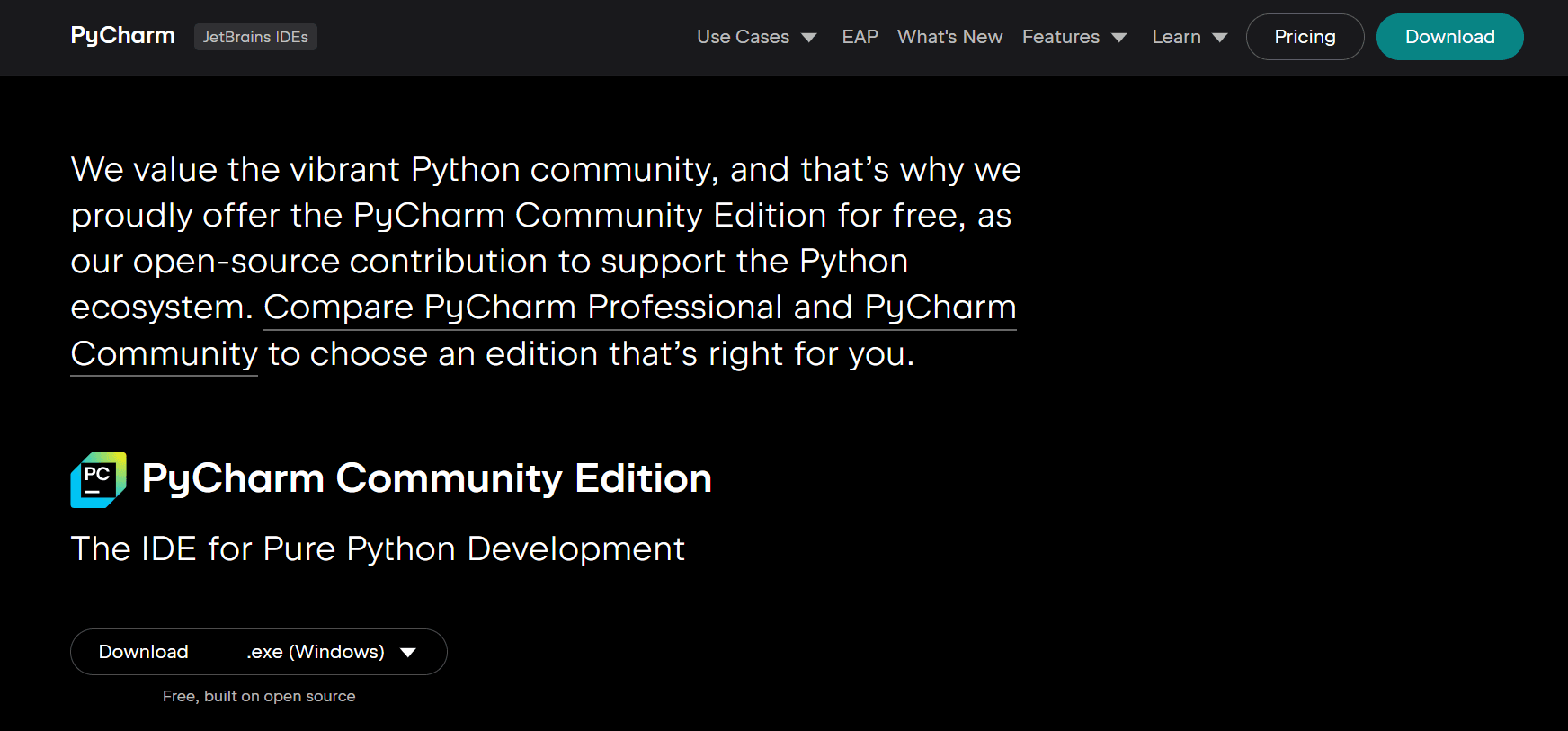
  • Click on first link as shown in web browser ,go to the official JetBrains PyCharm website,or click Here .2 2
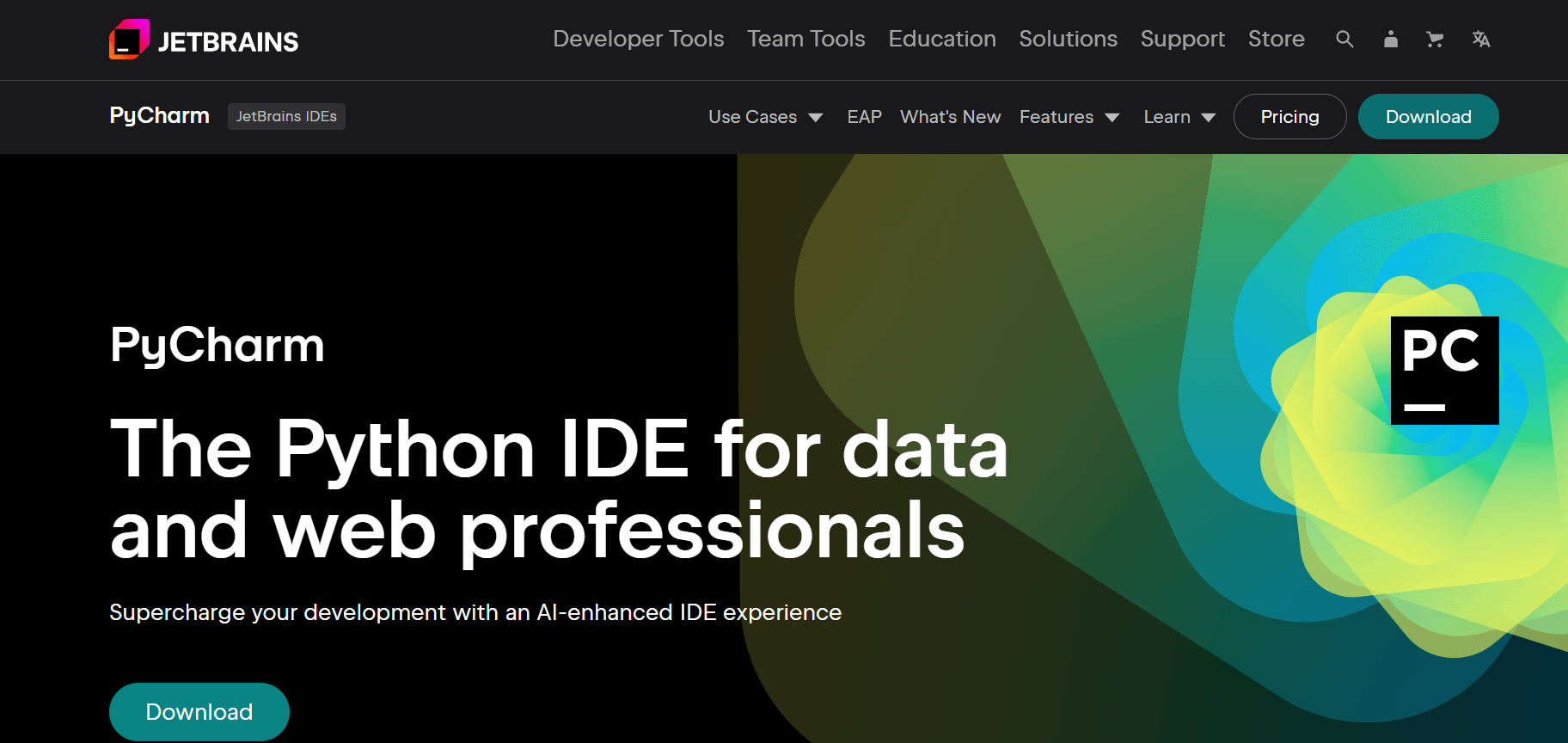
  • Visit the official PyCharm website at JETBRAINS and this web page will appear3 2
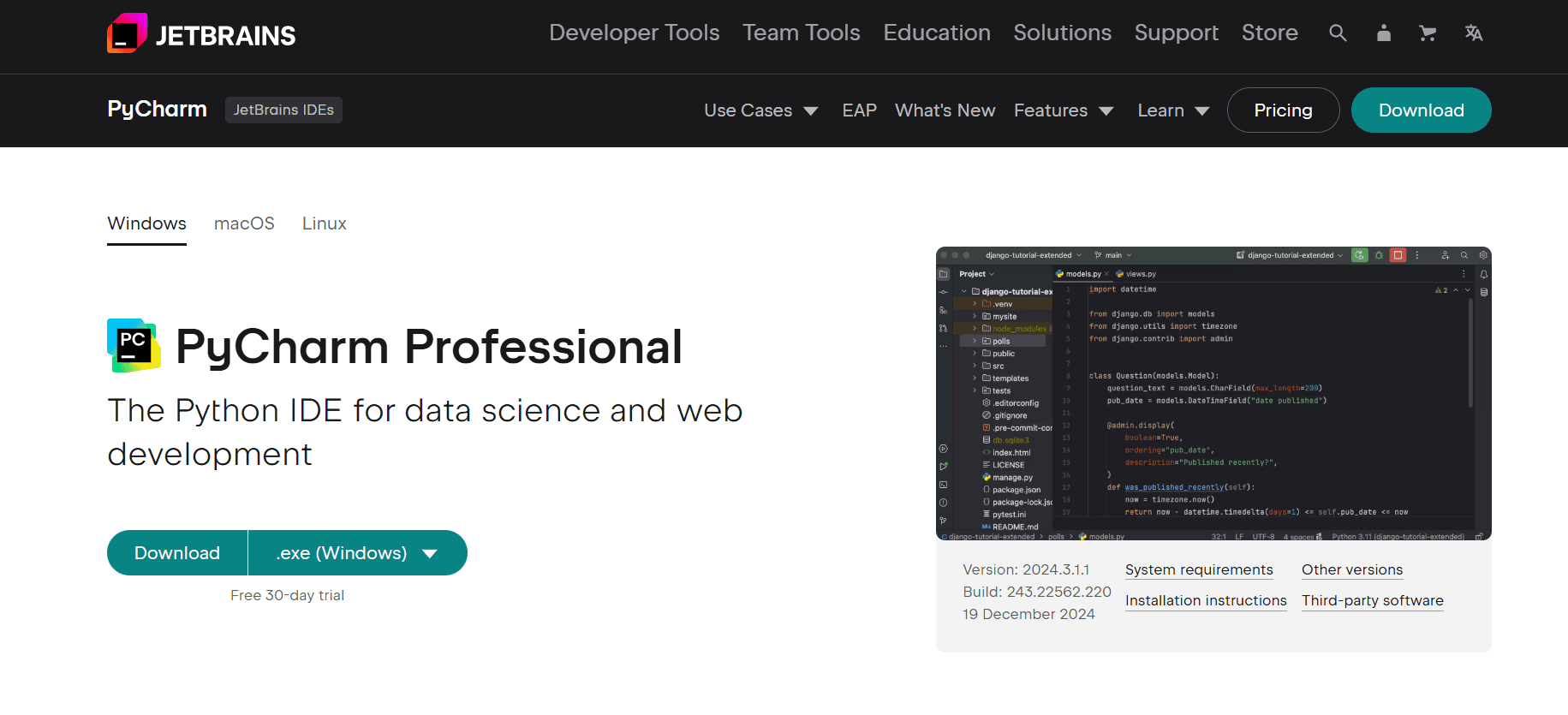
  • Once the page loads, you’ll see options for different editions of PyCharm.
    • Professional Edition: Paid version with advanced features.
    • Community Edition: Free version, ideal for Python programming.4 2
  • Click the Download button under the Community Edition section.5 2
  • You’ll be redirected to the download page.The website should automatically detect your operating system (Windows) and provide the correct installer.
    • If not, ensure Windows is selected in the operating system dropdown or button.
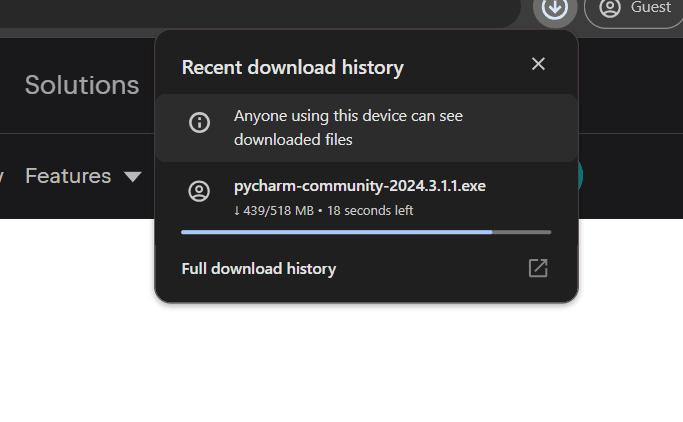
    • Click the Download button to start downloading the PyCharm Community Edition .exe installer.6 2
  • The installer file will begin downloading. Its name will look something like pycharm-community-<version>.exe.Wait for the download to finish. The file size is usually around 300–400 MB.
    • Locate the downloaded .exe file (usually in your Downloads folder).
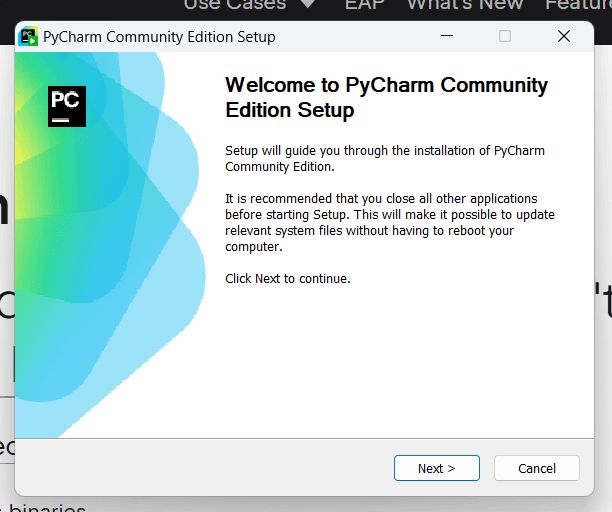
    • Double-click the file to start the installation process.7 2
  • A setup wizard will appear. Follow these steps:
    • Welcome Screen: Click Next.
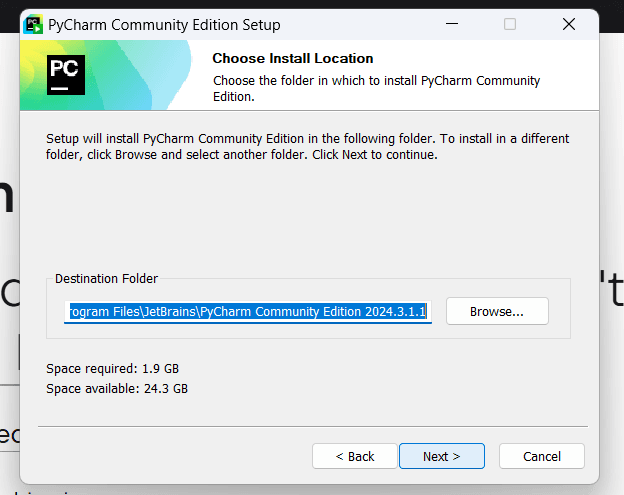
    • Choose Installation Path: Select or confirm the default location where PyCharm will be installed (e.g., C:\Program Files\JetBrains\PyCharm Community Edition). Then, click Next.8 2
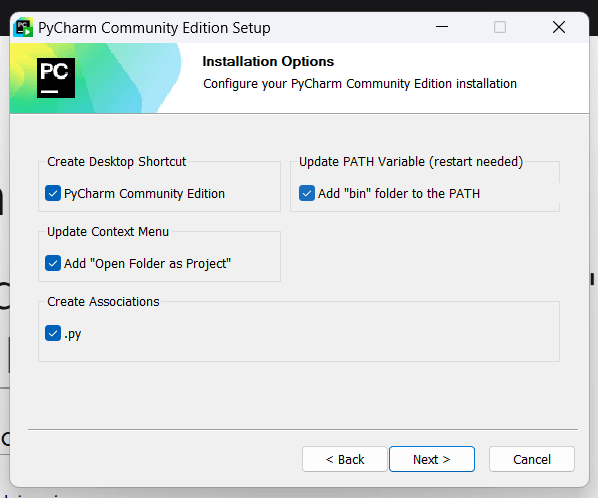
  • Installation Options:
    • Check Create Desktop Shortcut (optional).
    • Check Update PATH variable (optional but recommended for easy access to PyCharm from the command line).
    • Check Add Open Folder as Project (optional).
    • Click Next.9 2
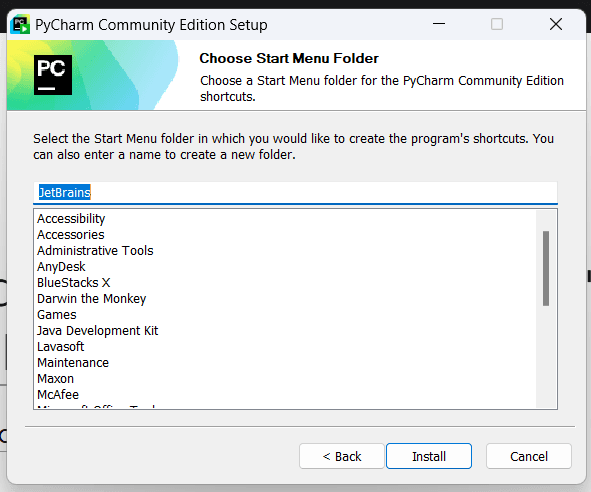
  • Choose Start Menu Folder: Leave the default or choose a custom folder for shortcuts. Click Install.
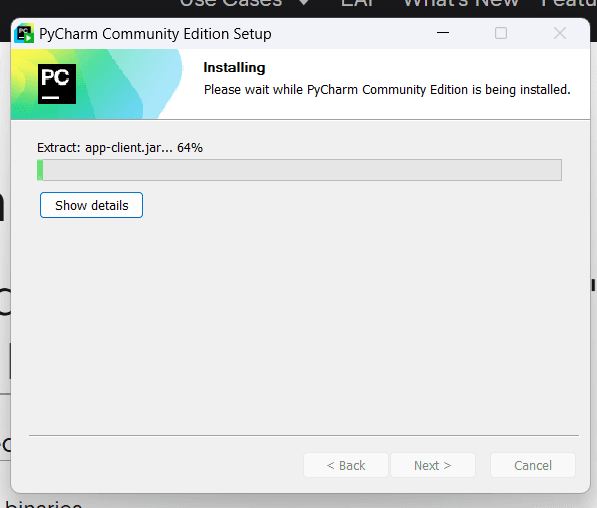
    • 10 2The installation will begin. This might take a few minutes.
    • 11 2
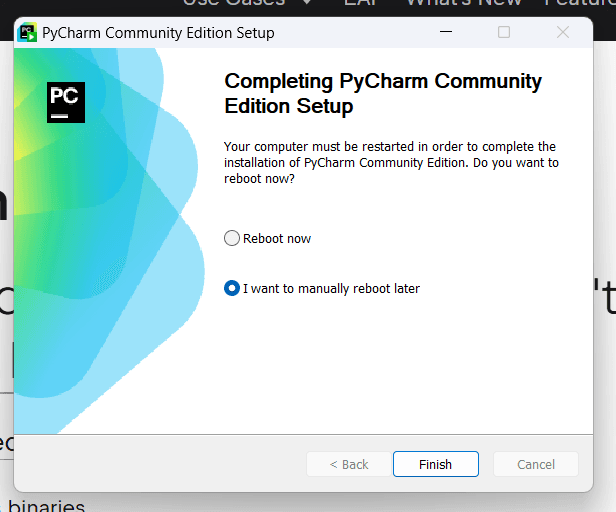
  • Once the installation is complete, check Run PyCharm Community Edition if you want to open it immediately.12 2
  • Open desktop and click on PyCharm Logo.13 2
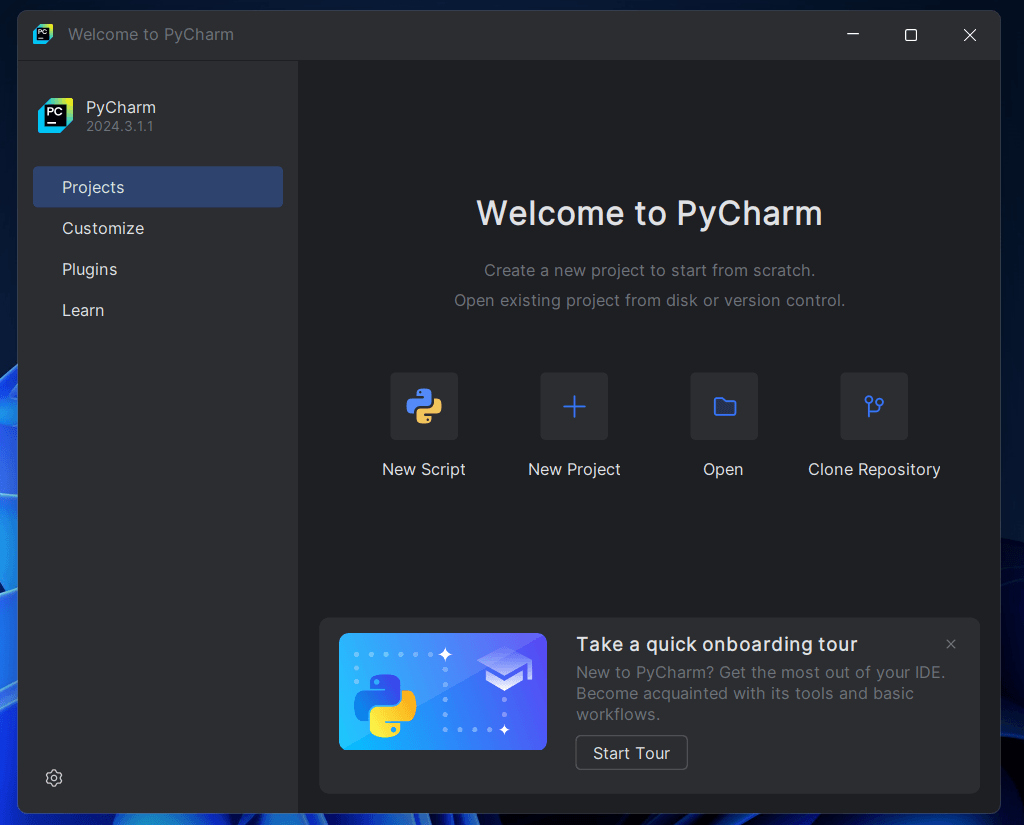
  • This Dialogue Box will appear, when you click on desktop Shortcut .14 2
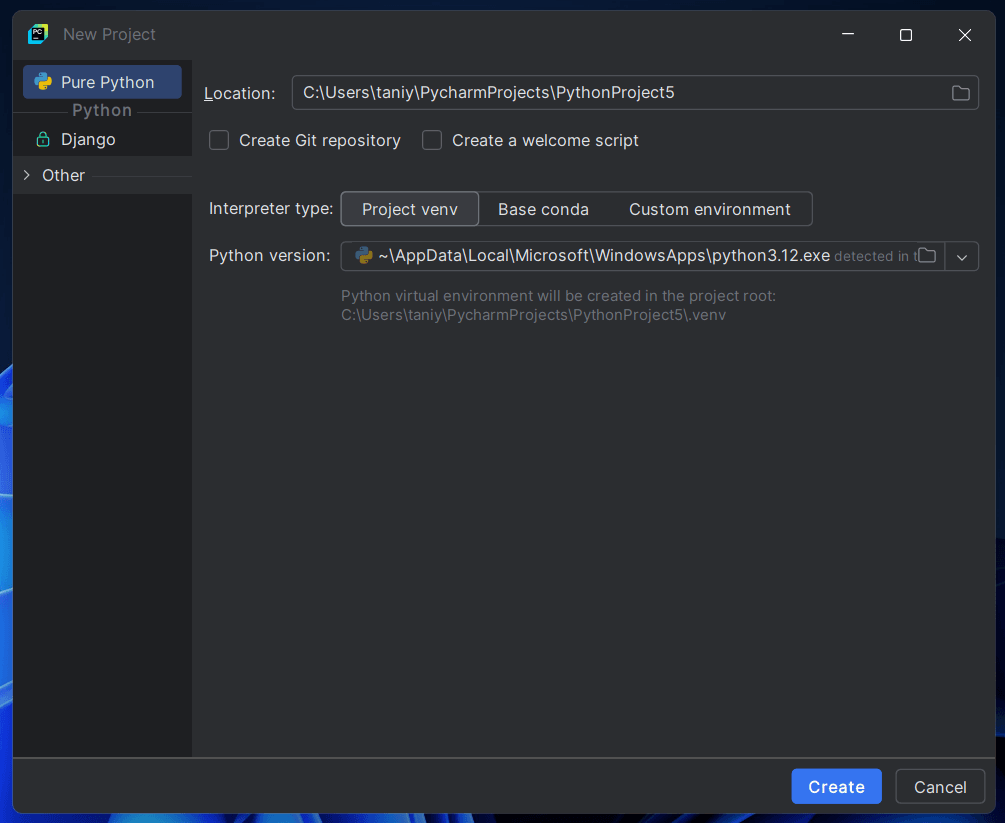
  • After PyCharm opens, create a new project:
    • Click New Project.
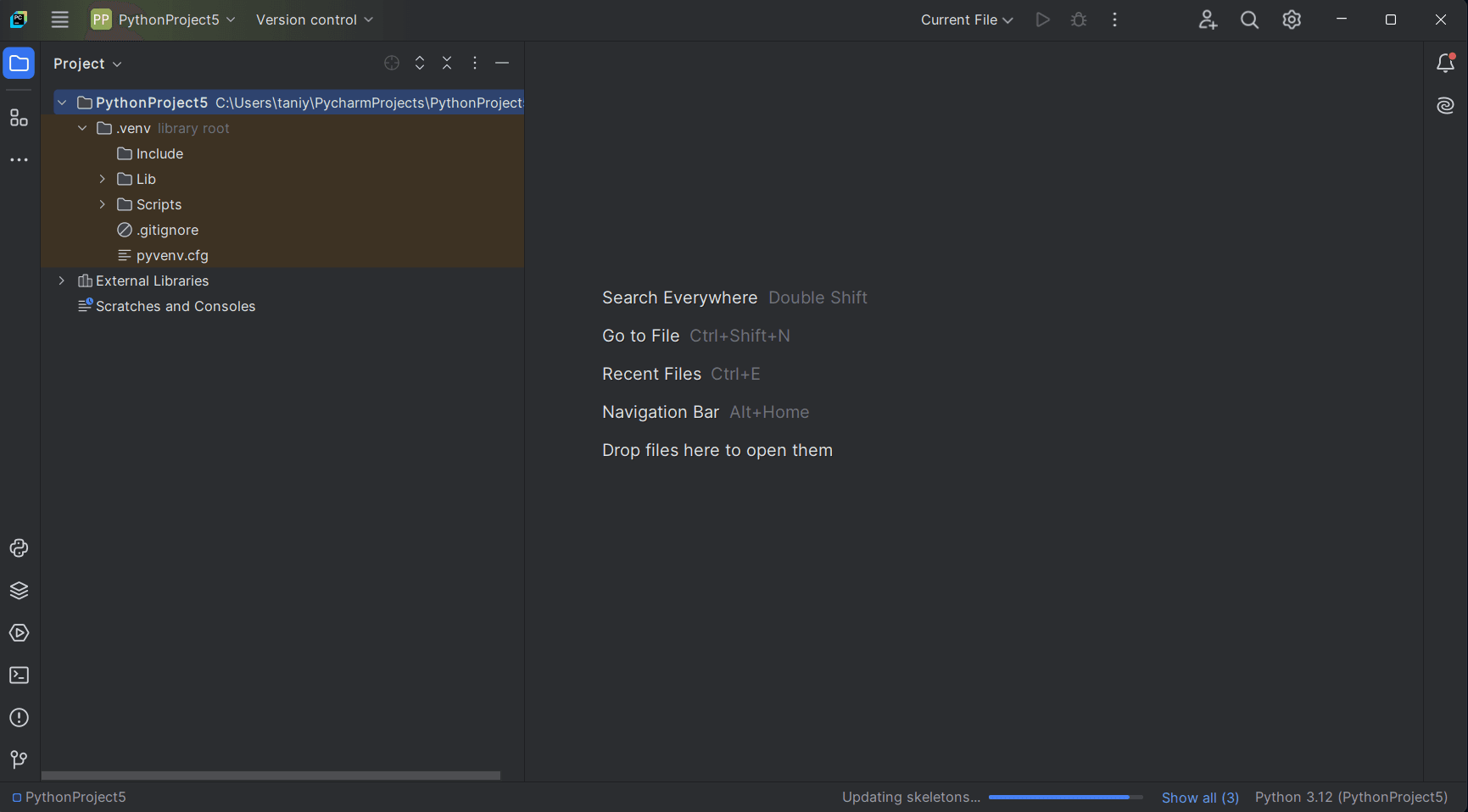
    • Choose a location and name for the project.15 1
  • If everything works as expected, your PyCharm setup is complete.16 1
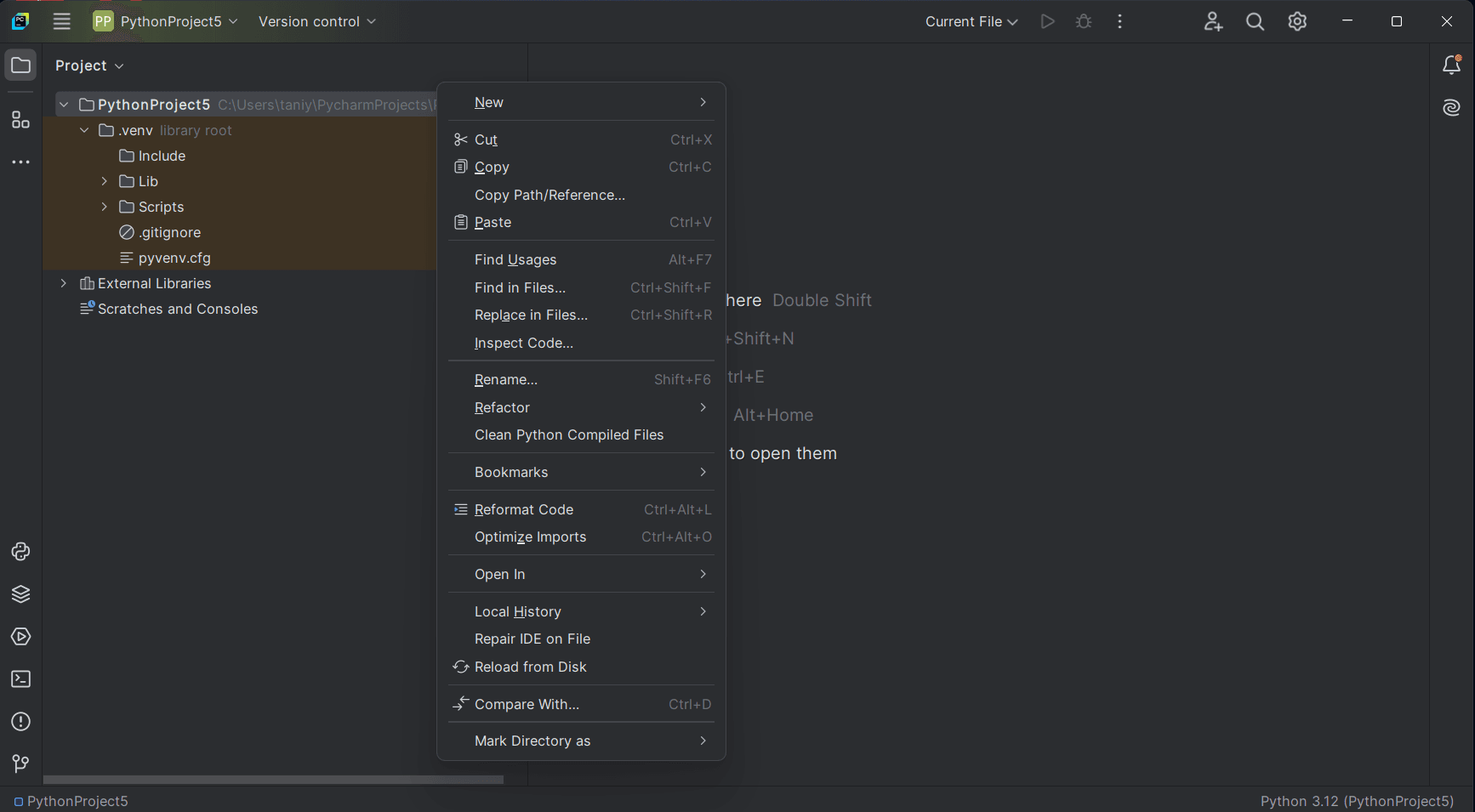
  • Right Click on your project name and select new.17
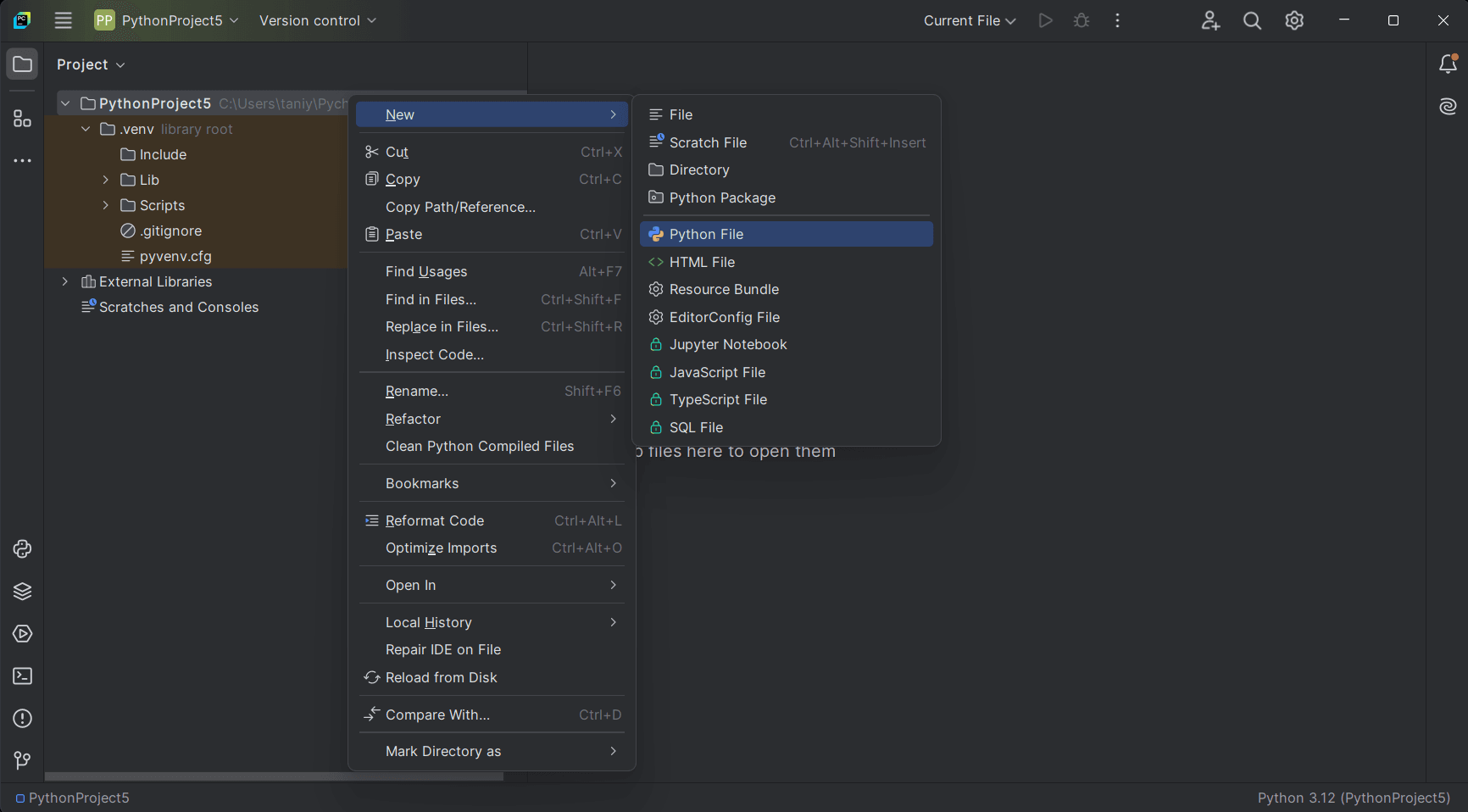
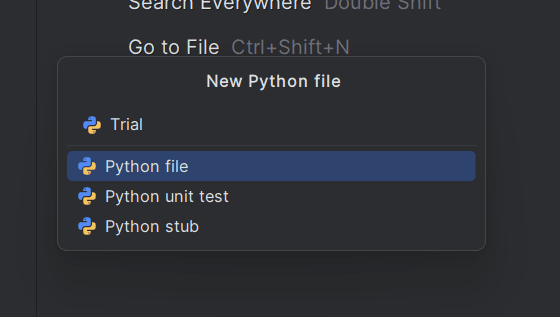
  • In New select for New file Python file.18
  • Name your Python file , here “Trial”.19
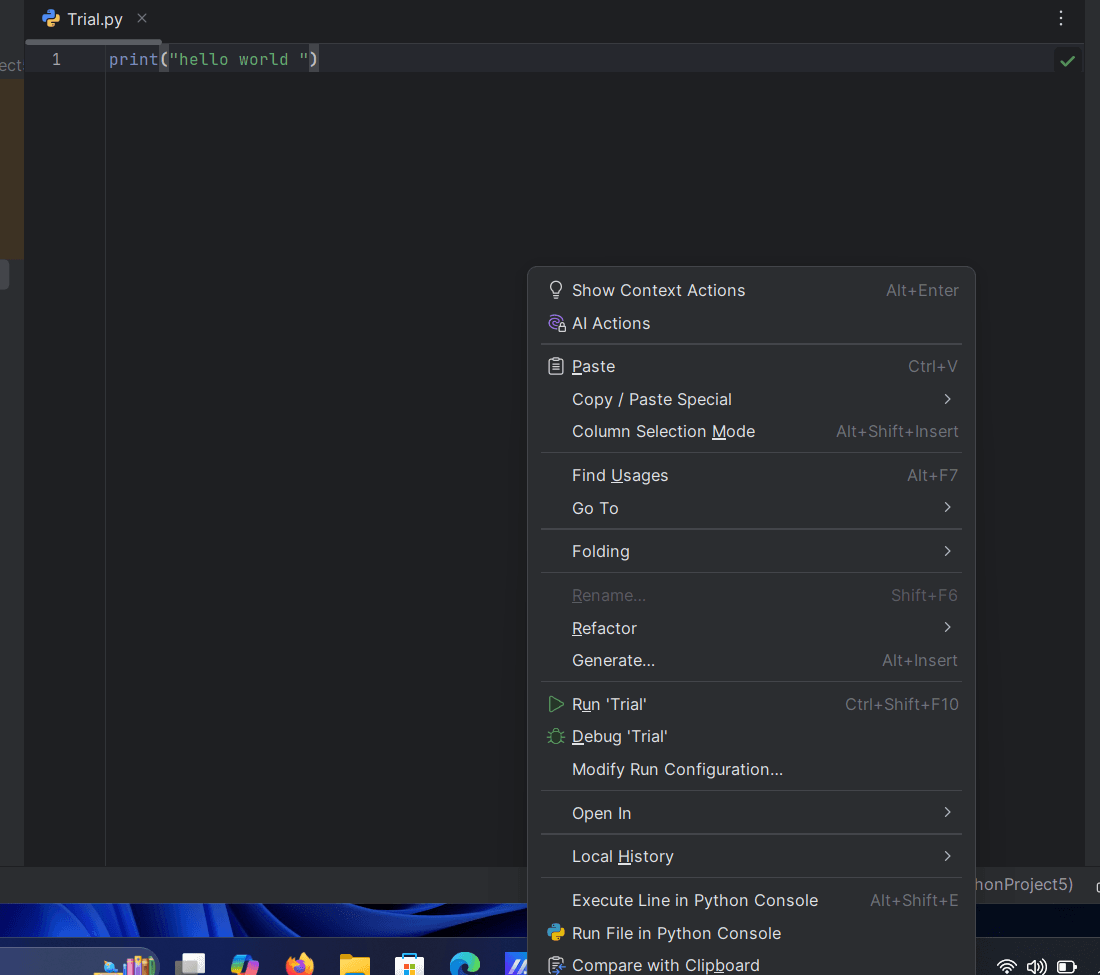
  • Write a Trial program of printing a “Hello World” ,and to run that script right click on screen & select Run and Debug.22
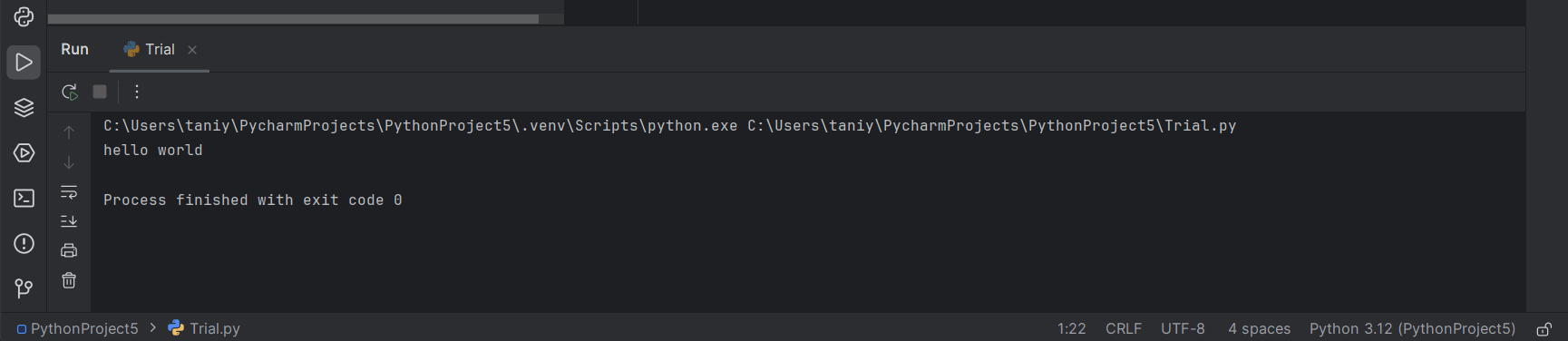
  • This Will be the output of the “Trial”. # printing “Hello World “23

Python installation in Windows OS:

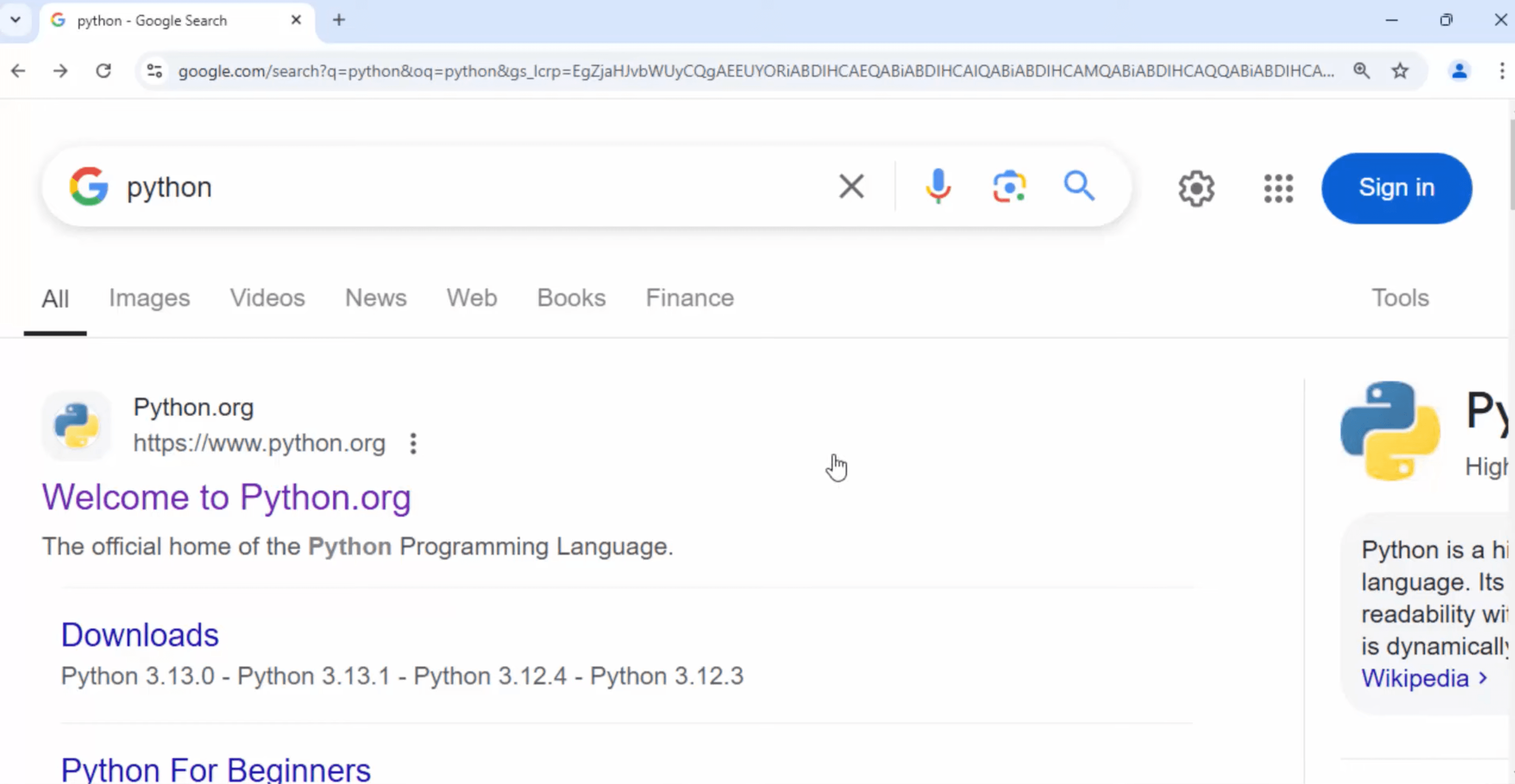
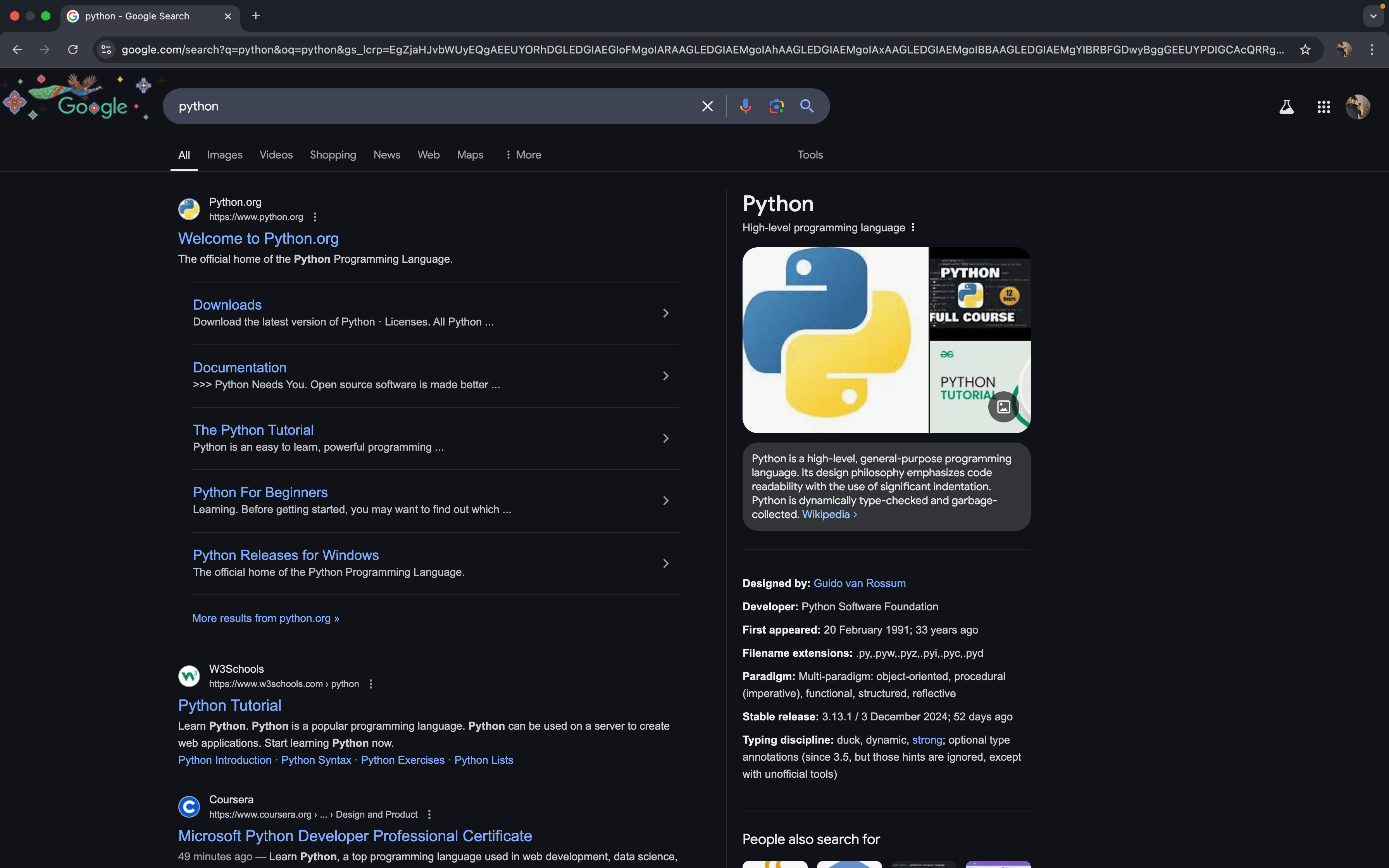
  • Open Google Chrome or any other web browser and search for Python. 1 1 e1737919354722
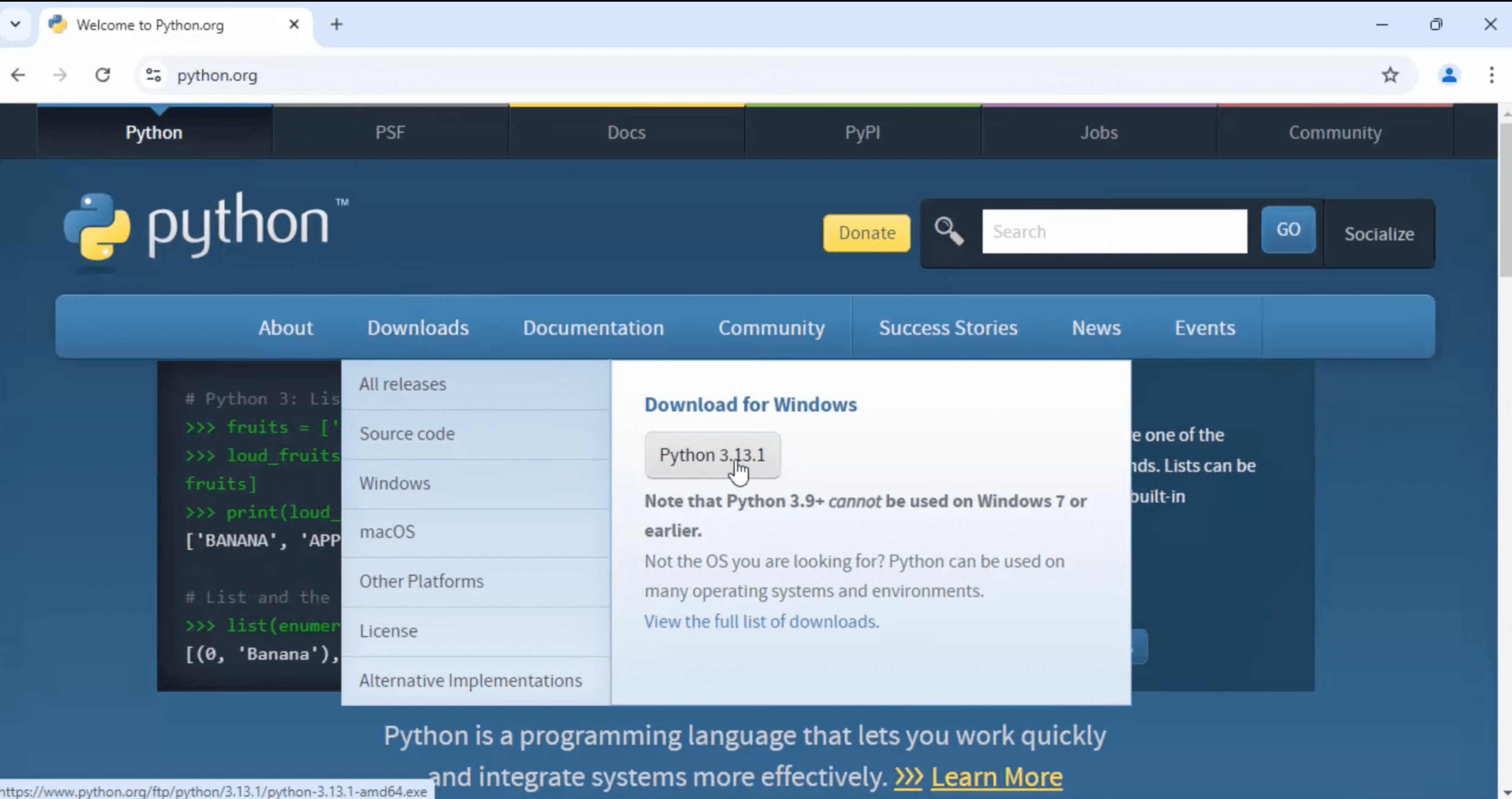
  • Visit the official Python website at python.org.2 1 e1737960267614
  • Navigate to the Downloads section and select the latest stable release for Windows.Choose the appropriate installer based on your system architecture:
  • For 64-bit systems: “Windows installer (64-bit)”
  • For 32-bit systems: “Windows installer (32-bit)”3 1 e1737960433455
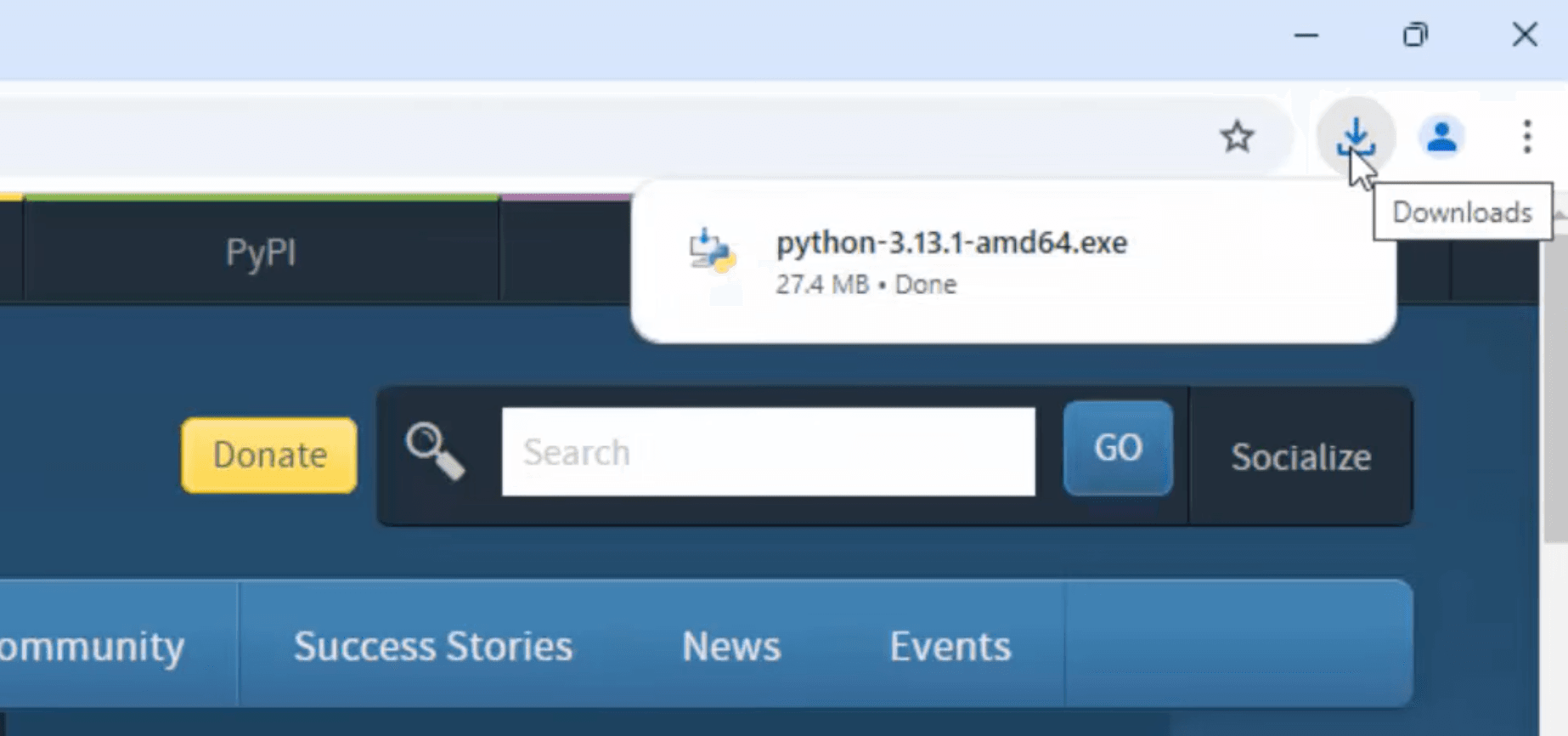
  • Locate the downloaded installer file (e.g., python-3.x.x-amd64.exe) and double-click to run it.4 1
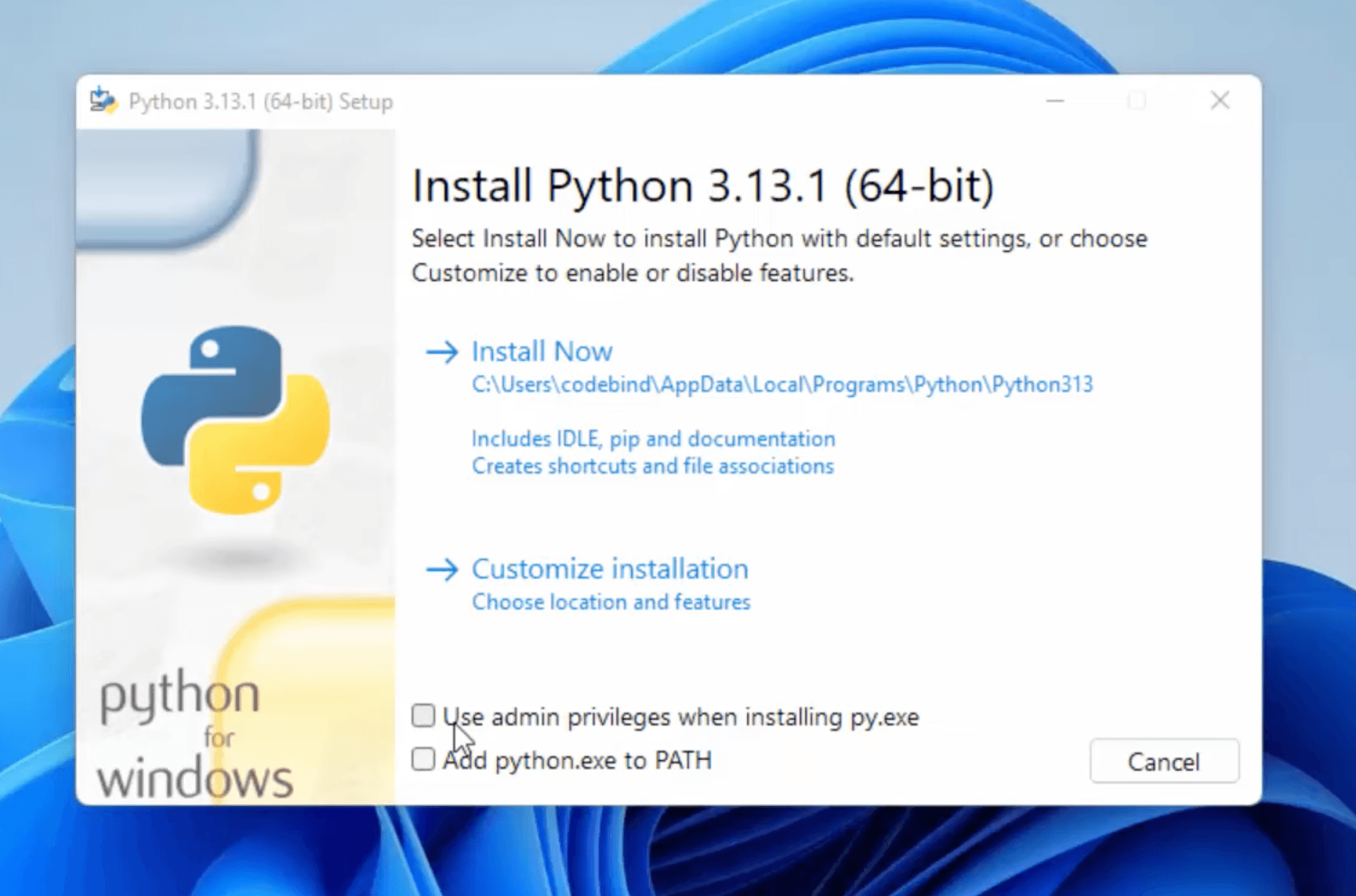
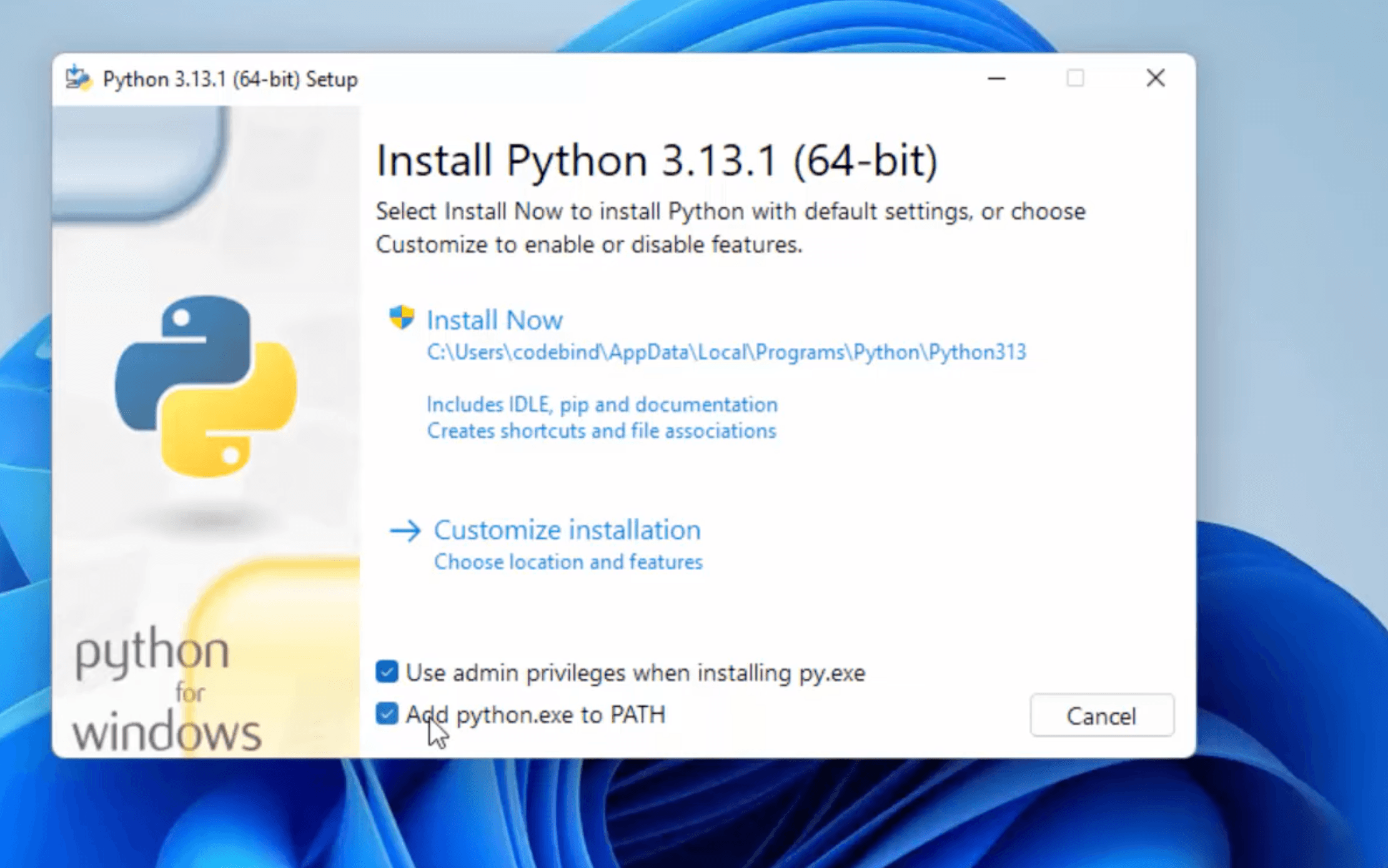
  • Check the box labeled “Add Python to PATH” to ensure you can run Python from the command line.Click on “Install Now” to proceed with the default installation.5 1
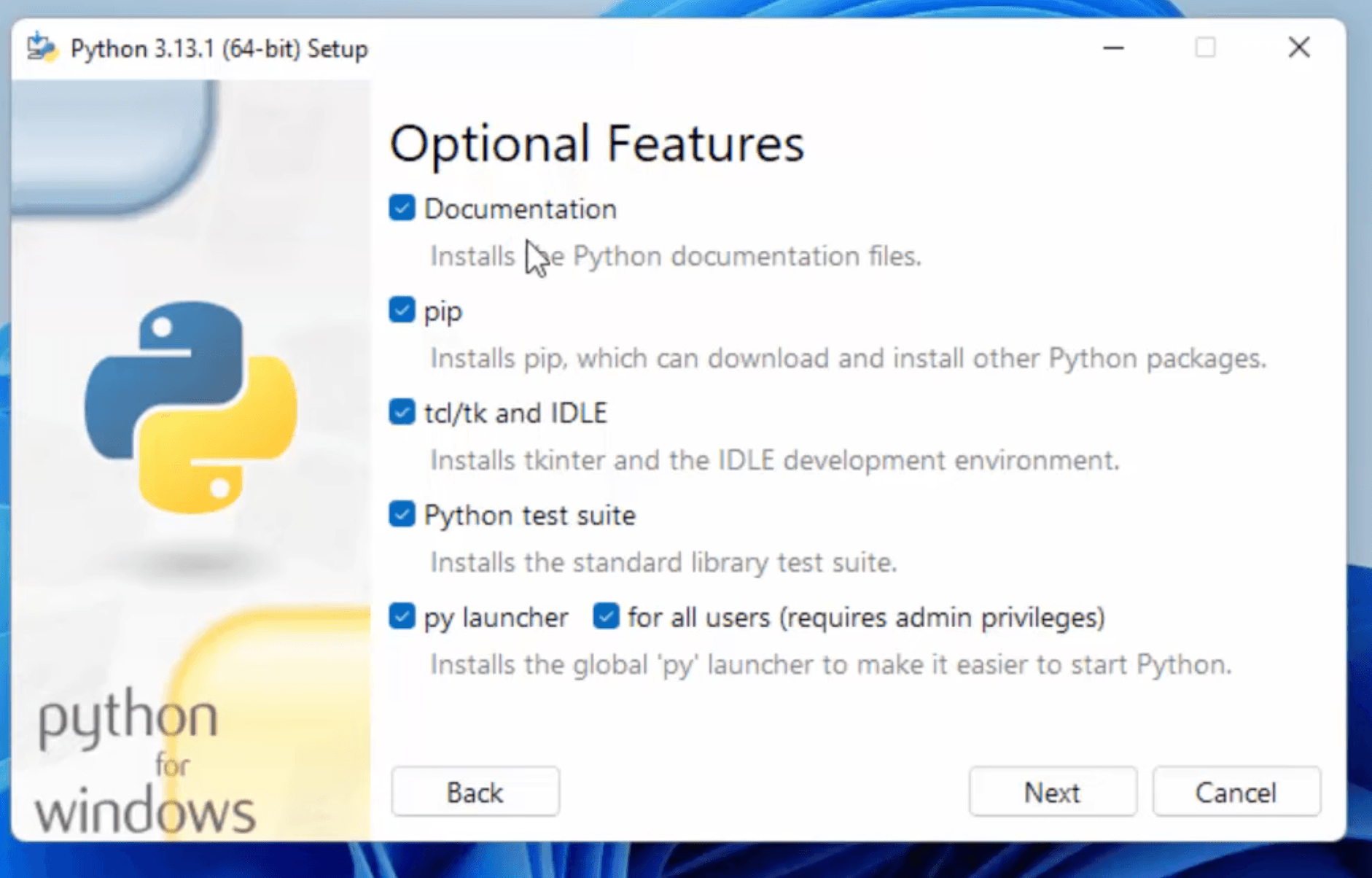
  • In the “Optional Features” section, you can select additional components like:
    • Documentation
    • pip (Python package installer)
    • tcl/tk and IDLE (Python’s Integrated Development and Learning Environment)
    • Python test suite
    • py launcher6 1
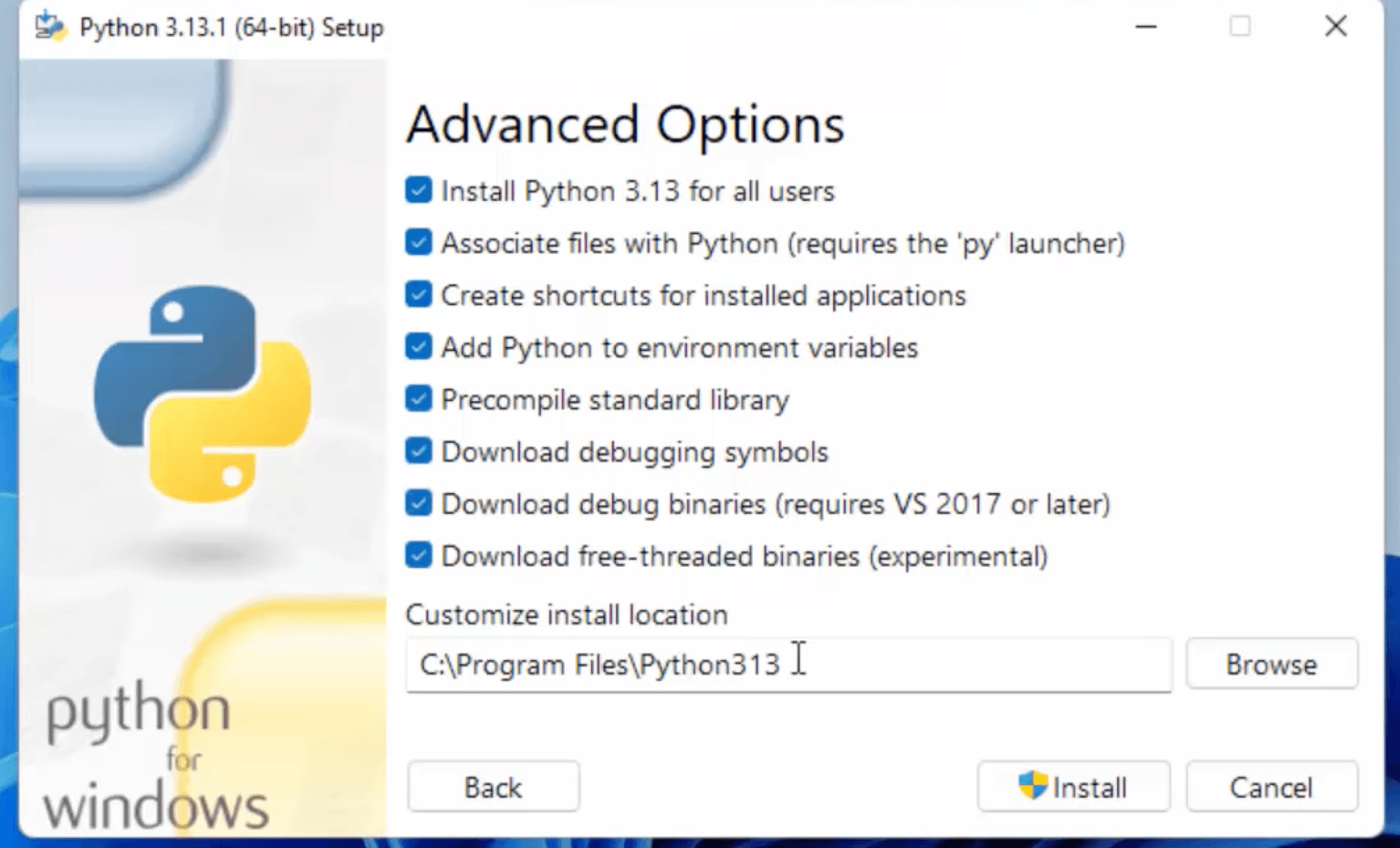
  • Click “Next” and in the “Advanced Options” section, you can:
    • Choose the installation location
    • Add Python to environment variables
    • Install for all users7 1
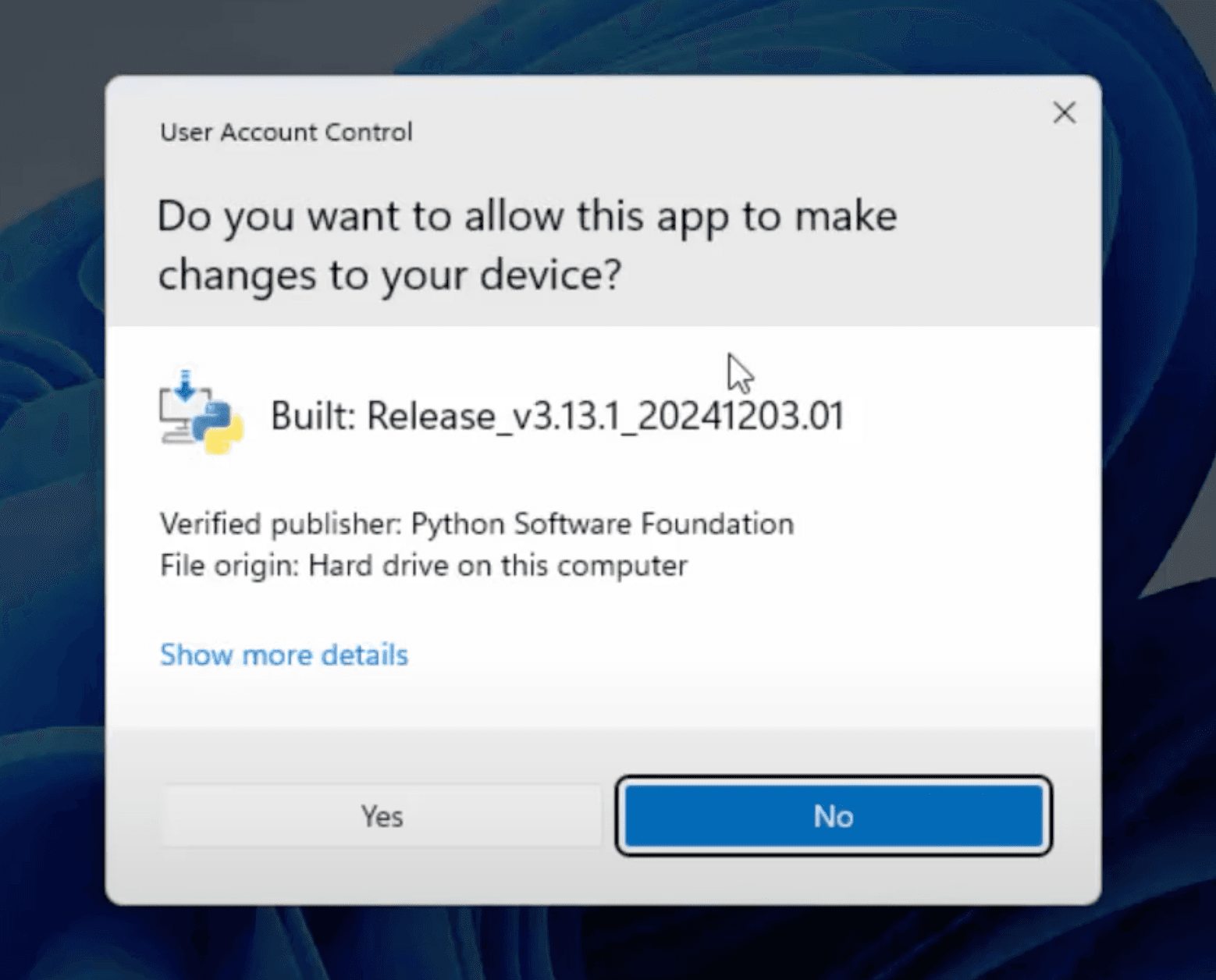
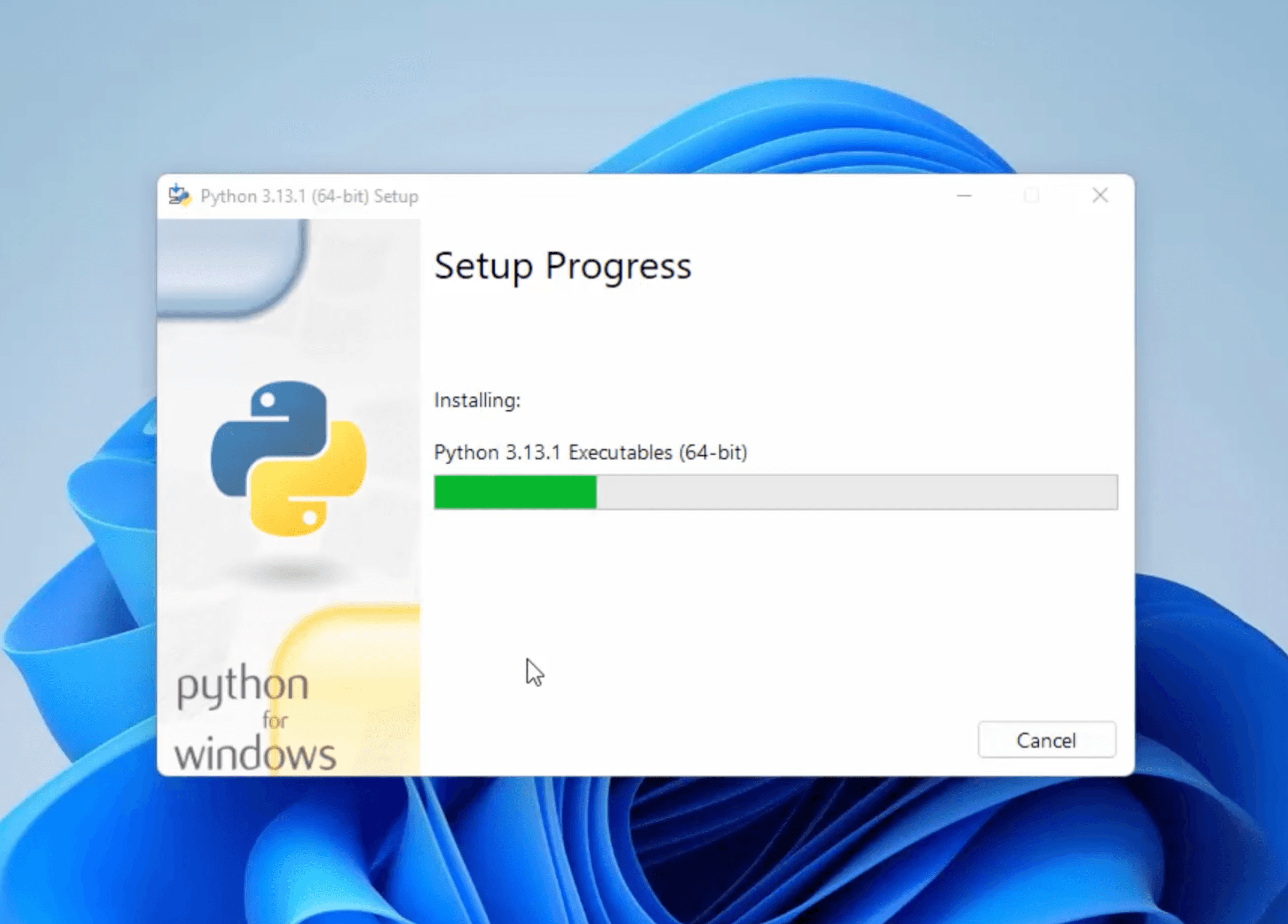
  • After selecting the desired options, click “Install” to begin the installation.8 19 1 e1737960510964
  • Verify the Installation:
    • Open the Command Prompt:
    • Press Win + R, type cmd, and press Enter.
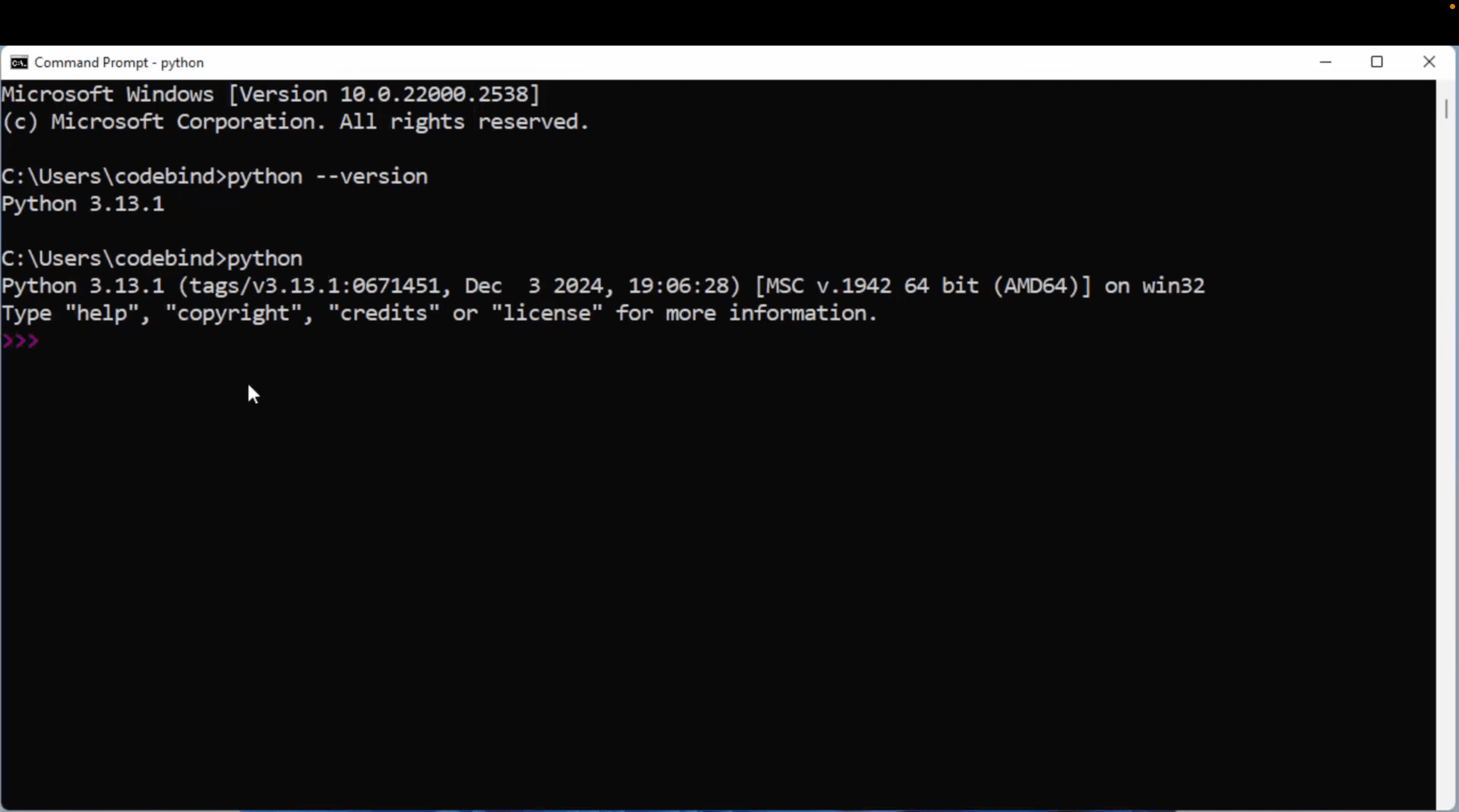
  • pip --version run in command prompt and python --version.14 1 e1737961172208

Python Installation for MacOS:

  • Check System Requirements: Ensure your macOS version is 10.9 or later.
  • Go To google chrome and search python

seach on google

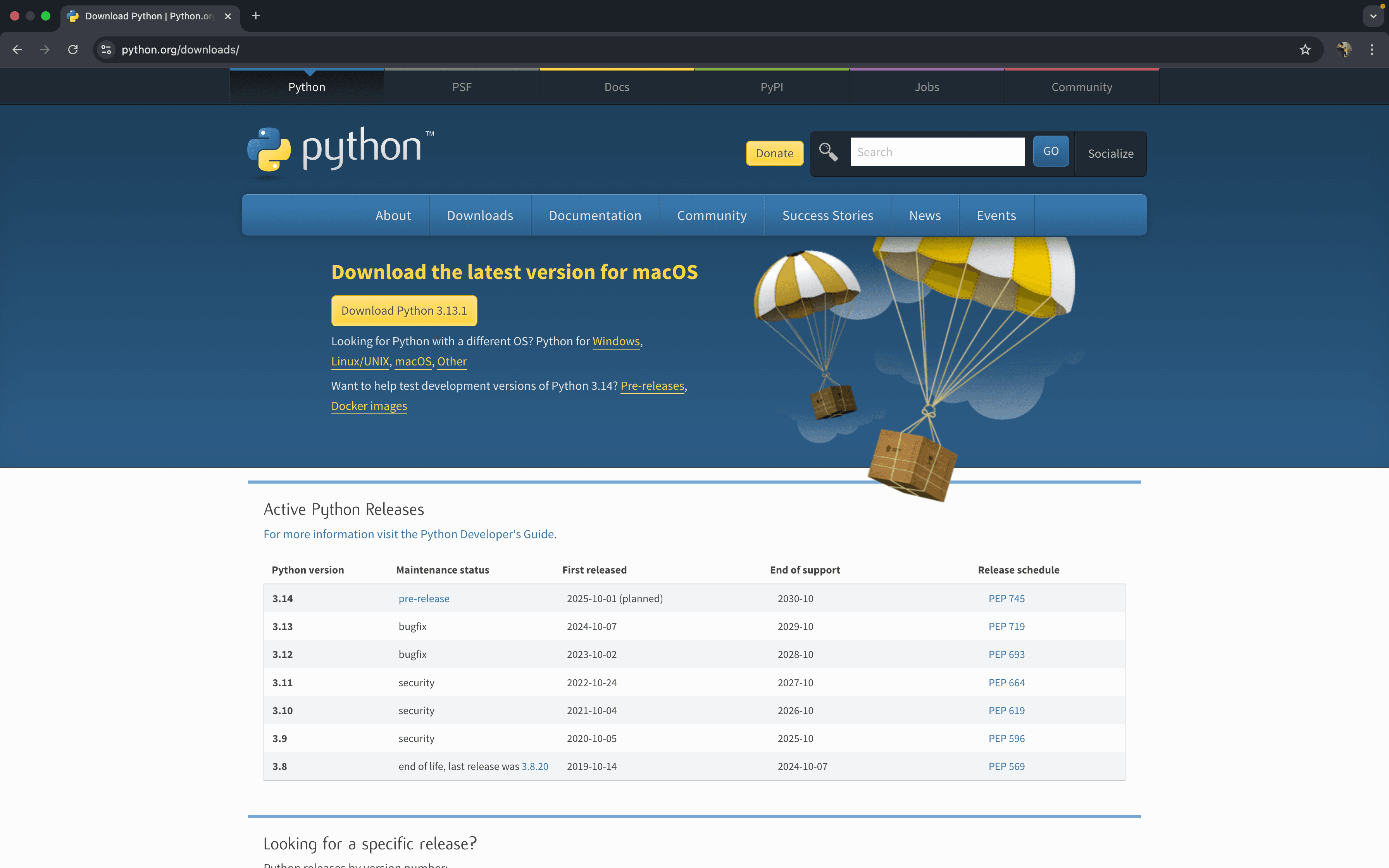
  • Visit Python’s Official Website: Open https://www.python.org and navigate to the “Downloads” section. The website will auto-detect the appropriate version for macOS.irst page for python
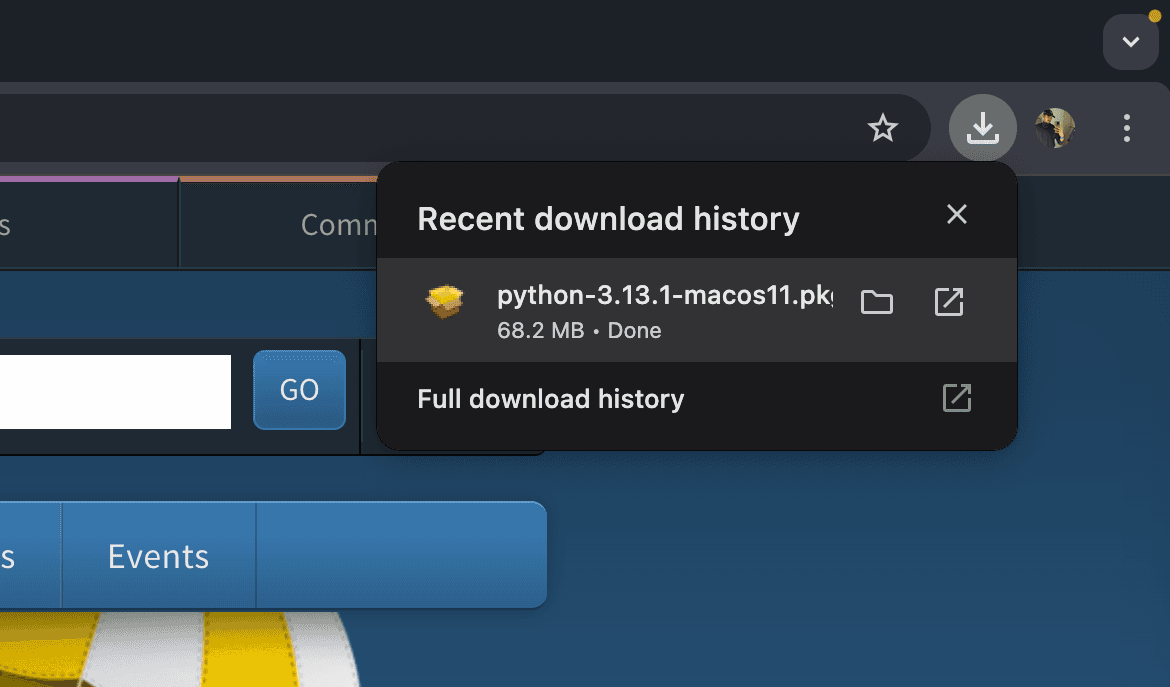
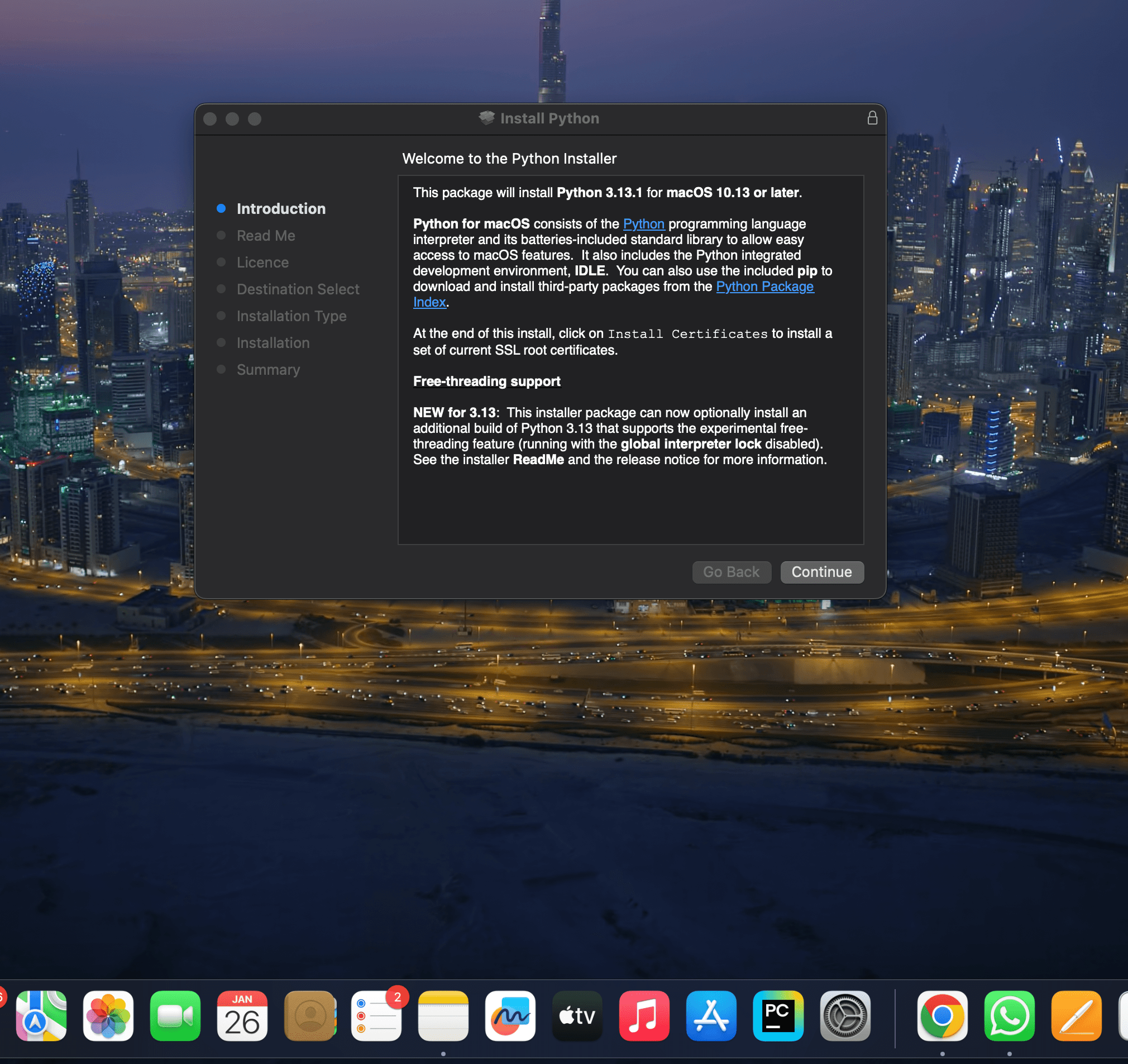
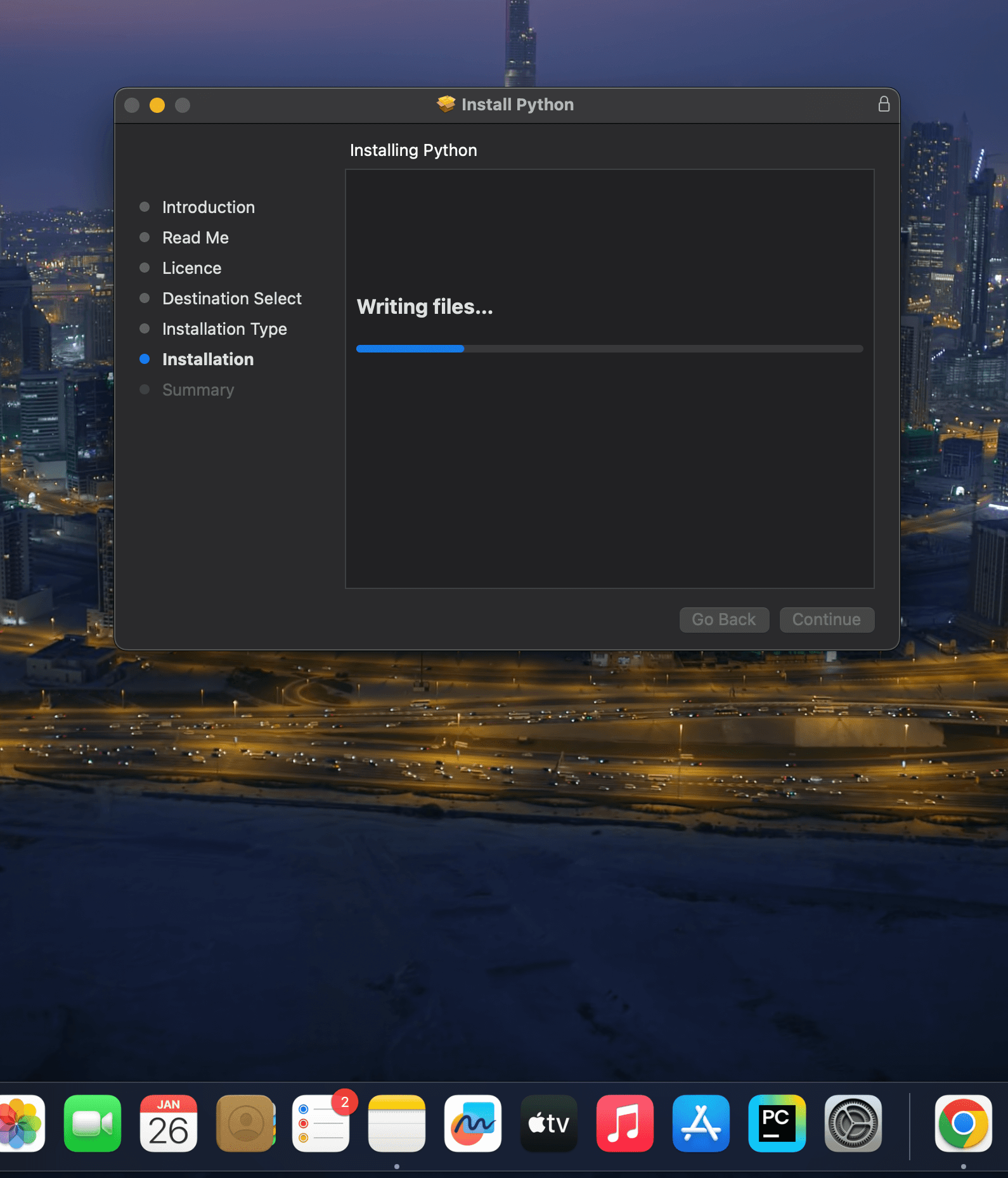
  • Wait until the installation take place & navigate in download bar. 4 e1737897166784
  • Open the .pkg file.5 e1737900198771
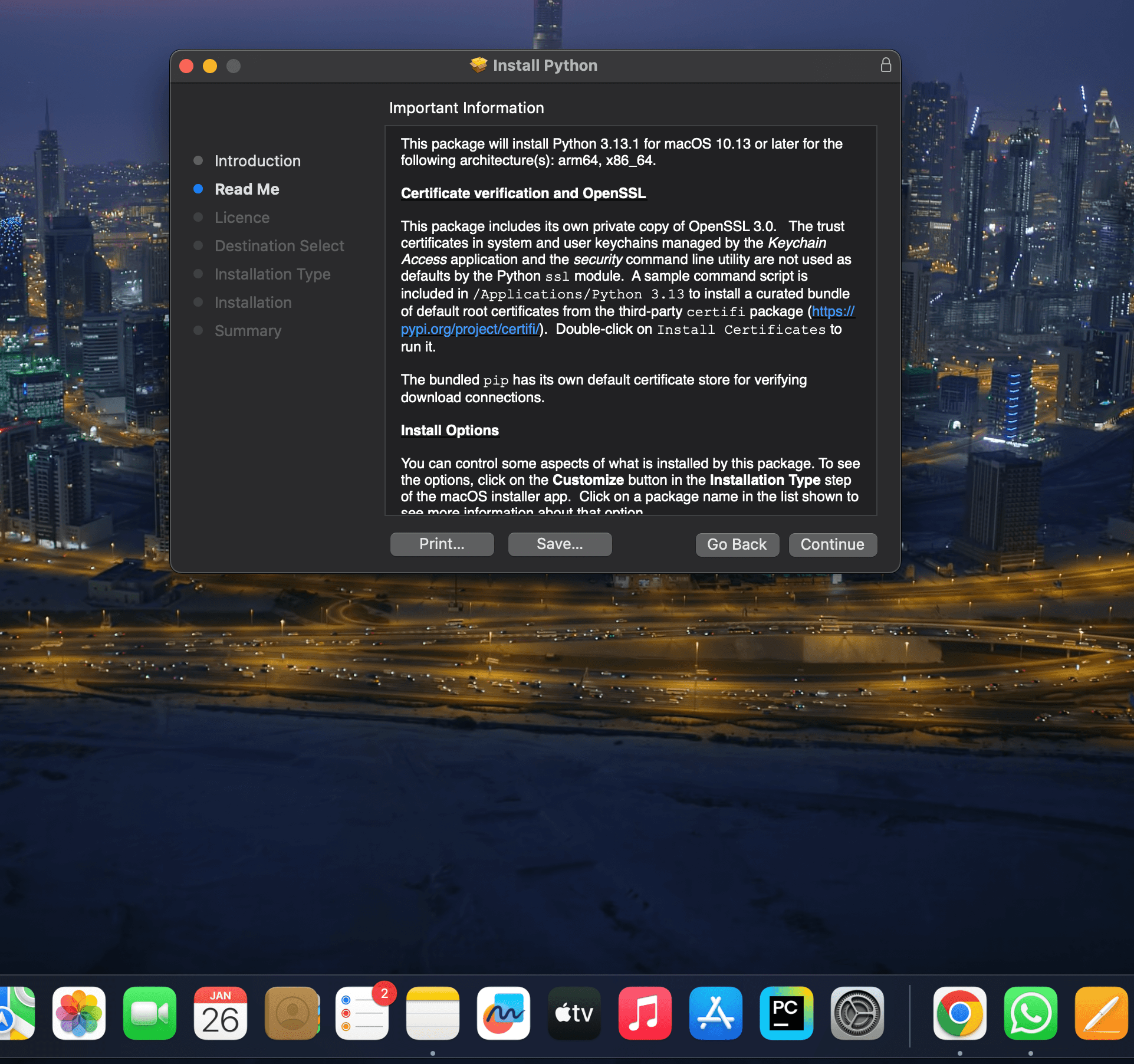
  • Click to continue.6 e1737900590266
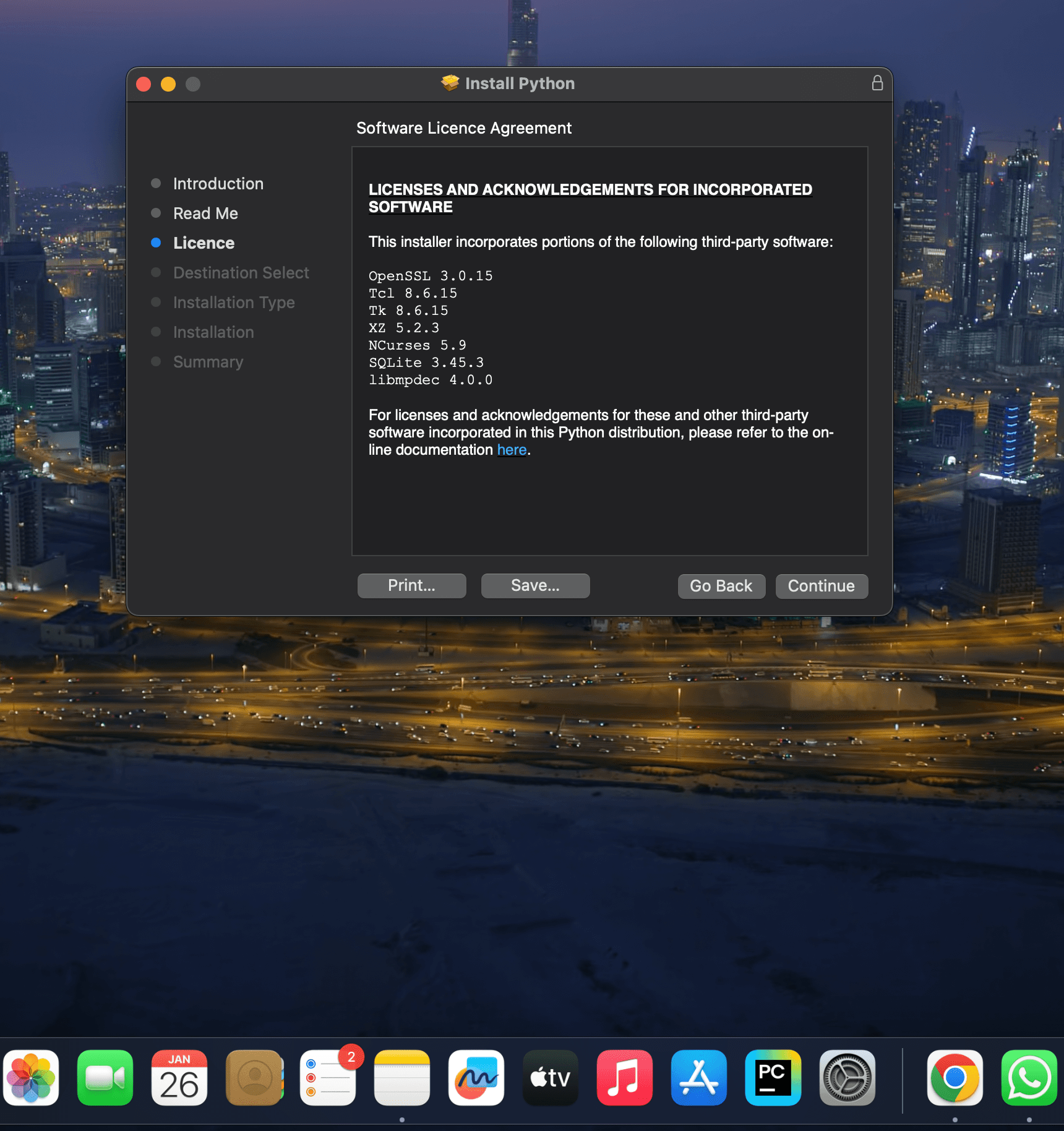
  • Again click on continue.7 e1737900689287
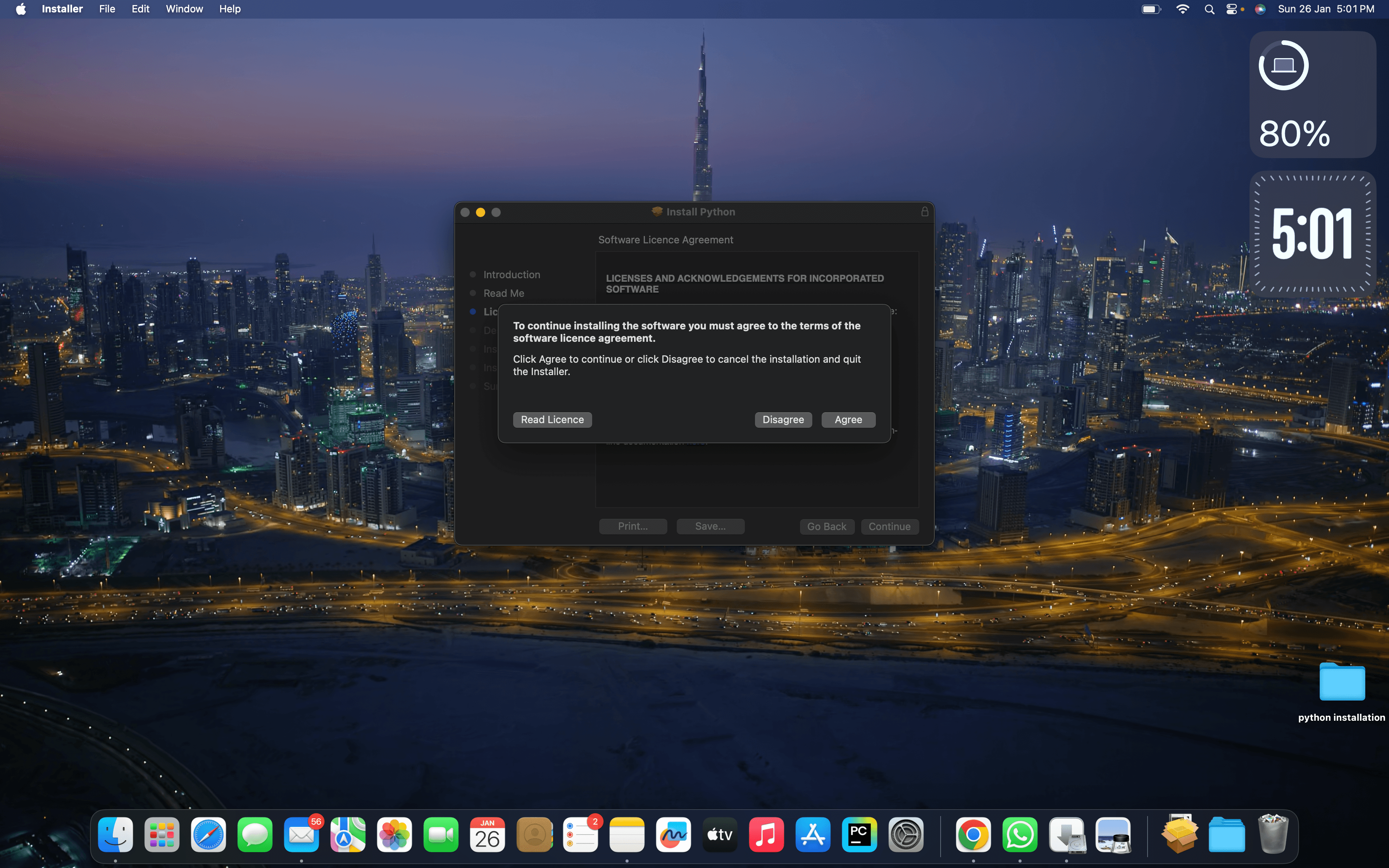
  • Now click on Agree.8
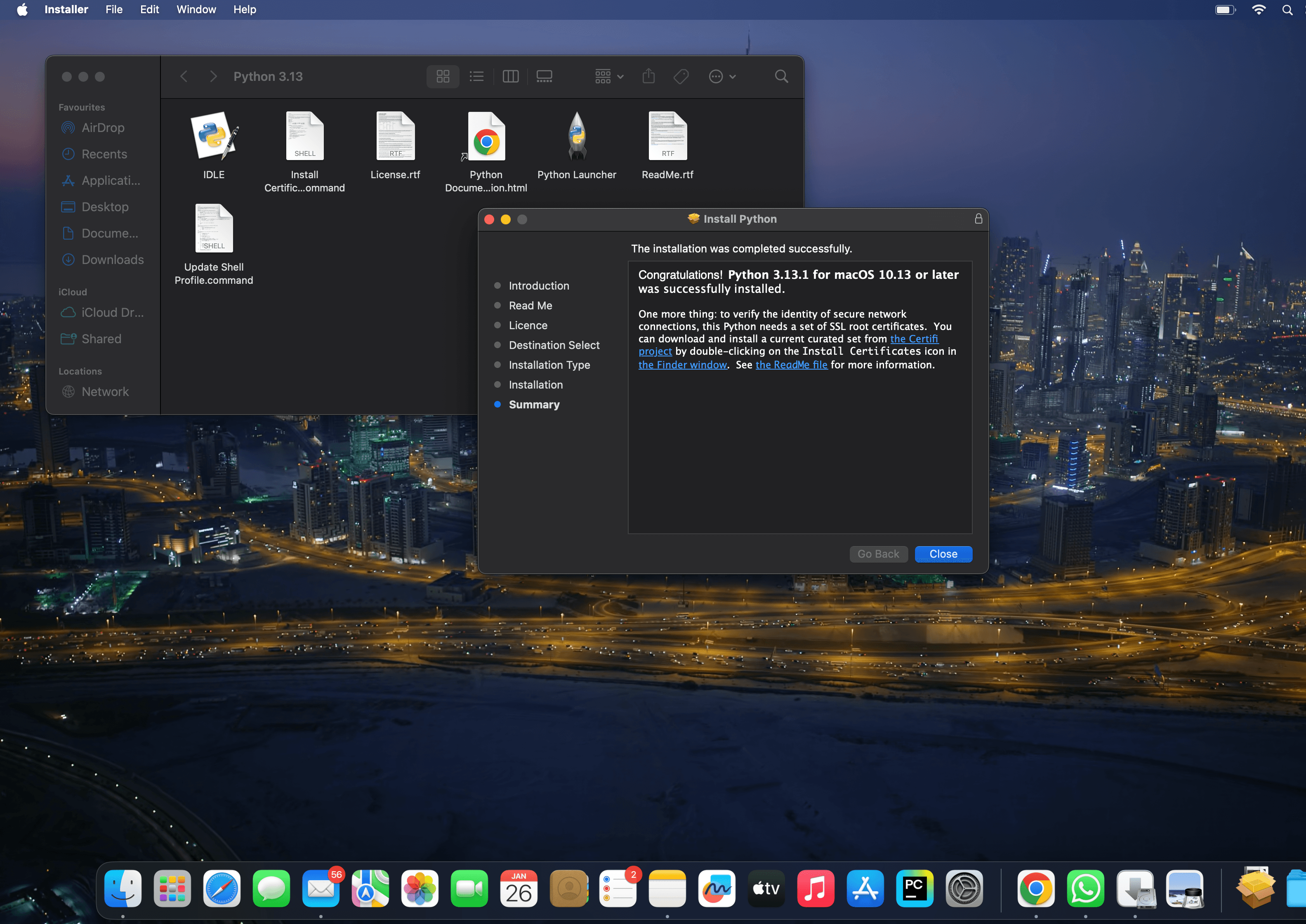
  • Now complete the processing and click on Install Button.10 e1737901071202And move the python installer package to bin12 e1737902387634
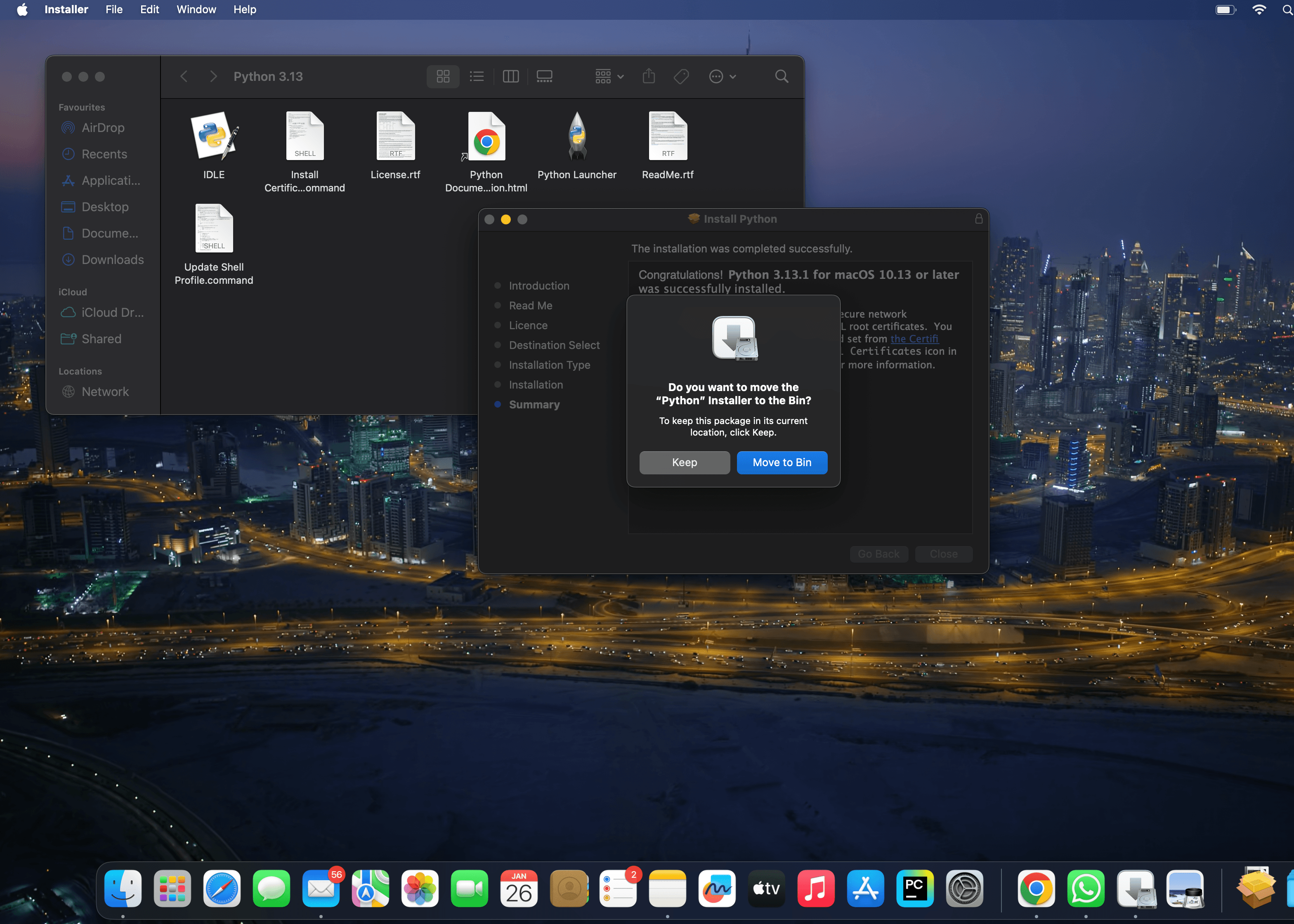
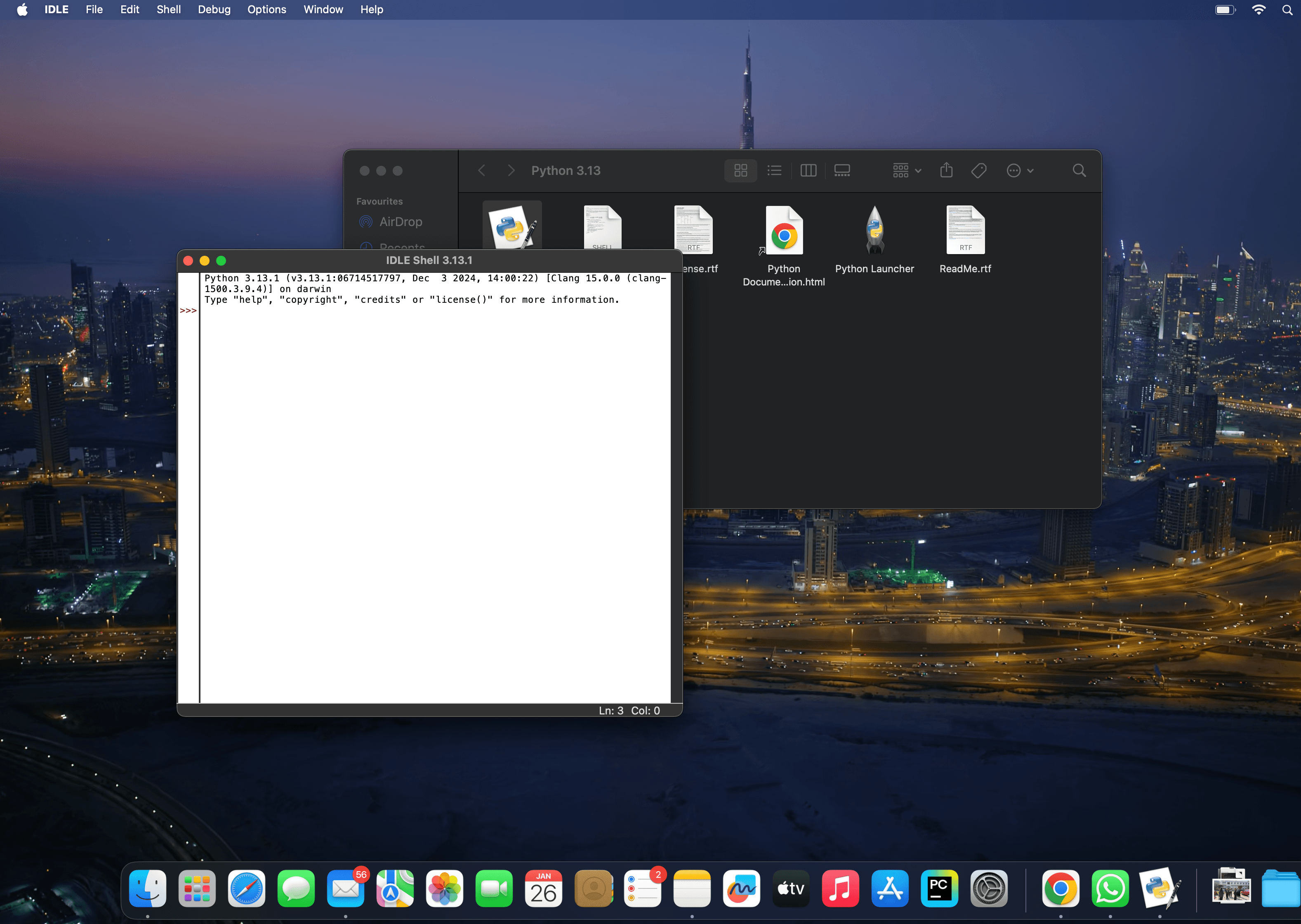
  • Now close all the tabs and open IDLE python.11 e1737902149333
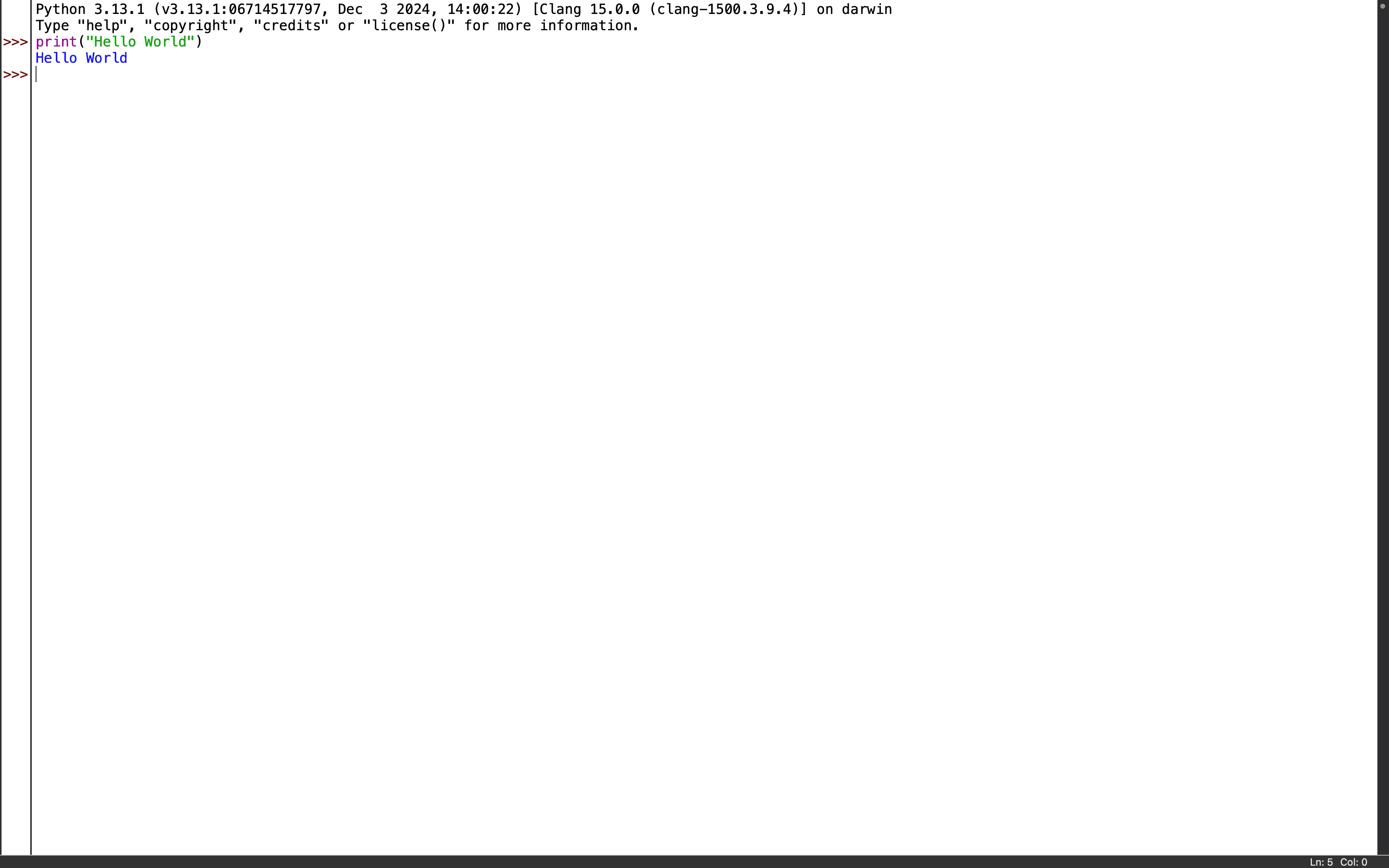
  • Open IDLE shell and try a hello world Program.14 e1737902564954
  • Simple “Hello World” program.16You can also check version in Terminal by giving the following command to check the version of python.
    python3 –versionScreenshot 2025 01 26 at 11.38.27 PM

    Pycharm Configurations

    PyCharm Installation for Windows OS:

    To install PyCharm on a Windows system, first ensure your computer meets the necessary system requirements, including running Windows 10 64-bit or later and having an active internet connection. Begin by downloading the latest version of PyCharm from the official JetBrains website: here Once the download is complete, run the installer and follow the on-screen instructions to complete the installation process. After installation, launch PyCharm, create a new project, and ensure that the appropriate Python interpreter is selected to start your development work.

    Official pycharm and windows logo in one frame


    PyCharm Installation for MacOS:

    hh

    Python Installation & Configuration

    Python Installation for MacOS:

    To install Python on macOS, ensure your system meets the basic requirements: macOS 10.9 or later with a stable internet connection. Download the latest Python installer from python.org, follow the on-screen instructions, and verify the installation via Terminal. Ensure sufficient storage and admin rights for installation.


    mac os python install


    Python Installation for Windows OS:

    To install Python on Windows, ensure your system runs Windows 7 or later with an internet connection. Download the latest Python installer from python.org, run the installer, and select “Add Python to PATH.” Follow the on-screen instructions and verify the installation through Command Prompt.

    an image with windows logo and python language logo

    Python datetime Module

    Introduction

    Welcome to our comprehensive guide on Python’s datetime module! In the world of programming, handling dates and times is a common requirement.

    Features

    The datetime module in Python boasts a range of features that make it an indispensable tool for working with date and time data:

    • Precise date and time representation.
    • Time zone awareness for handling time differences.
    • Arithmetic operations on dates and times.
    • Formatting and parsing of date and time strings.
    • Support for both Gregorian and Julian calendar systems.
    1. datetime.now() – Current Date and Time:

    Returns the current date and time.

             2. datetime.combine() – Combine Date and Time:

    Combines a date and a time into a single datetime object.

            3. datetime.strptime() – String to Datetime:

    Converts a string to a datetime object based on a specified format.

    Common Format Codes

    CodeMeaning
    %YYear (2025)
    %yYear (25)
    %mMonth (01-12)
    %BMonth (full name)
    %dDay (01-31)
    %AWeekday (full name)
    %HHour (24 hr)
    %IHour (12 hr)
    %MMinute
    %SSecond

            4. datetime.strftime() – Datetime to String:

    Formats a datetime object as a string according to a given format.

            5. timedelta() – Time Interval:

    Represents a duration of time, supporting arithmetic operations with datetime objects.

            6. datetime.date() – Extract Date:

    Extracts the date portion from a datetime object.

            7. datetime.time() – Extract Time:

    Extracts the time portion from a datetime object.

            8. datetime.replace() – Replace Components:

    Creates a new datetime object by replacing specific components.

            9. datetime.weekday() – Weekday Index:

    Returns the index of the weekday (0 for Monday, 6 for Sunday).

           10. datetime.isoweekday() – ISO Weekday:

    Returns the ISO weekday (1 for Monday, 7 for Sunday).

           11. datetime.timestamp() – Unix Timestamp:

    Returns the Unix timestamp (the number of seconds since January 1, 1970).

           12. datetime.astimezone() – Timezone Conversion:

    Converts a datetime object to a different timezone.

           13. datetime.utcoffset() – UTC Offset:

    Returns the UTC offset of a datetime object.

           14. datetime.timedelta.total_seconds() – Total Seconds:

    Returns the total number of seconds in a timedelta object.

           15. datetime.fromtimestamp() – Datetime from Timestamp:

    Creates a datetime object from a Unix timestamp.

    Python sys Module

    The argv list contains command-line arguments passed to the script.

    The path list contains directories where Python searches for modules.

    The version string provides information about the Python interpreter.

    The platform string indicates the operating system platform.

    The getsizeof() function returns the size of an object in bytes.

    The exit() function terminates the program with an optional exit code.

    The maxsize integer represents the maximum size of a list or range.

    The modules dictionary contains information about loaded modules.

    The exc_info() function returns information about the current exception.

    Python Collection Module

    The namedtuple() function creates a new subclass of tuple with named fields, enhancing code clarity.

    The Counter() function creates a dictionary-like object to count occurrences of elements in an iterable.

    The deque() function creates a double-ended queue, useful for fast appends and pops from both ends.

    The defaultdict() function creates dictionaries with default values for missing keys.

    The OrderedDict() function creates dictionaries that remember the order of insertion.

    The ChainMap() function combines multiple dictionaries into a single view.

    Python Exception Handling

    Exception Handling

    Exception Handling is used to manage runtime errors and prevent programs from crashing.

    Exceptions occur when:

    • User enters invalid input
    • File not found
    • Network connection fails
    • Wrong operations (divide by zero)

    Basic Structure


    Basic Example


    Catching Specific Exceptions


    Multiple Except Blocks


    Using else Block

    Runs only when no exception occurs.


    Using finally Block

    Always runs — even if an error occurs.


    Raise an Exception Yourself

    Use raise for rules/validation.


    Custom Exception


    File Handling with Exception


    Multiple Exceptions in One Line


    Catch All Exceptions


    Common Built-in Exceptions

    ExceptionWhen it Occurs
    ZeroDivisionErrorDivide by zero
    ValueErrorWrong data type in conversion
    TypeErrorUnsupported operations between types
    FileNotFoundErrorFile does not exist
    KeyErrorKey not found in dictionary
    IndexErrorIndex out of range
    NameErrorVariable not defined
    ImportErrorModule not found

    Real-Time Examples

    User Input Validation


    Retry File Opening Automatically


    API Request Error Handling (Concept)

    Python Modules

    Python Modules Tutorial

    Introduction

    Python, renowned for its simplicity and versatility, owes a significant part of its power to modules. Modules are an essential concept in Python programming, enabling developers to organize code, enhance reusability, and maintain a clean project structure. In this tutorial, we’ll delve into the world of Python modules, exploring their significance, creation, unique features, and diverse applications.

    Importance of Modules

    Modules serve as building blocks that encapsulate code, variables, and functions, making it easier to manage and scale projects. By grouping related functionalities together, modules facilitate code readability, reduce redundancy, and enable collaborative development. This modular approach enhances the maintainability and extensibility of Python applications.

    Creating a Module

    Creating a module is a straightforward process. To begin, save a collection of related functions and variables in a .py file. This file name becomes the module name. For instance, let’s create a simple module named math_operations:

    				
    					# math_operations.py
    def add(a, b):
        return a + b
    
    def subtract(a, b):
        return a - b
    
    def multiply(a, b):
        return a * b


    Features

    Python modules offer a range of features that streamline development and optimize code organization:

    1. Namespace Isolation: Modules create separate namespaces, preventing naming conflicts between variables and functions.
    2. Reusability: Code encapsulated within modules can be easily reused in multiple projects.
    3. Modularity: Modules support a modular architecture, enhancing code separation and maintainability.
    4. Information Hiding: By controlling what is exposed in a module’s interface, you can encapsulate implementation details.
    5. Standard Library: Python’s standard library provides a plethora of pre-built modules, saving time and effort in coding common functionalities.

    Different Python Modules

    1. Math Module: The math module offers a suite of mathematical functions. Let’s calculate the factorial of a number using the math module:
    				
    					import math
    num = 5
    factorial = math.factorial(num)
    print(f"The factorial of {num} is {factorial}")


    1. Datetime Module: The datetime module simplifies date and time manipulation. Here’s an example of getting the current date and time:
    				
    					import datetime
    current_datetime = datetime.datetime.now()
    print(f"Current date and time: {current_datetime}")


    1. Random Module: The random module facilitates random number generation. Let’s generate a random integer between 1 and 100:
    				
    					import random
    random_number = random.randint(1, 100)
    print(f"Random number: {random_number}")


    1. JSON Module: The json module simplifies JSON encoding and decoding. Here, we’ll encode a Python dictionary as a JSON string:
    				
    					import json
    data = {'name': 'John', 'age': 30, 'city': 'New York'}
    json_string = json.dumps(data)
    print(f"JSON representation: {json_string}")