Python Read/Write Excel File

openpyxl for Excel Handling

Install openpyxl (if not installed)

pip install openpyxl

from openpyxl import Workbook

wb = Workbook()                # Create workbook
ws = wb.active                 # Select active sheet
ws.title = "Students"          # Rename sheet

# Write data
ws['A1'] = "Name"
ws['B1'] = "Marks"
ws['A2'] = "Deepesh"
ws['B2'] = 85

wb.save("students.xlsx")       # Save file
print("File created successfully")

Using append()

from openpyxl import Workbook

wb = Workbook()
ws = wb.active

data = [
    ["Name", "Marks"],
    ["Ankit", 90],
    ["Riya", 88],
    ["Aman", 76]
]

for row in data:
    ws.append(row)

wb.save("marks.xlsx")
print("Data written successfully")

Read the whole sheet of data

from openpyxl import load_workbook

wb = load_workbook("marks.xlsx")
ws = wb.active

for row in ws.rows:
    for cell in row:
        print(cell.value, end="  |  ")
    print()

By cell address

from openpyxl import load_workbook

wb = load_workbook("marks.xlsx")
ws = wb.active

print(ws['A1'].value)   # Header
print(ws['B2'].value)   # Marks of 2nd row

By Row

for row in ws.iter_rows(min_row=1, max_row=4, values_only=True):
    print(row)

By Column

for col in ws.iter_cols(min_col=1, max_col=2, values_only=True):
    print(col)

from openpyxl import load_workbook

wb = load_workbook("marks.xlsx")
ws = wb.active

ws['B3'] = 95  # Update marks for row 3
wb.save("marks.xlsx")

print("File updated")


Delete Sheet

wb = load_workbook("marks.xlsx")
del wb["Summary"]
wb.save("marks.xlsx")


from openpyxl.styles import Font

ws['A1'].font = Font(bold=True, size=12, color="FF0000")
ws['B1'].font = Font(bold=True, size=12)
wb.save("marks.xlsx")

from openpyxl import Workbook

wb = Workbook()
ws = wb.active

data = [
    ["Name", "M1", "M2", "M3", "Total", "Average"],
    ["Raj", 85, 90, 88],
    ["Simran", 78, 82, 80],
]

for row in data:
    ws.append(row)

# Add formulas
ws['E2'] = "=B2+C2+D2"
ws['F2'] = "=E2/3"
ws['E3'] = "=B3+C3+D3"
ws['F3'] = "=E3/3"

wb.save("report.xlsx")
print("Report created!")

TaskMethod
Create fileWorkbook()
Load fileload_workbook()
Write cellws[‘A1’] = value
Append rowws.append()
Readws.rows, iter_rows()
FormattingFont()

Read Excel File

import openpyxl

def read_excel_file(file_path, sheet_name, cell_name):
# Load the workbook
workbook = openpyxl.load_workbook(file_path)
# Select the specified sheet
sheet = workbook[sheet_name]
# Read the value from the specified cell
cell_value = sheet[cell_name].value
print(f"Value in {cell_name} of sheet '{sheet_name}': {cell_value}")

# read one cell data
read_excel_file(file_path='users_data.xlsx', sheet_name='Sheet1', cell_name='A2')

Write Excel File

def write_excel_file(file_path, sheet_name, cell_name, data):
    # Load the workbook
    workbook = openpyxl.load_workbook(file_path)
    # Select the specified sheet
    sheet = workbook[sheet_name]
    # Write data to the specified cell
    sheet[cell_name] = data
    
    # Save the workbook
    workbook.save(file_path)
    print(f"Data written to sheet '{sheet_name}' starting at {cell_name}.")


write_excel_file(file_path='users_data.xlsx', sheet_name='Sheet1', cell_name='D2', data='Learning Excel with Python')

Python Tuple

Introduction to Python Tuples

Python tuples are one of the core built-in data types that every Python programmer interacts with sooner or later. They look simple on the surface, yet they offer incredible power, speed, and reliability. If you’ve ever needed a collection that doesn’t change, tuples are your best friend. They’re lightweight, fast, and perfect for grouping related information.

A tuple is an ordered, immutable collection of elements. That means once a tuple is created, you cannot change its contents—no adding, deleting, or modifying individual items. This immutability makes tuples extremely efficient and safer for storing fixed data.

Syntax of Creating Tuples

my_tuple = (10, 20, 30)

# Yes, it's that simple.

Immutable Nature

Once created, you cannot modify a tuple. This allows Python to optimize performance behind the scenes.

Ordered and Indexed

A tuple maintains the order of elements. You can access items using indexes starting from 0.

Allow Duplicate Values

Unlike sets, tuples happily store repeated values.


Creating an Empty Tuple

empty_tuple = ()

Tuple with Multiple Data Types

mixed_tuple = (10, "hello", 3.14, True)

Single-Element Tuple

Here’s a common mistake:

not_a_tuple = (5)     # This is NOT a tuple
actual_tuple = (5,)   # This IS a tuple

nested_tuple = (1, 2, (3, 4, 5))

Using Indexing

Negative Indexing

print(colors[-1])  # blue

Accessing Nested Elements

nested = (1, (10, 20, 30), 3)
print(nested[1][1])  # 20

Basic Slicing

my_tuple = (0, 1, 2, 3, 4, 5)
print(my_tuple[1:4])  # (1, 2, 3)

Slicing with Steps

print(my_tuple[0:6:2])  # (0, 2, 4)

count(): Counts how many times a value appears.

nums = (1, 2, 2, 3)
print(nums.count(2))  # 2

index() : Returns the position of a value.

print(nums.index(3))  # 3

Concatenation

t1 = (1, 2)
t2 = (3, 4)
print(t1 + t2)  # (1, 2, 3, 4)

Repetition

print(t1 * 3)  # (1, 2, 1, 2, 1, 2)

Membership Testing

print(2 in t1)  # True

Packing

packed = 10, 20, 30

Unpacking

a, b, c = packed

Using Asterisk Operator

a, *b = (1, 2, 3, 4, 5)
print(a)  # 1
print(b)  # [2, 3, 4, 5]

Using for Loop

for item in ("A", "B", "C"):
    print(item)

Using while Loop

i = 0
t = ("x", "y", "z")
while i < len(t):
    print(t[i])
    i += 1

There’s no actual “tuple comprehension,” but generator expressions behave similarly.

Example

gen = (x*x for x in range(5))
print(tuple(gen))  # (0, 1, 4, 9, 16)

Returning Multiple Values

def calc(a, b):
    return a+b, a*b

print(calc(3, 4))

numbers = (10, 20, 30, 40, 50)

print("First:", numbers[0])
print("Slice:", numbers[1:4])
print("Count of 20:", numbers.count(20))
print("Index of 30:", numbers.index(30))

Python String Methods

  1. len(): Returns the length of a string. Here’s an example:
# Using len() to get the length of a string
my_string = "Python Programming"

# Get the length of the string
length = len(my_string)

print("The length of the string is:", length) # Output: 18
  1. lower(): Converts all characters in a string to lowercase. Here’s an example:
# Using lower() to convert string to lowercase
my_string = "Python Programming"

# Convert the string to lowercase
lowercase_string = my_string.lower()

print("Original string:", my_string) # Output: Python Programming
print("Lowercase string:", lowercase_string) # Output: python programming
  1. upper(): Converts all characters in a string to uppercase. Here’s an example:
# Using upper() to convert string to uppercase
my_string = "Python Programming"

# Convert the string to uppercase
uppercase_string = my_string.upper()

print("Original string:", my_string) # Output: Python Programming
print("Uppercase string:", uppercase_string) # Output: PYTHON PROGRAMMING
  1. title(): Capitalizes the first character of each word in a string. Here’s an example:
# Using title() to capitalize the first character of each word
my_string = "python programming is fun"

# Convert the string to title case
title_string = my_string.title()

print("Original string:", my_string) # Output: python programming is fun
print("Title case string:", title_string) # Output: Python Programming Is Fun
  1. capitalize(): Capitalizes the first character of a string. Here’s an example:
# Using capitalize() to capitalize the first character of a string
my_string = "python programming"

# Capitalize the first character
capitalized_string = my_string.capitalize()

print("Original string:", my_string) # Output: python programming
print("Capitalized string:", capitalized_string) # Output: Python programming
  1. swapcase(): Swaps the case of all characters in a string. Here’s an example:
# Using swapcase() to swap the case of all characters in a string
my_string = "Python Programming"

# Swap the case of all characters
swapped_string = my_string.swapcase()

print("Original string:", my_string) # Output: Python Programming
print("Swapped case string:", swapped_string) # Output: pYTHON pROGRAMMING
  1. count(): Returns the number of occurrences of a substring in a string. Here’s an example:
# Using count() to count occurrences of a substring
my_string = "Python programming is fun. Python is easy to learn."

# Count the occurrences of the word "Python"
count_python = my_string.count("Python")

print("Occurrences of 'Python':", count_python) # Output: 2
  1. find(): Returns the index of the first occurrence of a substring in a string. Here’s an example:
# Using find() to find the index of the first occurrence of a substring
my_string = "Python programming is fun."

# Find the index of the first occurrence of "Python"
index_python = my_string.find("Python")

print("Index of 'Python':", index_python) # Output: 0
  1. rfind(): Returns the index of the last occurrence of a substring in a string.
# Using rfind() to find the index of the last occurrence of a substring
my_string = "Python programming is fun. Python is easy to learn."

# Find the index of the last occurrence of "Python"
last_index_python = my_string.rfind("Python")

print("Index of the last 'Python':", last_index_python) # Output: 36

       10. index(): Like `find()`, but raises a `ValueError` if the substring is not found.

# Using index() to find the index of the first occurrence of a substring
my_string = "Python programming is fun."

# Find the index of the first occurrence of "Python"
index_python = my_string.index("Python")

print("Index of 'Python':", index_python) # Output: 0
  1. rindex(): Like `rfind()`, but raises a `ValueError` if the substring is not found.
# Using rindex() to find the index of the last occurrence of a substring
my_string = "Python programming is fun. Python is easy to learn."

# Find the index of the last occurrence of "Python"
last_index_python = my_string.rindex("Python")

print("Index of the last 'Python':", last_index_python) # Output: 36
  1. startswith(): Returns `True` if a string starts with a specified prefix, otherwise `False`.
# Using startswith() to check if the string starts with a specified prefix
my_string = "Python programming is fun."

# Check if the string starts with "Python"
starts_with_python = my_string.startswith("Python")

print("Starts with 'Python':", starts_with_python) # Output: True
  1. endswith(): Returns `True` if a string ends with a specified suffix, otherwise `False`.
# Using endswith() to check if the string ends with a specified suffix
my_string = "Python programming is fun."

# Check if the string ends with "fun."
ends_with_fun = my_string.endswith("fun.")

print("Ends with 'fun.':", ends_with_fun) # Output: True
  1. replace(): Replaces all occurrences of a substring with another substring.
# Using replace() to replace all occurrences of a substring
my_string = "Python is fun. Python is awesome."

# Replace "Python" with "Java"
new_string = my_string.replace("Python", "Java")

print("Original string:", my_string)
print("New string:", new_string)

       15. strip(): Removes whitespace (or other characters) from the beginning and end of a string.

  1. rstrip(): Removes whitespace (or other characters) from the end of a string.
# Using rstrip() to remove trailing whitespace
my_string = "Hello, world! "

# Remove the trailing whitespace
new_string = my_string.rstrip()

print("Original string:", repr(my_string))
print("New string:", repr(new_string))
  1. lstrip(): Removes whitespace (or other characters) from the beginning of a string.
# Using lstrip() to remove leading whitespace
my_string = " Hello, world!"

# Remove the leading whitespace
new_string = my_string.lstrip()

print("Original string:", repr(my_string))
print("New string:", repr(new_string))
  1. split(): Splits a string into a list of substrings using a specified delimiter.
# Using split() to split a string into a list of words
my_string = "Python is fun!"

# Split the string by whitespace (default behavior)
words = my_string.split()

print("List of words:", words)
  1. rsplit(): Splits a string from the right into a list of substrings using a specified delimiter.
# Using rsplit() to split a string from the right
my_string = "Python is fun and Python is awesome"

# Split the string by whitespace from the right
words = my_string.rsplit()

print("List of words:", words)

The separator used is the comma, which is passed as an argument to the rsplit() method. The 1 argument is used to specify that only one splitting should occur, which in this case splits the last fruit from the first two. Finally, we print the list of fruits.

       20. join(): Joins a list of strings into a single string using a specified delimiter.

# Joining with a space
words = ["Hello", "world", "Python", "rocks!"]
sentence = " ".join(words)
print(sentence) # Output: "Hello world Python rocks!"

# Joining with a comma
items = ["apple", "banana", "cherry"]
csv_line = ",".join(items)
print(csv_line) # Output: "apple,banana,cherry"

# Joining with a hyphen
letters = ["a", "b", "c", "d"]
hyphenated = "-".join(letters)
print(hyphenated) # Output: "a-b-c-d"
  1. isalnum(): Returns `True` if a string contains only alphanumeric characters, otherwise `False`.
# String with only letters and numbers
print("Hello123".isalnum()) # Output: True

# String with only letters
print("Python".isalnum()) # Output: True

# String with only numbers
print("2024".isalnum()) # Output: True

# String with a space
print("Hello World".isalnum()) # Output: False

# String with special characters
print("Hello@123".isalnum()) # Output: False

# Empty string
print("".isalnum()) # Output: False
  1. isalpha(): Returns `True` if a string contains only alphabetic characters, otherwise `False`.
# String with only letters
print("Python".isalpha()) # Output: True

# String with a space
print("Hello World".isalpha()) # Output: False

# String with numbers
print("Python3".isalpha()) # Output: False

# String with special characters
print("Hello!".isalpha()) # Output: False

# Empty string
print("".isalpha()) # Output: False
  1. isdigit() : Returns `True` if a string contains only digits; otherwise, `False`.
# String with only digits
print("12345".isdigit()) # Output: True

# String with letters
print("123abc".isdigit()) # Output: False

# String with a space
print("123 456".isdigit()) # Output: False

# Empty string
print("".isdigit()) # Output: False
  1. islower(): Returns `True` if all characters in a string are lowercase, otherwise `False`.
# All lowercase letters
print("hello".islower()) # Output: True

# Mixed case
print("Hello".islower()) # Output: False

# Digits and special characters are ignored
print("hello123!".islower()) # Output: True

# Contains an uppercase letter
print("helloWorld".islower()) # Output: False

# Empty string
print("".islower()) # Output: False

      25. isupper(): Returns `True` if all characters in a string are uppercase, otherwise `False`.

# All uppercase letters
print("HELLO".isupper()) # Output: True

# Mixed case
print("Hello".isupper()) # Output: False

# Includes digits and symbols
print("HELLO123!".isupper()) # Output: True

# Contains a lowercase letter
print("HELLOworld".isupper()) # Output: False

# Empty string
print("".isupper()) # Output: False
  1. istitle(): Returns `True` if a string is titlecased (i.e., the first character of each word is capitalized), otherwise `False`.
# Title-cased string
print("Hello World".istitle()) # Output: True

# Mixed case
print("Hello world".istitle()) # Output: False

# Uppercase string
print("HELLO WORLD".istitle()) # Output: False

# Lowercase string
print("hello world".istitle()) # Output: False

# Single title-cased word
print("Python".istitle()) # Output: True
  1. isspace(): Returns `True` if a string contains only whitespace characters, otherwise `False`.
# Only spaces
print(" ".isspace()) # Output: True

# Only tabs
print("\t\t".isspace()) # Output: True

# Newline characters
print("\n\n".isspace()) # Output: True

# Mixed whitespace characters
print(" \t\n".isspace()) # Output: True

# Empty string
print("".isspace()) # Output: False
  1. maketrans(): Creates a translation table to be used with the `translate()` function.
# Mapping characters 'a' -> '1', 'b' -> '2', 'c' -> '3'
trans_table = str.maketrans("abc", "123")
text = "abcde"
print(text.translate(trans_table)) # Output: "123de"
  1. translate(): Returns a copy of a string with specified characters replaced.
# Create a translation table to replace 'a' -> '1', 'b' -> '2', 'c' -> '3'
trans_table = str.maketrans("abc", "123")
text = "abcde"
print(text.translate(trans_table)) # Output: "123de"
  1. zfill(): Pads a numeric string with zeros on the left until the specified width is reached.
# Example using zfill() to pad a string with leading zeros
number = "42"
padded_number = number.zfill(5)

print(padded_number) # Output: '00042'
  1. expandtabs(): Replaces tabs in a string with spaces.
# Example using expandtabs() to replace tabs with spaces
text = "Hello\tWorld\tPython"
expanded_text = text.expandtabs(4) # Replaces tabs with 4 spaces

print(expanded_text)

# Output:
'Hello World Python'
  1. encode(): Encodes a string using a specified encoding.
# Encoding a string using UTF-8
my_string = "hello world"
encoded_string = my_string.encode("utf-8")

print(encoded_string) # Output: b'hello world'

  1. format_map(): Formats a string using a dictionary.
# Using format_map() to format a string using a dictionary
person = {"name": "Alice", "age": 30}

# Format string using the dictionary
formatted_string = "My name is {name} and I am {age} years old.".format_map(person)

print(formatted_string)
  1. isdecimal(): Returns `True` if a string contains only decimal characters, otherwise `False`.
# Using isdecimal() to check if a string contains only decimal characters
my_string = "12345"

# Check if the string contains only decimal characters
is_decimal = my_string.isdecimal()

print(is_decimal) # Output: True
  1. isnumeric(): Returns `True` if a string contains only numeric characters, otherwise `False`.
# Using isnumeric() to check if a string contains only numeric characters
my_string = "12345"

# Check if the string is numeric
is_numeric = my_string.isnumeric()

print(is_numeric) # Output: True
  1. partition(): It splits the string into parts based on the first occurrence of the substring.
# Using partition() to split a string based on the first occurrence of a substring
my_string = "Hello, world! Welcome to Python."

# Split the string at the first occurrence of ","
result = my_string.partition(",")

print(result)
Python List Comprehension

List comprehension is a concise and expressive way of creating lists in Python. It allows you to define a list and its elements within a single line of code, combining the functionality of a for loop, optional if conditions, and even nested loops. List comprehensions are preferred for their readability and efficiency compared to traditional for loops.

  1. Simple For Loop List Comprehension:

This type of list comprehension is used to create a list by iterating over elements from an iterable (e.g., list, tuple, string) without any filtering or conditions. Here’s an example:

# Example list
numbers = [1, 2, 3, 4, 5]

# List comprehension without filtering or conditions
new_list = [num for num in numbers]

print(new_list) # Output: [1, 2, 3, 4, 5]
  1. Loop and If Condition List Comprehension:

This type of list comprehension includes an if condition to filter elements while iterating over the iterable. Only elements that satisfy the condition are included in the new list. Here’s an example:

# Example list
numbers = [1, 2, 3, 4, 5, 6]

# List comprehension with an if condition
even_numbers = [num for num in numbers if num % 2 == 0]

print(even_numbers) # Output: [2, 4, 6]
  1. Loop and If-Else Condition List Comprehension:
# Example list
numbers = [1, 2, 3, 4, 5, 6]

# List comprehension with if-else condition
result = ['Even' if num % 2 == 0 else 'Odd' for num in numbers]

print(result)
# Output: ['Odd', 'Even', 'Odd', 'Even', 'Odd', 'Even']

This type of list comprehension allows you to perform different operations based on the if-else condition while iterating over the iterable. Here’s an example:

  1. Nested Loop List Comprehension:

This type of list comprehension allows you to use nested loops for creating more complex lists by iterating over multiple iterables simultaneously. Here’s an example:

# Example nested loops
colors = ['red', 'green', 'blue']
objects = ['ball', 'box', 'pen']

# List comprehension with nested loops
combinations = [f"{color} {obj}" for color in colors for obj in objects]

print(combinations)
# Output: ['red ball', 'red box', 'red pen', 'green ball', 'green box', 'green pen', 'blue ball', 'blue box', 'blue pen']

Shallow Copy and Deep Copy of Lists in Python:

In Python, when dealing with lists or other compound data structures, understanding the concepts of shallow copy and deep copy is crucial. Both concepts involve creating a new copy of an existing list, but they differ in how they handle nested objects within the list.

  1. Shallow Copy:

A shallow copy of a list creates a new list object but does not create copies of the elements inside the list. Instead, it copies references to the original objects. This means that changes made to nested objects within the copied list will affect the original list, and vice versa. To perform a shallow copy, you can use the `copy()` method or the slicing notation `[:]`. Example of Shallow Copy:

import copy

# Original list with a nested list
original_list = [[1, 2, 3], [4, 5, 6]]

# Shallow copy using the copy() method
shallow_copy1 = original_list.copy()

# Shallow copy using slicing notation
shallow_copy2 = original_list[:]

# Modifying a nested element in the copied list
shallow_copy1[0][0] = 99

print("Original List:", original_list)
# Output: Original List: [[99, 2, 3], [4, 5, 6]]

print("Shallow Copy 1:", shallow_copy1)
# Output: Shallow Copy 1: [[99, 2, 3], [4, 5, 6]]

print("Shallow Copy 2:", shallow_copy2)
# Output: Shallow Copy 2: [[99, 2, 3], [4, 5, 6]]
  1. Deep Copy:

A deep copy of a list creates a new list object and also recursively creates copies of all the nested objects within the original list. In other words, the copied list and its nested objects are entirely independent of the original list and its nested objects. To perform a deep copy, you need to use the `deepcopy()` function from the `copy` module. Example of Deep Copy:

import copy

# Original list with nested lists
original_list = [[1, 2, 3], [4, 5, 6]]

# Creating a deep copy
deep_copy = copy.deepcopy(original_list)

# Modifying a nested element in the deep copy
deep_copy[0][0] = 99

print("Original List:", original_list)
# Output: Original List: [[1, 2, 3], [4, 5, 6]]

print("Deep Copy:", deep_copy)
# Output: Deep Copy: [[99, 2, 3], [4, 5, 6]]

Shallow copy is faster and suitable when you want to create a new list but share references to nested objects. Deep copy is appropriate when you need an entirely independent copy of the original list and all its nested objects.

Python List Methods And Functions

Python List Methods

Lists in Python have many built-in methods that you can use to modify or manipulate the list. Here are some of the most commonly used methods:

  1. append() – It is used to add an element to the end of the list.
# Define a list
my_list = ['apple', 'banana', 'cherry']

# Add an element to the end of the list
my_list.append('date')

# Print the updated list
print(my_list)
  1. extend() – It is used to add the elements of another list to the end of the list or to combine two lists.
# Define a list
my_list = ['apple', 'banana']

# Extend the list with a tuple
my_list.extend(('cherry', 'date'))

# Extend the list with a set

my_list.extend({'elderberry', 'fig'})

# Print the updated list
print(my_list)
  1. insert() – It is used to insert an element at a specific position in the list.
# Define a list
my_list = ['apple', 'banana', 'cherry']

# Insert an element at index 1
my_list.insert(1, 'date')

# Print the updated list
print(my_list)

         4. remove() – It is used to remove the first occurrence of an element from the list.

# Define a list
my_list = ['apple', 'banana', 'cherry', 'banana']

# Remove the first occurrence of 'banana'
my_list.remove('banana')

# Print the updated list
print(my_list)
  1. pop() – It removes and returns the element at a specific position in the list.
# Define a list
my_list = ['apple', 'banana', 'cherry']

# Remove and return the last element
removed_element = my_list.pop()

# Print the updated list and the removed element
print("Updated list:", my_list)
print("Removed element:", removed_element)

 6. sort() – It sorts the elements of the list in ascending order.

# Define a list of numbers
my_list = [3, 1, 4, 1, 5, 9, 2, 6]

# Sort the list in descending order
my_list.sort(reverse=True)

# Print the sorted list
print(my_list)

    7 .reverse() – It reverses the order of the elements in the list.

# Define a list of strings
my_list = ['apple', 'banana', 'cherry']

# Reverse the list
my_list.reverse()

# Print the reversed list
print(my_list)
  1. clear() – It is used to remove all elements from a list, effectively emptying the list. After the clear() function is applied to a list, the list becomes empty with a length of 0.
# Define a list of strings
my_list = ['apple', 'banana', 'cherry']

# Clear all elements from the list
my_list.clear()

# Print the cleared list
print(my_list)
  1. copy() – It creates a shallow copy of a list. The shallow copy means that a new list is created with the same elements as the original list, but the elements themselves are not duplicated. Any changes made to the elements in the copied list will also affect the original list, and vice versa.
# Define a list with immutable elements
my_list = [1, 2, 3]

# Create a shallow copy of the list
my_list_copy = my_list.copy()

# Modify the copied list
my_list_copy.append(4)

# Print both lists
print("Original list:", my_list)
print("Copied list:", my_list_copy)
  1. index() – It is used to find the index of the first occurrence of a specified element within a list. If the element is not found in the list, it raises a ValueError.
# Define a list
my_list = ['apple', 'banana', 'cherry']

# Find the index of 'banana'
index_of_banana = my_list.index('banana')

# Print the index
print("Index of 'banana':", index_of_banana)
  1. count() – It is used to count the number of occurrences of a specified element in a list.
# Define a list
my_list = ['apple', 'banana', 'cherry', 'banana', 'apple']

# Count occurrences of 'banana'
banana_count = my_list.count('banana')

# Print the count
print("Count of 'banana':", banana_count)

Updating list values:

Lists in Python are mutable, and their values can be updated by using the slice and assignment the ( = ) operator.

# Define a list
my_list = [1, 2, 3, 4, 5]

# Remove elements at indices 1 to 3
my_list[1:4] = []

# Print the updated list
print(my_list)

Built-in function for Python lists:

Here are some examples of commonly used built-in functions for lists in Python:

  1. len(): It returns the length of the list.
# Define a list
my_list = [1, 2, 3, 4, 5]

# Get the length of the list
list_length = len(my_list)

# Print the length
print("Length of the list:", list_length)
  1. max(): It returns the largest element in the list.
# Define a list of numbers
my_list = [1, 5, 3, 9, 2]

# Get the largest element in the list
largest_element = max(my_list)

# Print the largest element

print("Largest element:", largest_element)
  1. min(): It returns the smallest element in the list.
# Define a list of numbers
my_list = [10, 5, 20, 3, 8]

# Get the smallest element in the list
smallest_element = min(my_list)

# Print the smallest element
print("Smallest element:", smallest_element)
  1. sum(): It returns the sum of all elements in the list.
# Define a list of numbers
my_list = [1, 2, 3, 4, 5]

# Calculate the sum of the elements in the list
total_sum = sum(my_list)

# Print the total sum
print("Sum of the list:", total_sum)

       5. sorted(): It returns a new sorted list.

# Define a list of numbers
my_list = [5, 2, 9, 1, 5, 6]

# Get a new sorted list
sorted_list = sorted(my_list)

# Print the sorted list
print("Sorted list:", sorted_list)
  1. list(): It converts an iterable to a list.
# Define a tuple
my_tuple = (1, 2, 3, 4)

# Convert the tuple to a list
my_list = list(my_tuple)

# Print the list
print("List from tuple:", my_list)

       7. any(): It returns True if at least one element in the list is True.

# Define a list of Boolean values
my_list = [False, False, True, False]

# Check if any element is True
result = any(my_list)

# Print the result
print("Any True in the list:", result)
  1. all(): It returns True if all elements in the list are True.
# Define a list of Boolean values
my_list = [True, True, True]

# Check if all elements are True
result = all(my_list)

# Print the result
print("All True in the list:", result)

        9. enumerate(): It returns an iterator that contains tuples of (index, element) pairs.

# Define a list
my_list = ['apple', 'banana', 'cherry']

# Use enumerate to get index and element
for index, element in enumerate(my_list):
print(f"Index: {index}, Element: {element}")

# Output:

Index: 0, Element: apple
Index: 1, Element: banana
Index: 2, Element: cherry
  1. zip(): It returns an iterator that aggregates elements from multiple lists into tuples.
# Define two lists
list1 = [1, 2, 3]
list2 = ['a', 'b', 'c']

# Use zip to combine them into tuples
zipped = zip(list1, list2)

# Convert the zipped object to a list and print
zipped_list = list(zipped)
print(zipped_list)

        11.reversed(): It returns a reverse iterator that can be used to iterate over a list in reverse order.

# Define a list
my_list = [1, 2, 3, 4, 5]

# Convert the reversed iterator to a list
reversed_list = list(reversed(my_list))

# Print the reversed list
print(reversed_list)

PyCharm Configuration for Windows OS

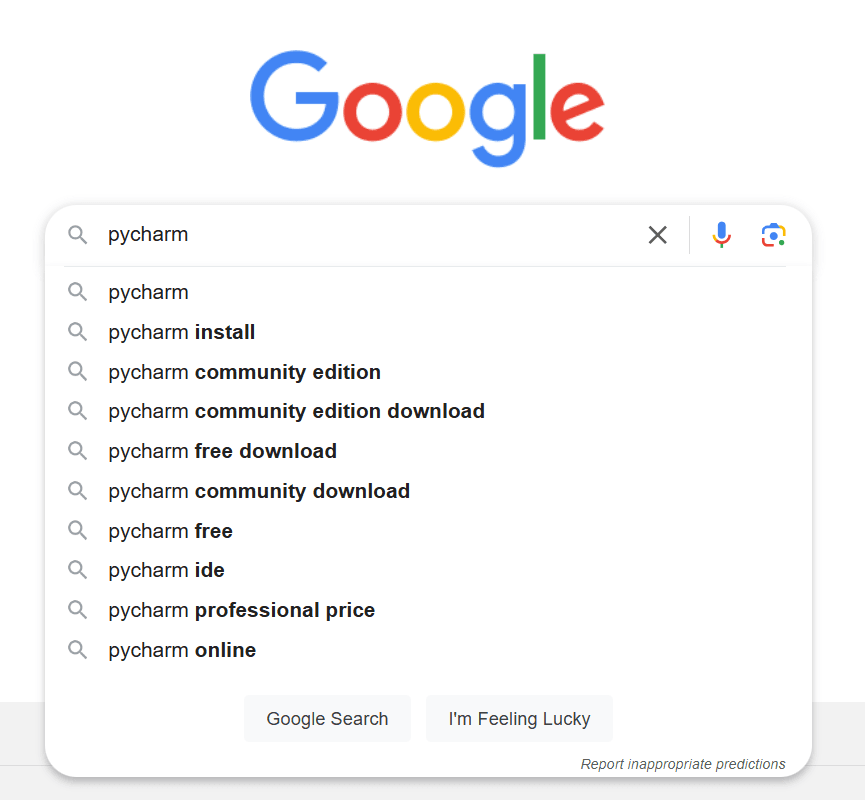
For installing PyCharm in your System go through the following steps:

  • Open a web browser (e.g., Google Chrome, Firefox, or Edge).1 2
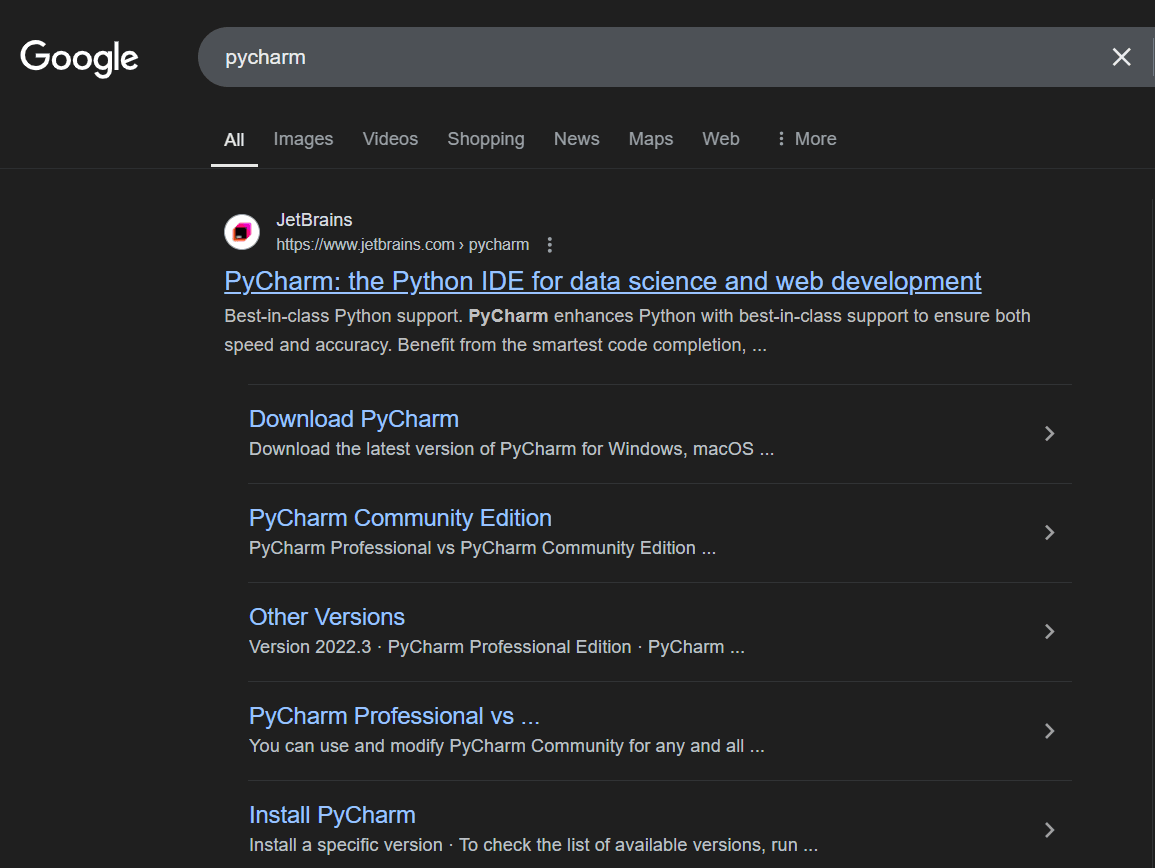
  • Click on first link as shown in web browser ,go to the official JetBrains PyCharm website,or click Here .2 2
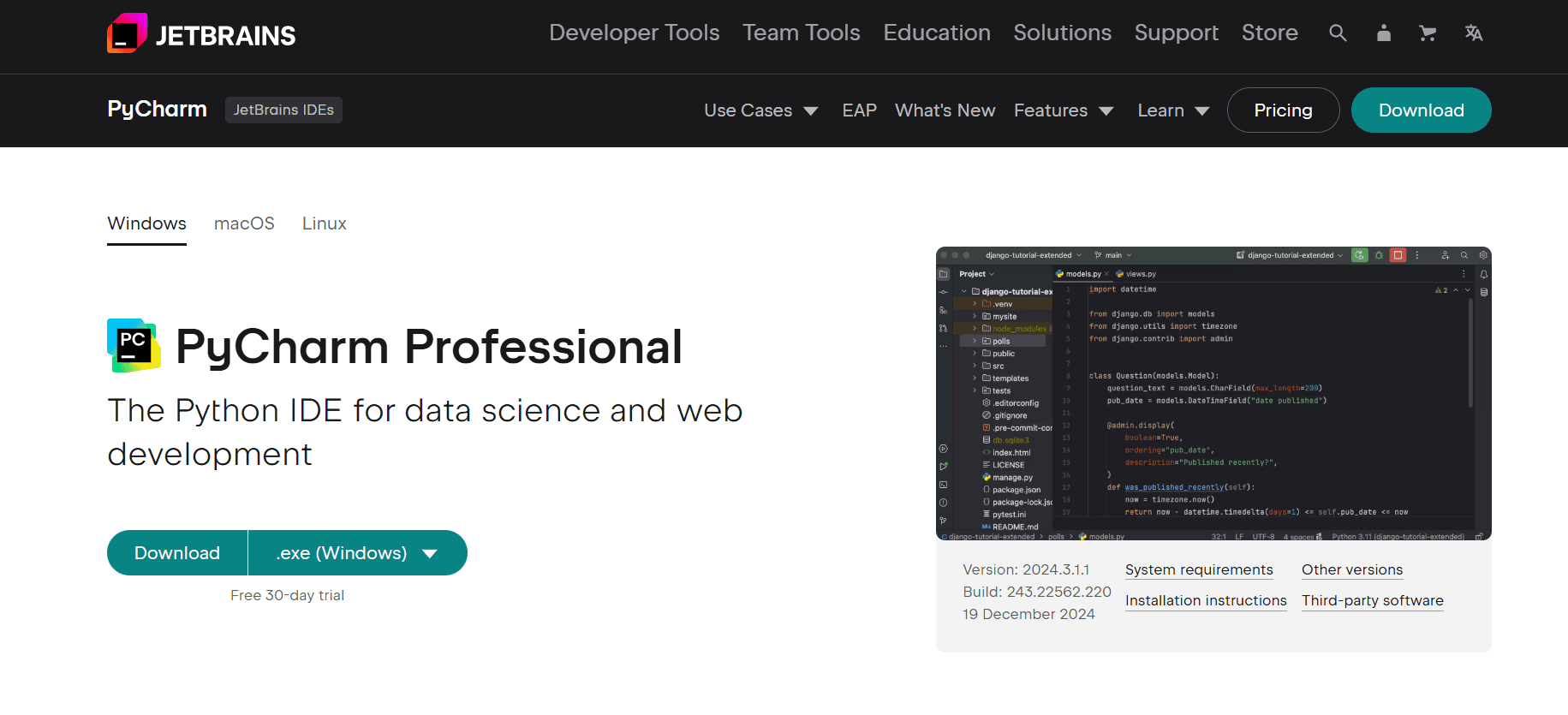
  • Visit the official PyCharm website at JETBRAINS and this web page will appear3 2
  • Once the page loads, you’ll see options for different editions of PyCharm.
    • Professional Edition: Paid version with advanced features.
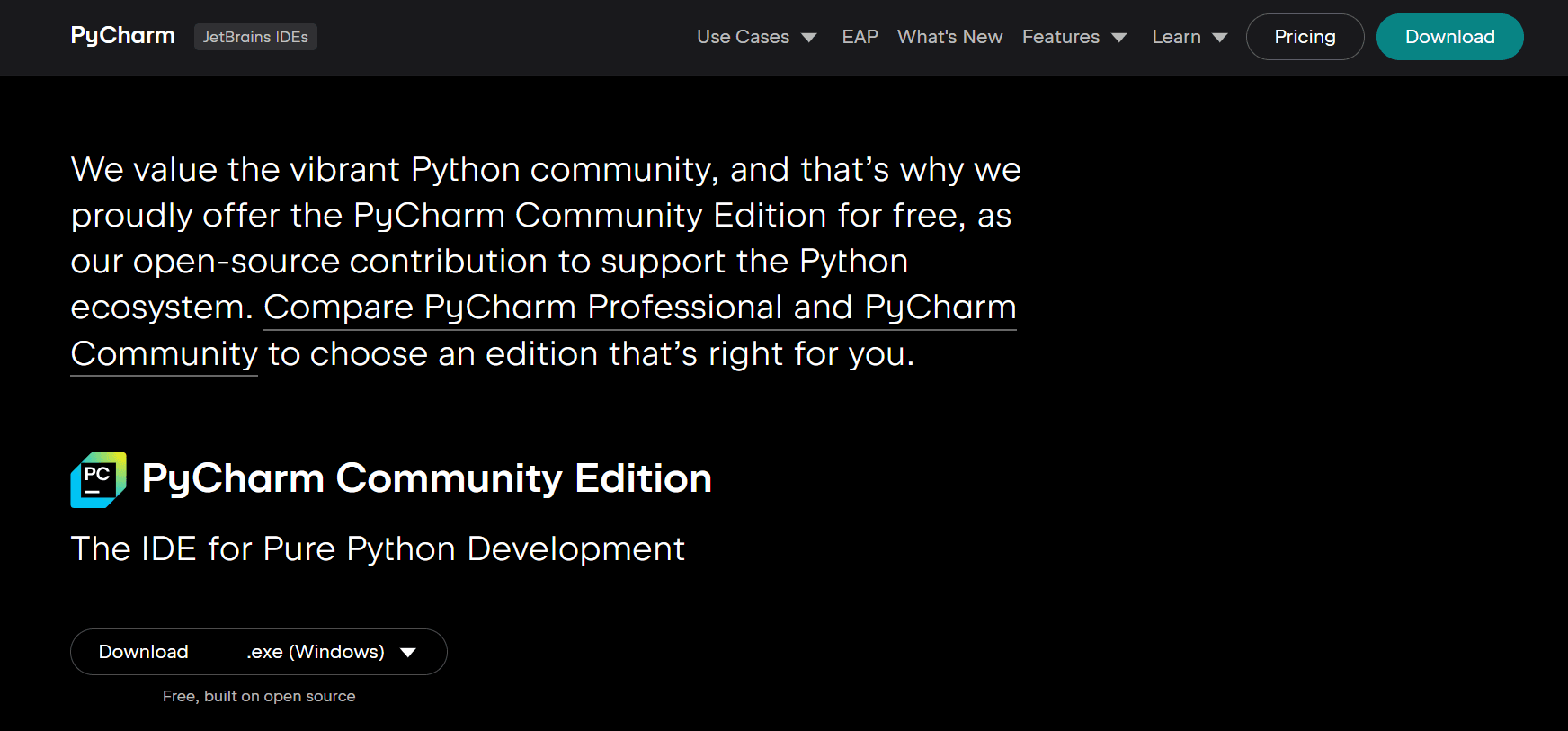
    • Community Edition: Free version, ideal for Python programming.4 2
  • Click the Download button under the Community Edition section.5 2
  • You’ll be redirected to the download page.The website should automatically detect your operating system (Windows) and provide the correct installer.
    • If not, ensure Windows is selected in the operating system dropdown or button.
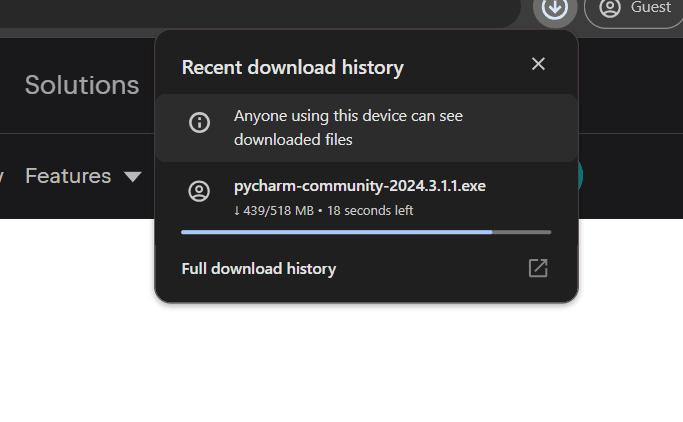
    • Click the Download button to start downloading the PyCharm Community Edition .exe installer.6 2
  • The installer file will begin downloading. Its name will look something like pycharm-community-<version>.exe.Wait for the download to finish. The file size is usually around 300–400 MB.
    • Locate the downloaded .exe file (usually in your Downloads folder).
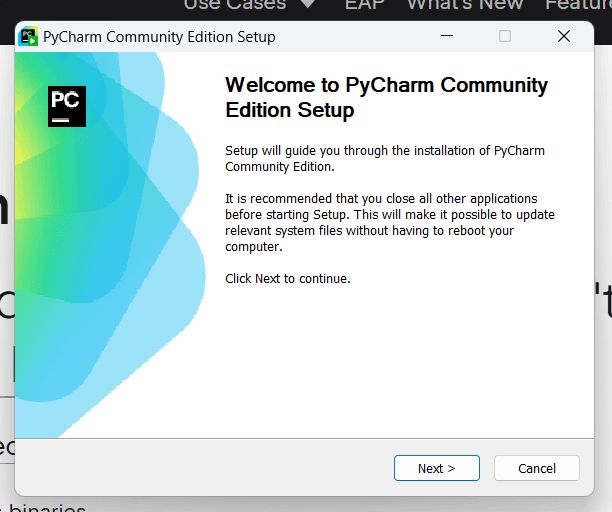
    • Double-click the file to start the installation process.7 2
  • A setup wizard will appear. Follow these steps:
    • Welcome Screen: Click Next.
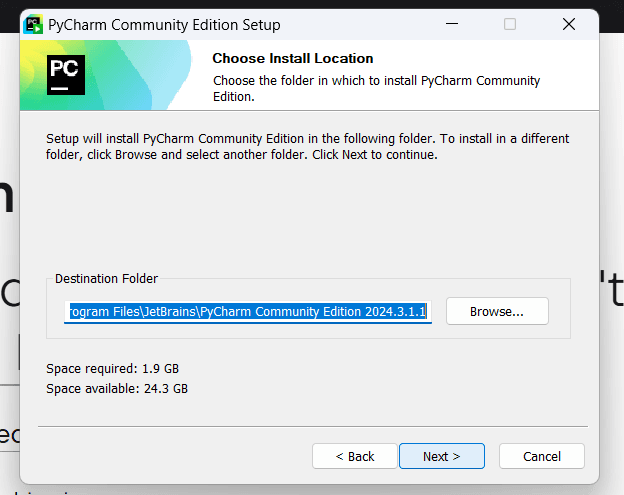
    • Choose Installation Path: Select or confirm the default location where PyCharm will be installed (e.g., C:\Program Files\JetBrains\PyCharm Community Edition). Then, click Next.8 2
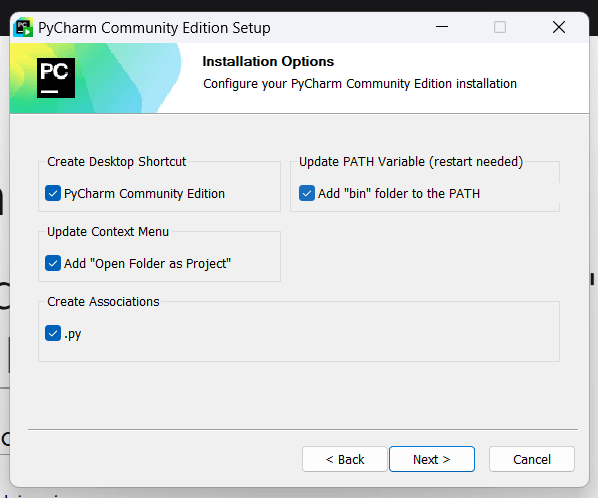
  • Installation Options:
    • Check Create Desktop Shortcut (optional).
    • Check Update PATH variable (optional but recommended for easy access to PyCharm from the command line).
    • Check Add Open Folder as Project (optional).
    • Click Next.9 2
  • Choose Start Menu Folder: Leave the default or choose a custom folder for shortcuts. Click Install.
    • 10 2The installation will begin. This might take a few minutes.
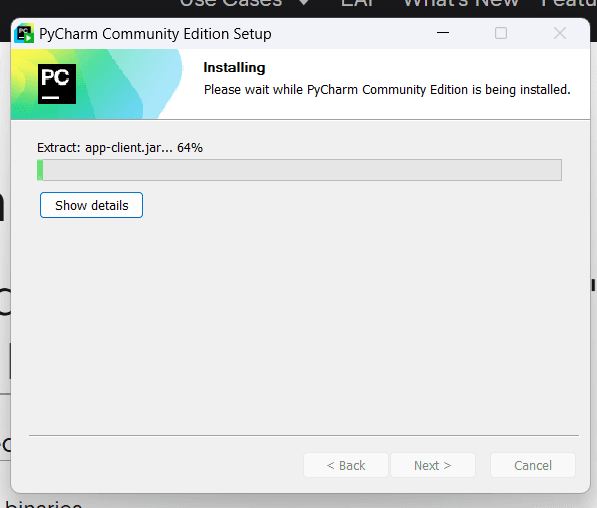
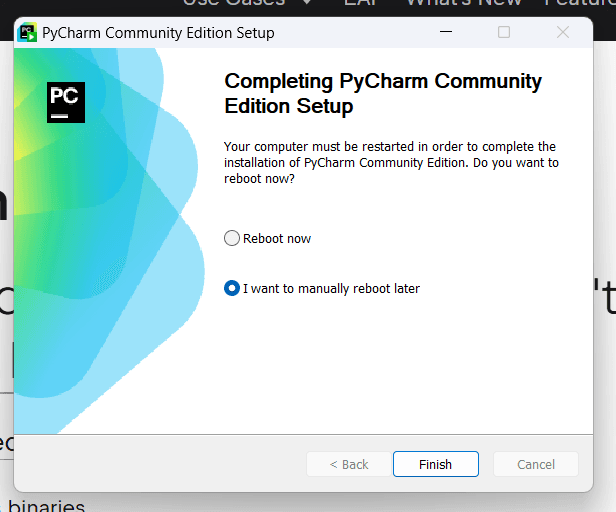
    • 11 2
  • Once the installation is complete, check Run PyCharm Community Edition if you want to open it immediately.12 2
  • Open desktop and click on PyCharm Logo.13 2
  • This Dialogue Box will appear, when you click on desktop Shortcut .14 2
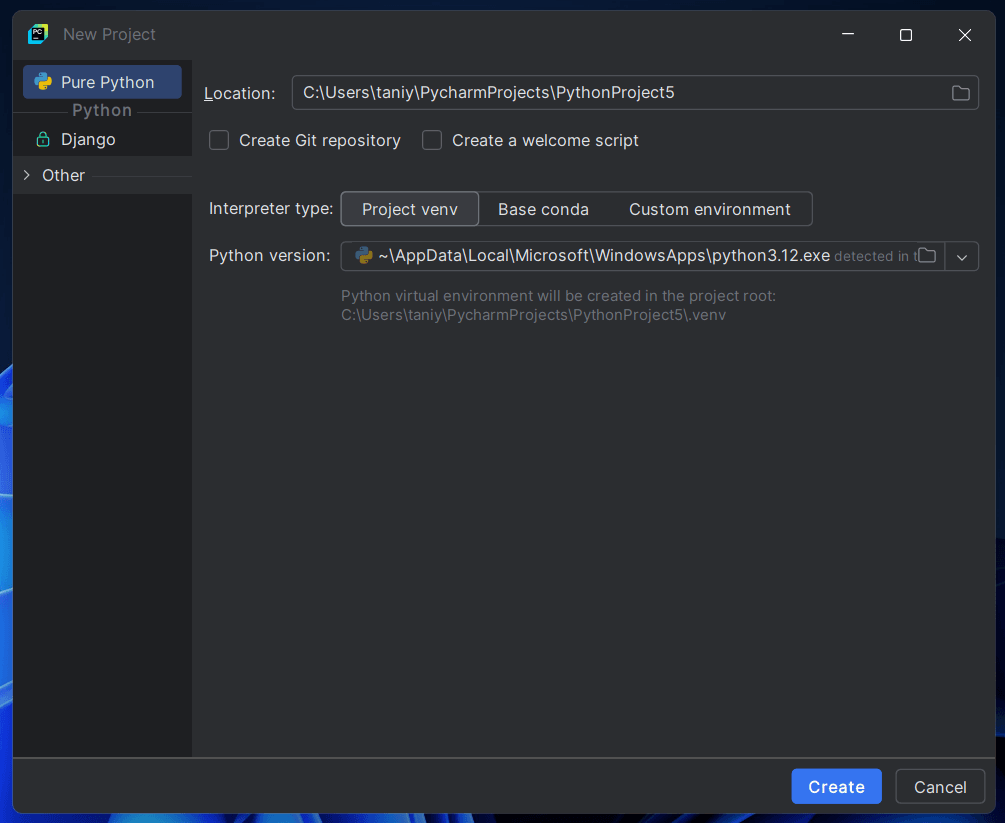
  • After PyCharm opens, create a new project:
    • Click New Project.
    • Choose a location and name for the project.15 1
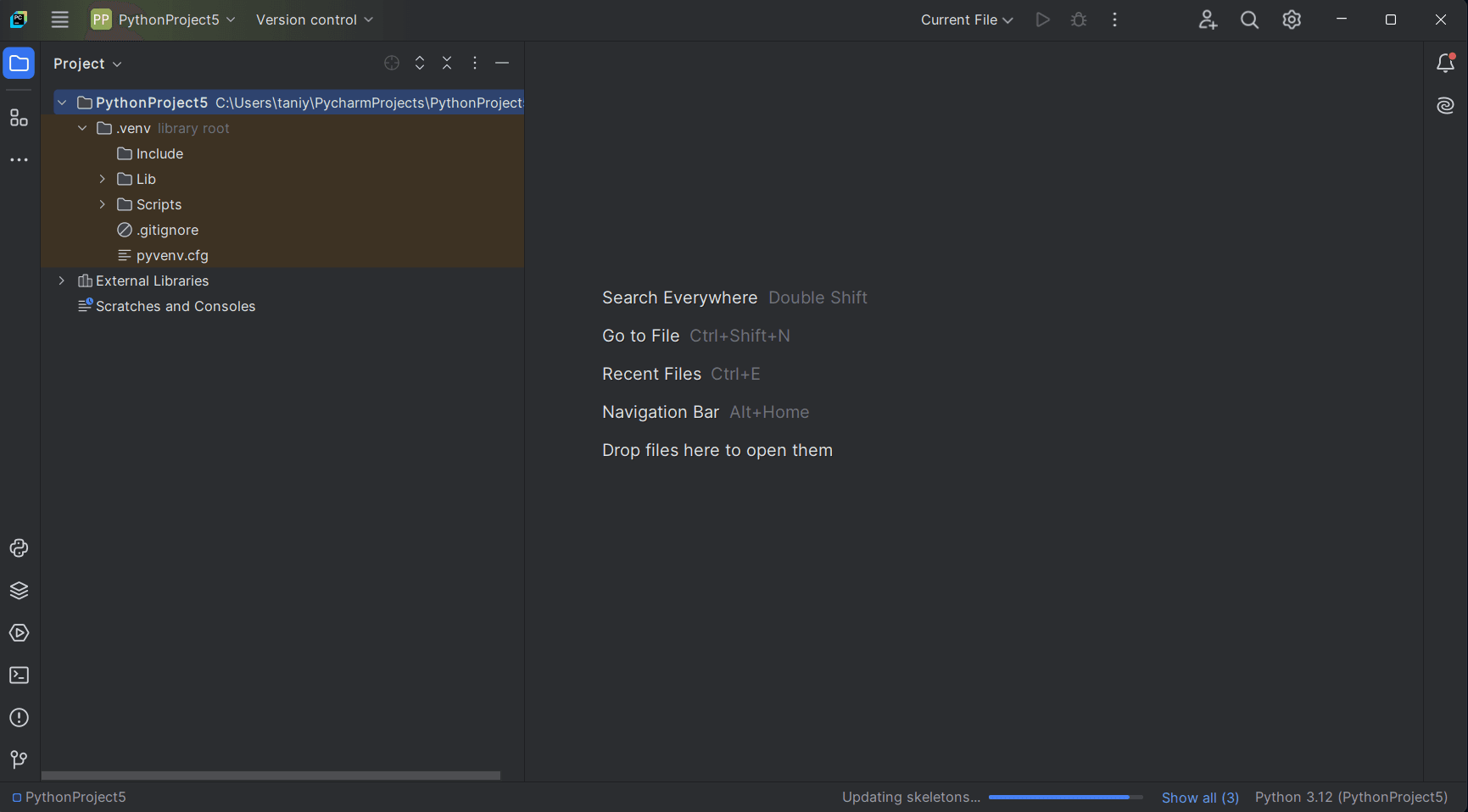
  • If everything works as expected, your PyCharm setup is complete.16 1
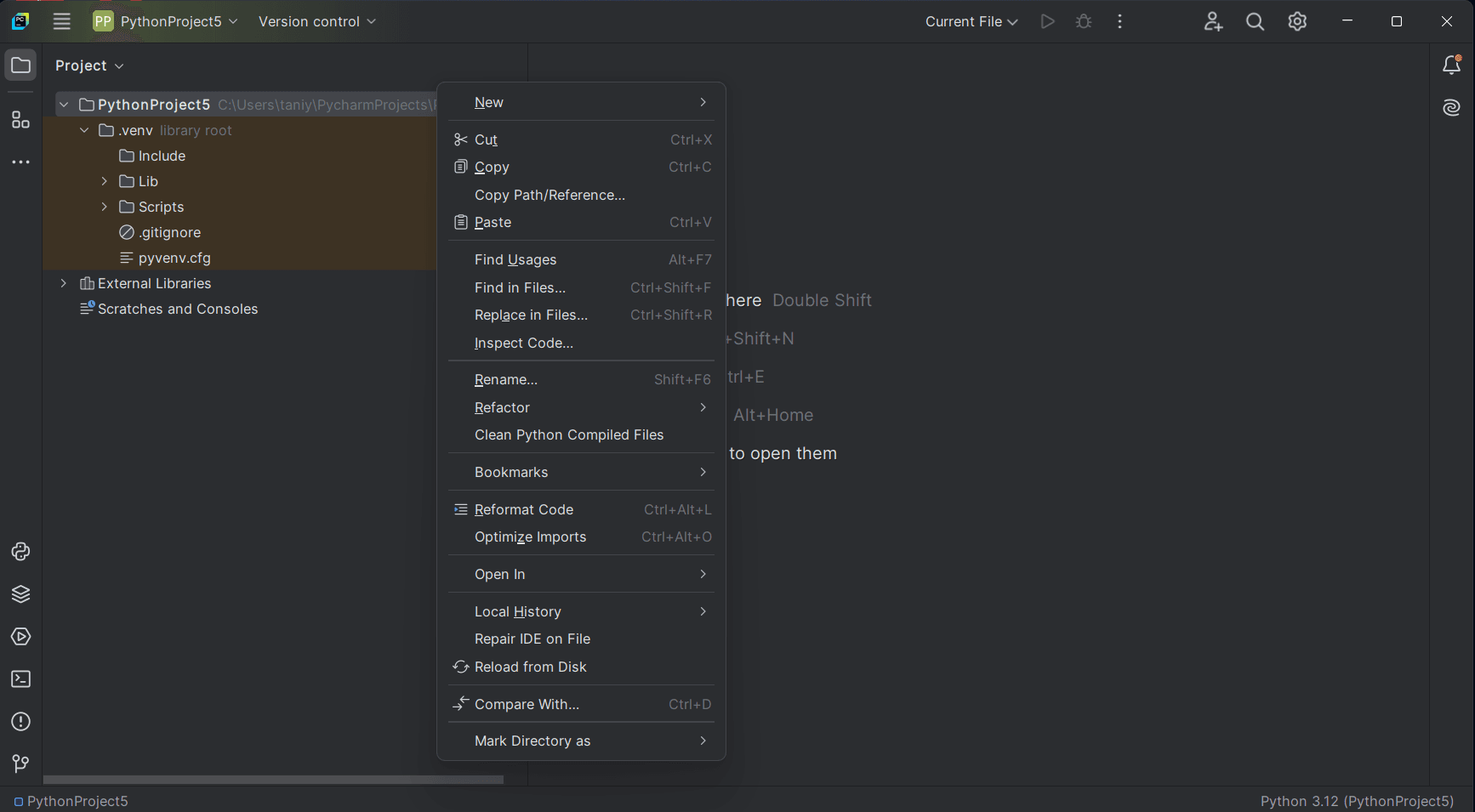
  • Right Click on your project name and select new.17
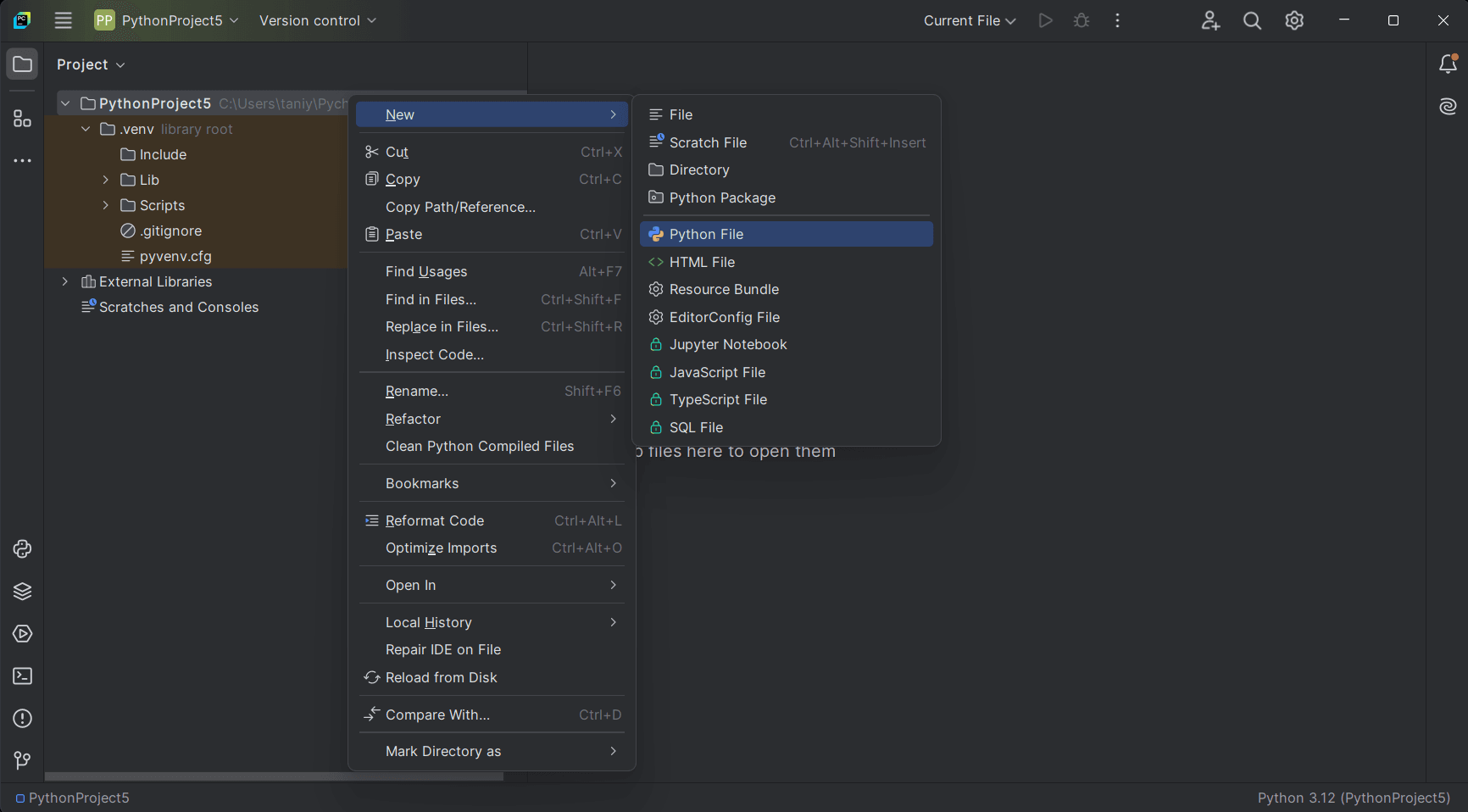
  • In New select for New file Python file.18
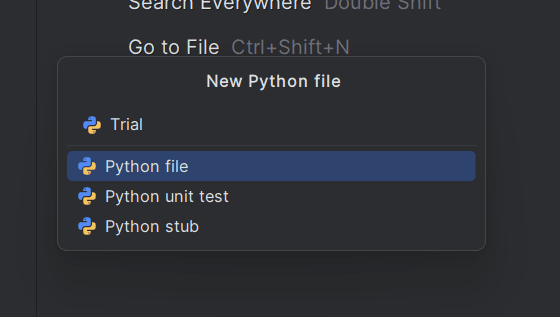
  • Name your Python file , here “Trial”.19
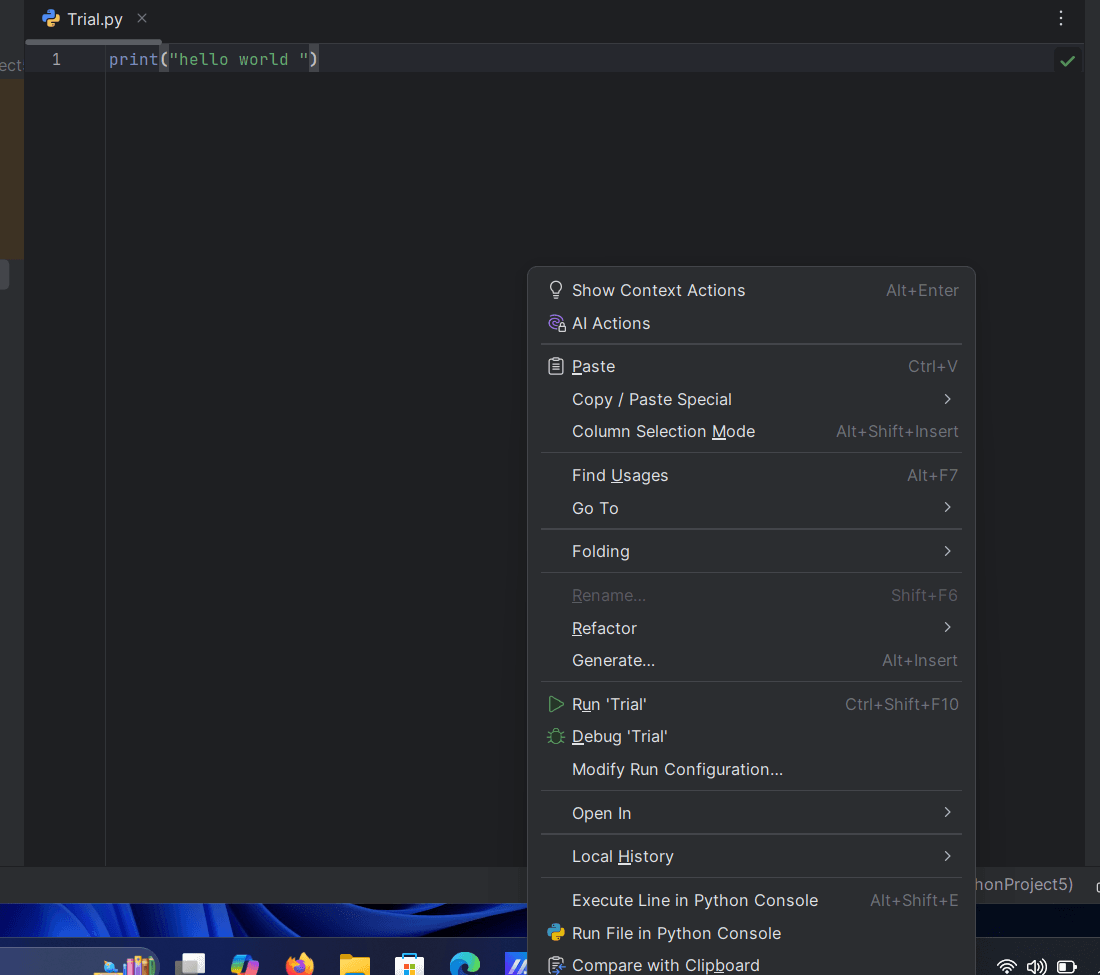
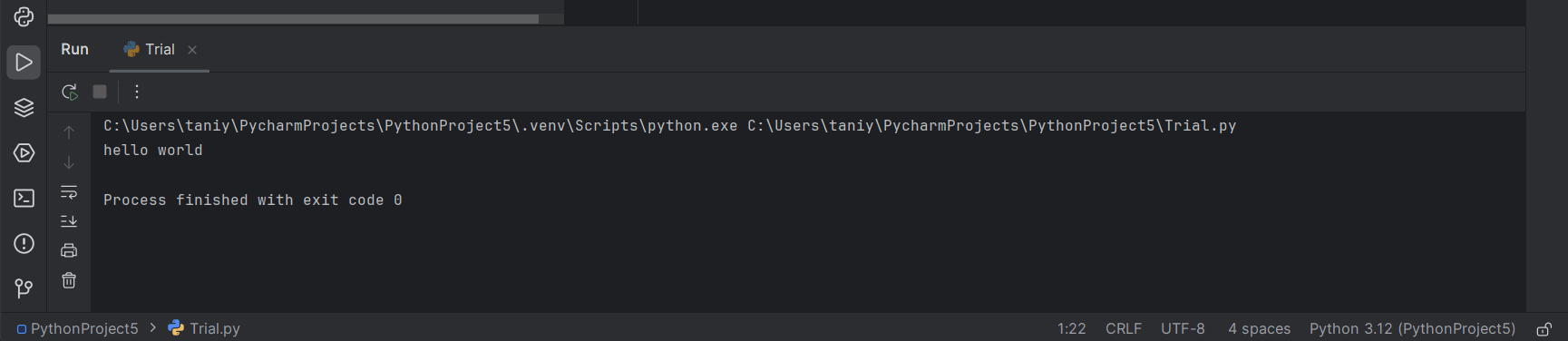
  • Write a Trial program of printing a “Hello World” ,and to run that script right click on screen & select Run and Debug.22
  • This Will be the output of the “Trial”. # printing “Hello World “23

Python installation in Windows OS:

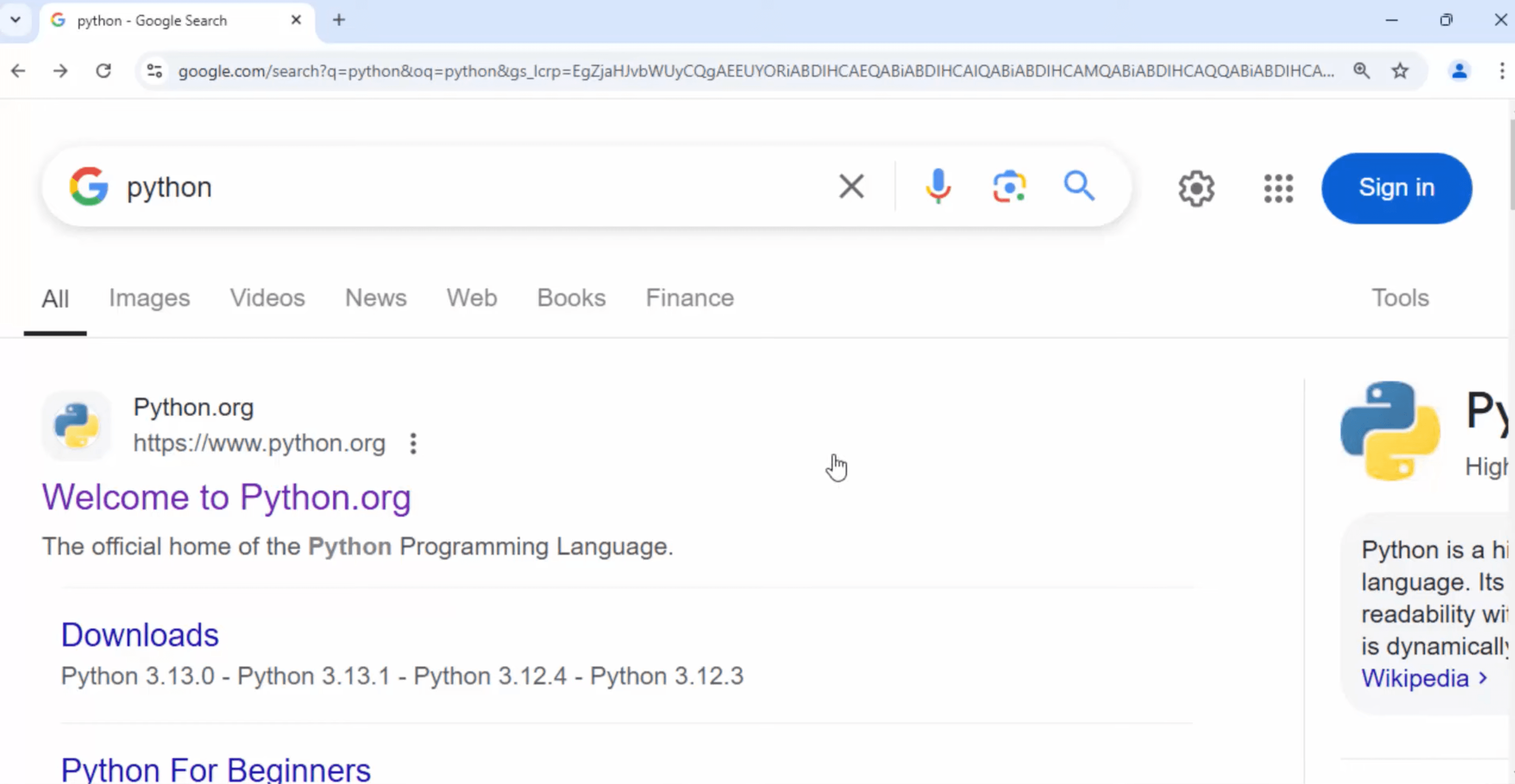
  • Open Google Chrome or any other web browser and search for Python. 1 1 e1737919354722
  • Visit the official Python website at python.org.2 1 e1737960267614
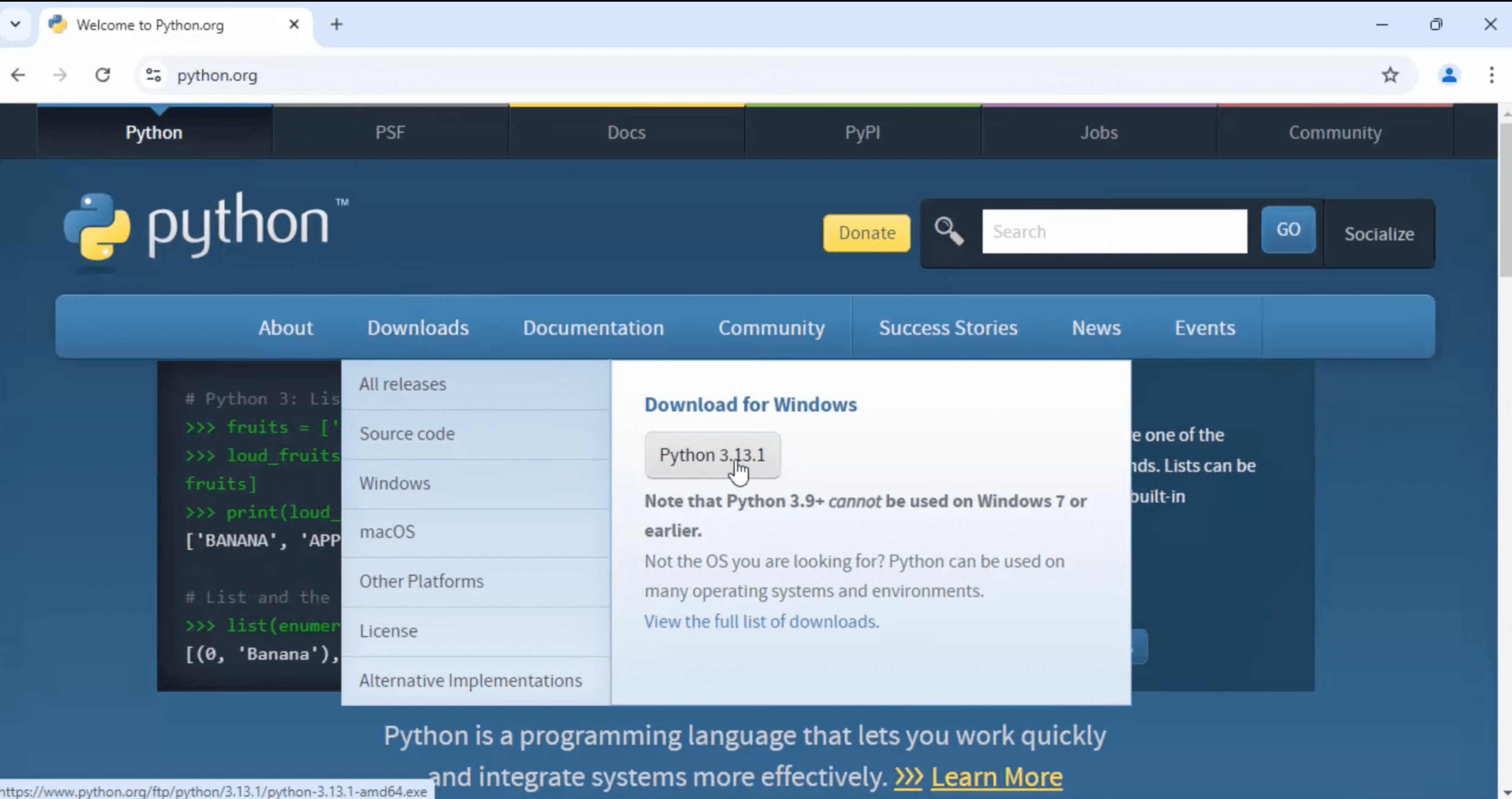
  • Navigate to the Downloads section and select the latest stable release for Windows.Choose the appropriate installer based on your system architecture:
  • For 64-bit systems: “Windows installer (64-bit)”
  • For 32-bit systems: “Windows installer (32-bit)”3 1 e1737960433455
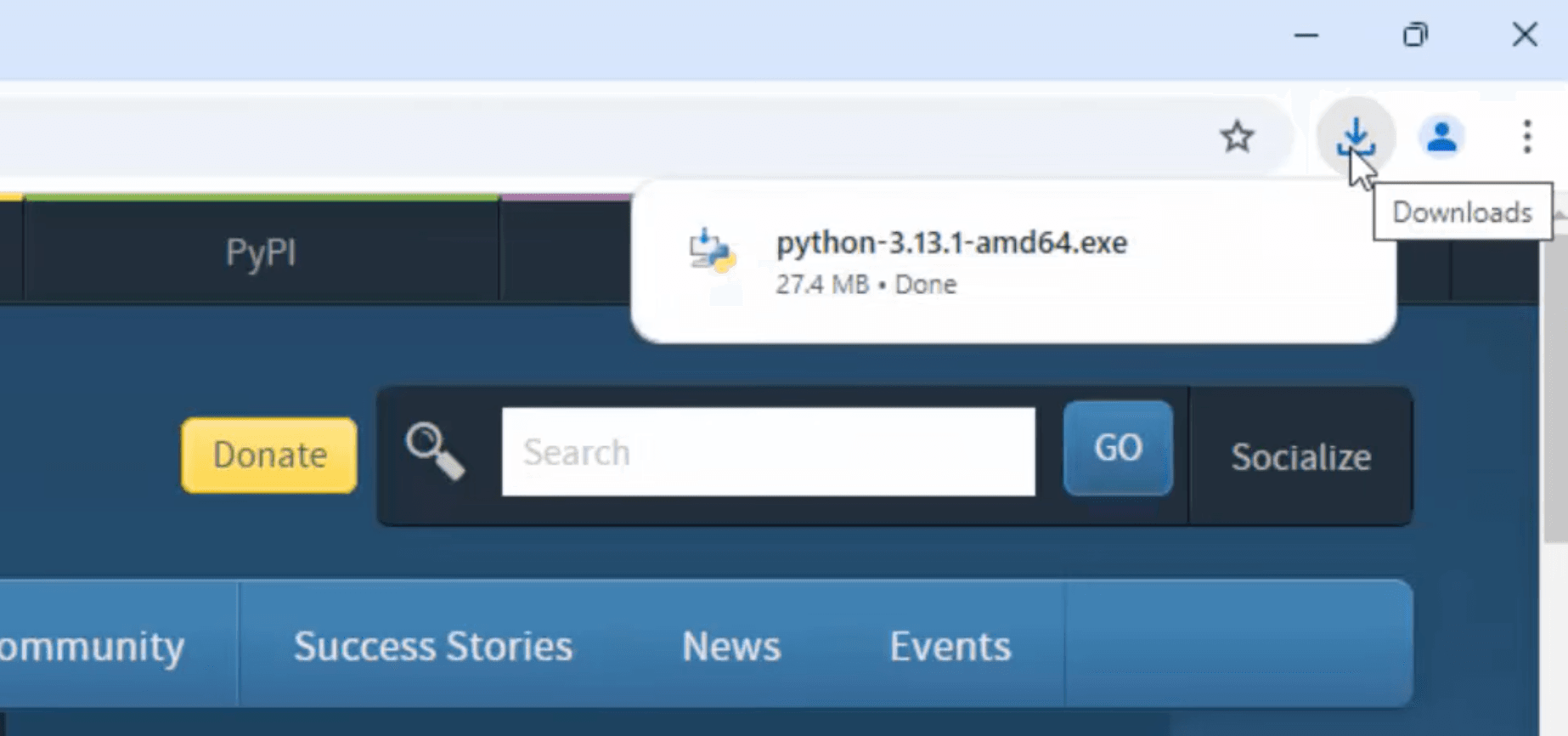
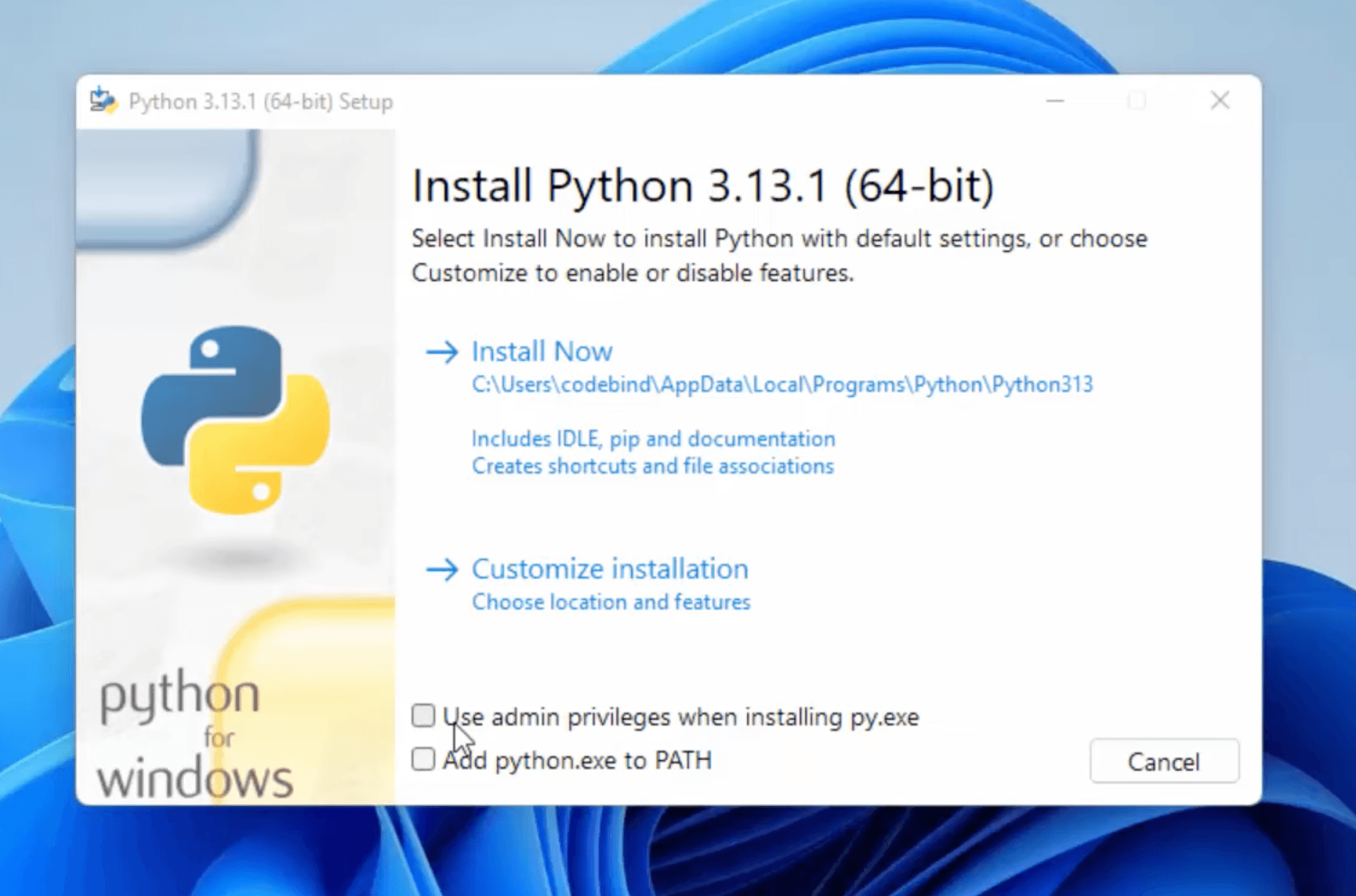
  • Locate the downloaded installer file (e.g., python-3.x.x-amd64.exe) and double-click to run it.4 1
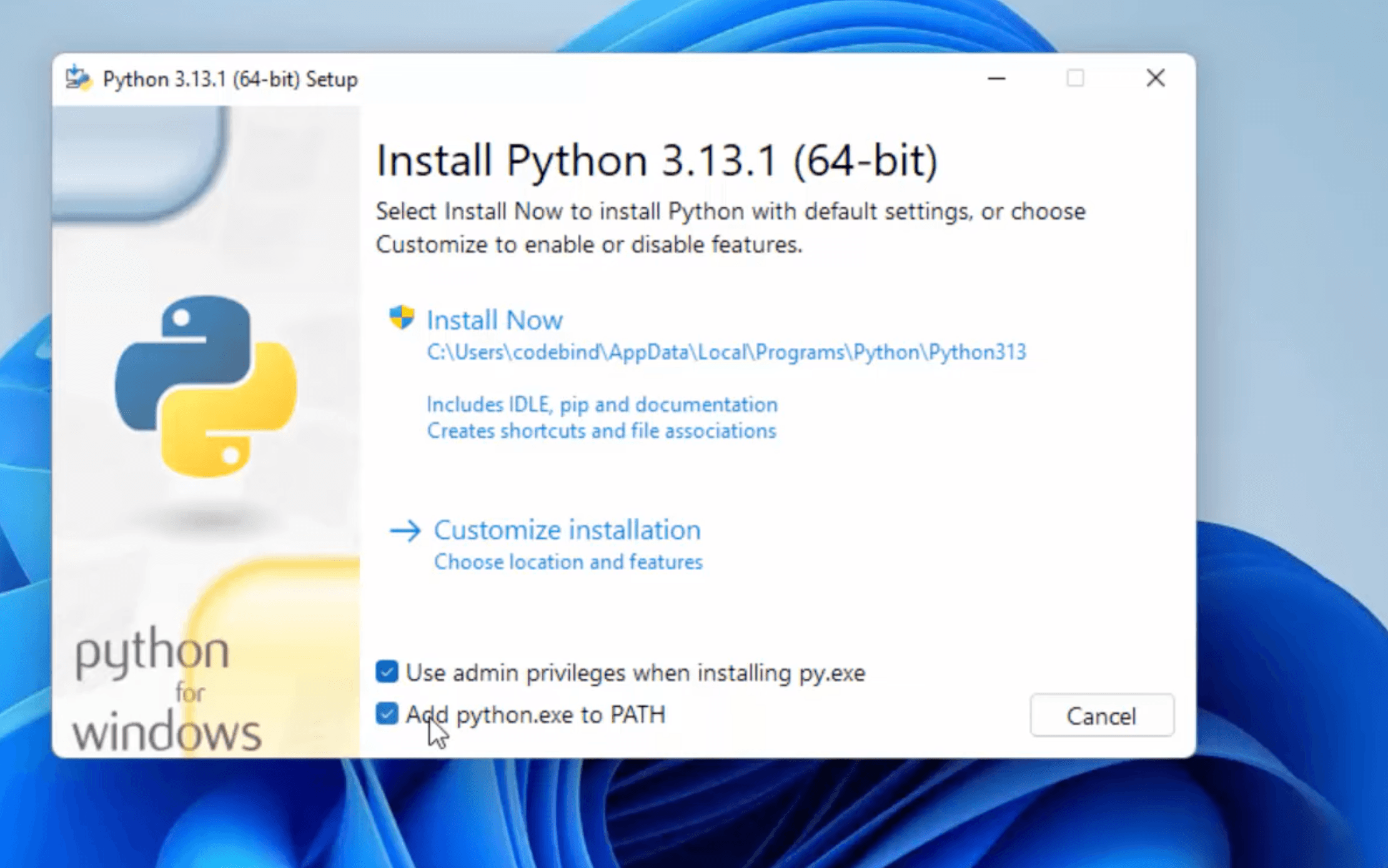
  • Check the box labeled “Add Python to PATH” to ensure you can run Python from the command line.Click on “Install Now” to proceed with the default installation.5 1
  • In the “Optional Features” section, you can select additional components like:
    • Documentation
    • pip (Python package installer)
    • tcl/tk and IDLE (Python’s Integrated Development and Learning Environment)
    • Python test suite
    • py launcher6 1
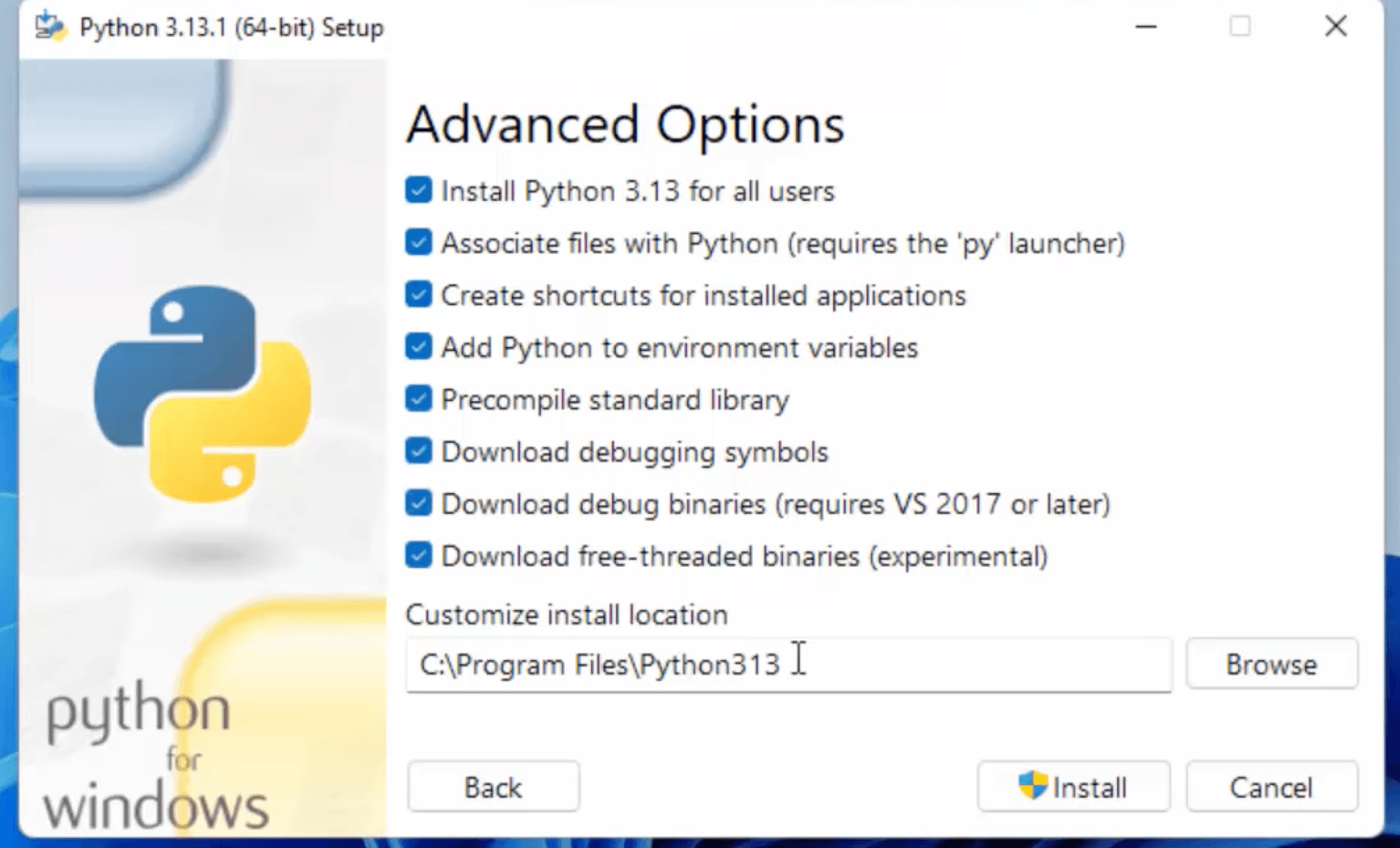
  • Click “Next” and in the “Advanced Options” section, you can:
    • Choose the installation location
    • Add Python to environment variables
    • Install for all users7 1
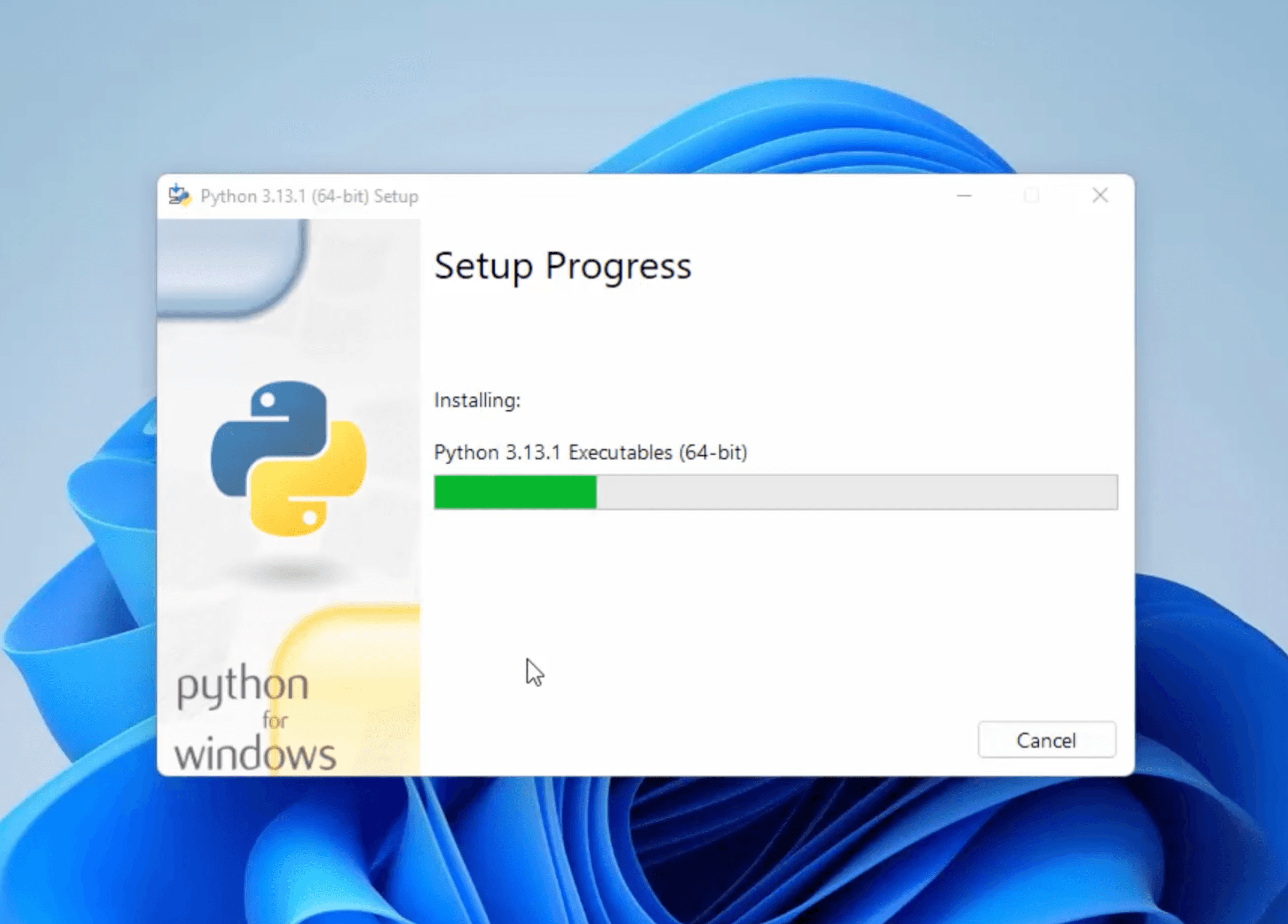
  • After selecting the desired options, click “Install” to begin the installation.8 19 1 e1737960510964
  • Verify the Installation:
    • Open the Command Prompt:
    • Press Win + R, type cmd, and press Enter.
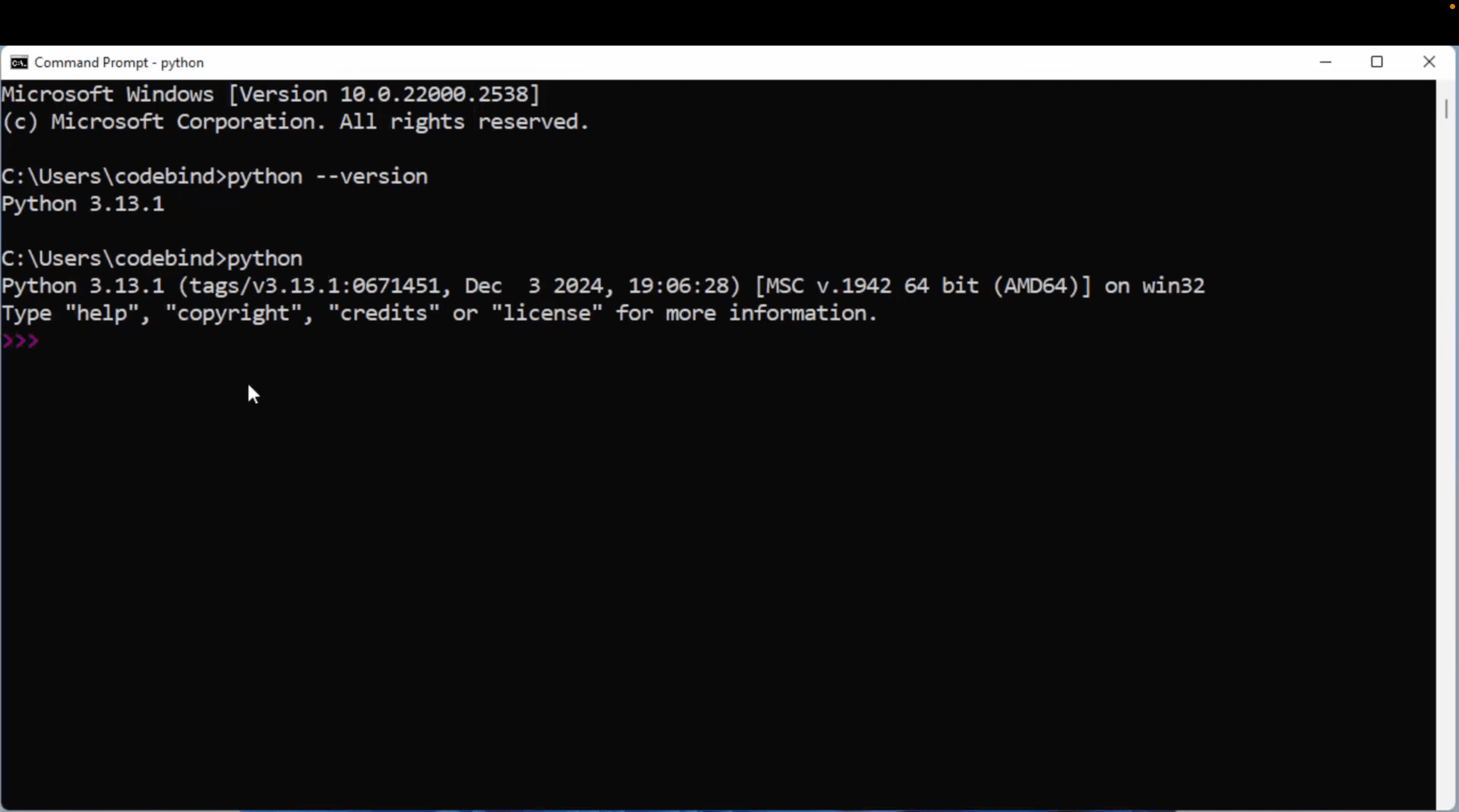
  • pip --version run in command prompt and python --version.14 1 e1737961172208

Python Installation & Configuration

Python Installation for MacOS:

To install Python on macOS, ensure your system meets the basic requirements: macOS 10.9 or later with a stable internet connection. Download the latest Python installer from python.org, follow the on-screen instructions, and verify the installation via Terminal. Ensure sufficient storage and admin rights for installation.


mac os python install


Python Installation for Windows OS:

To install Python on Windows, ensure your system runs Windows 7 or later with an internet connection. Download the latest Python installer from python.org, run the installer, and select “Add Python to PATH.” Follow the on-screen instructions and verify the installation through Command Prompt.

an image with windows logo and python language logo

Python List

Python List Introduction:

Lists are one of the most commonly used data structures in Python. A list is a collection of elements, which can be of any type, including numbers, strings, and other lists etc. Lists are mutable, which means you can make changes in the list by adding, removing, or changing elements.

List declaration:

To declare a list in Python, you can use square brackets [] and separate the elements with commas. Here’s an example:

new_list = [ 1, 2, 3, 4, 5 ]

In the above example, we created a list called new_list that contains five integers.

You can also create an empty list by using the list() function or just an empty set of square brackets [].  Here are some examples:

list_1 = list()
list_2 = []

Both of the examples above create an empty list called empty_list_1 and list_2.

You can also create a list of a specific size filled with a default value using the * operator.  Here’s an example:

empty_list_1 = []
empty_list_2 = list()

In the example above, we created a list called my_list that contains three 1 values.

my_list = [1, 1, 1]

Python list features:

  1. Mutable: Lists are mutable, meaning you can modify their elements by assigning new values to specific indices.
  2. Ordered: Lists maintain the order of elements as they are added.
  3. Dynamic Size: Python lists can dynamically grow or shrink in size as elements are added or removed.
  4. Heterogeneous Elements: Lists can contain elements of different data types. For example, a single list can store integers, floats, strings, or even other lists.
  5. Indexing and Slicing: You can access individual elements in a list using square bracket notation and their index. Additionally, you can slice lists to extract a portion of elements by specifying start and end indices.
  6. Iteration: Lists can be easily iterated over using loops or list comprehensions, allowing you to process each element or perform operations on the entire list.
  7. Built-in Functions: Python provides a range of built-in functions specifically designed for working with lists. These include functions like `len()`, `max()`, `min()`, `sum()`, `sorted()`, and more.
  8. Versatile Data Structure: Lists are a versatile data structure used in a variety of scenarios.
  9. List Comprehensions: Python allows you to create new lists by performing operations on existing lists using concise and expressive syntax called list comprehensions.
  10. Extensive Methods: Python lists come with a range of built-in methods that enable various operations like adding or removing elements, sorting, reversing, searching, and more.

Python List Indexing and Slicing

In Python first element in the list has an index of 0. You can access elements in a list by their index using square brackets. Here’s an example:

# Define a list
my_list = ['apple', 'banana', 'cherry']

# Access the first element
first_element = my_list[0] # 'apple'

# Access the second element
second_element = my_list[1] # 'banana'

# Access the third element
third_element = my_list[2] # 'cherry'

# Print the elements
print("First element:", first_element)
print("Second element:", second_element)
print("Third element:", third_element)

You can also use negative indexing to access the list elements in the reverse order. Here’s an example:

# Define a list
my_list = ['apple', 'banana', 'cherry']

# Access the last element
last_element = my_list[-1] # 'cherry'

# Access the second-to-last element
second_last_element = my_list[-2] # 'banana'

# Access the third-to-last (or first) element
third_last_element = my_list[-3] # 'apple'

# Print the elements

print("Last element:", last_element)
print("Second-to-last element:", second_last_element)
print("Third-to-last element:", third_last_element)

Slicing rules to create a sublist:

Here are the rules for slicing in Python:

  1. Slicing uses the colon : operator to specify a range of indices. The syntax is my_list[start_index:end_index:step].
  2. The start_index is the index of the first element to include in the slice. If not specified, it defaults to 0.
  3. The end_index is the index of the first element to exclude from the slice. If not specified, it defaults to the length of the list.
  4. The step parameter specifies the step size between elements in the slice. If not specified, it defaults to 1.
  5. All parameters can be negative, in which case they specify the index relative to the end of the list. For example, my_list[-1] refers to the last element of the list.
  6. Slicing returns a new list that contains the specified range of elements from the original list.

You can also use slicing to access a subset of the list. Slicing allows you to extract a range of elements from the list. Here’s an example:

# Define a list
my_list = ['apple', 'banana', 'cherry', 'date', 'elderberry']

# Slice to get the first three elements
first_three = my_list[0:3] # ['apple', 'banana', 'cherry']

# Slice to get elements from index 2 to the end
from_second_onwards = my_list[2:] # ['cherry', 'date', 'elderberry']

# Slice to get the last two elements
last_two = my_list[-2:] # ['date', 'elderberry']

# Slice with a step of 2 (every second element)
every_second = my_list[::2] # ['apple', 'cherry', 'elderberry']

# Print the results
print("First three elements:", first_three)
print("From second onwards:", from_second_onwards)
print("Last two elements:", last_two)
print("Every second element:", every_second)

In the example above, we used slicing to extract a subset of the list that starts at index 0 and ends at index 3 (excluding index 3).


Updating list values:

Lists in Python are mutable, and their values can be updated by using the slice and assignment the ( = ) operator.

# Define a list
my_list = [1, 2, 3, 4, 5]

# Remove elements at indices 1 to 3
my_list[1:4] = []

# Print the updated list
print(my_list)

Iterating over a list

We can use a for loop to iterate over the list elements. Here’s an example:

# Define a list of fruits
fruits = ['apple', 'banana', 'cherry', 'date']

# Use a for loop to iterate over the list
for fruit in fruits:
print(fruit)

Membership operator in list

We can use operator (i.e. in or not in) on list elements. If an element is in list then it returns True. If an element is not in list it return False. Here’s an example:

# Example list
fruits = ['apple', 'banana', 'cherry', 'date']

# Using 'in' to check if an element is in the list
print('apple' in fruits) # Output: True
print('orange' in fruits) # Output: False


# Using 'not in' to check if an element is not in the list
print('grape' not in fruits) # Output: True
print('banana' not in fruits) # Output: False

Repetition on list

We can use the (*) operator for the repetition of a list. Here’s an example:

# Example list
fruits = ['apple', 'banana', 'cherry']

# Using * operator for repetition
repeated_list = fruits * 3

print(repeated_list)
# Output: ['apple', 'banana', 'cherry', 'apple', 'banana', 'cherry', 'apple', 'banana', 'cherry']

Concatenation of a list

We can use the (+) operator for the concatenation of a list. Here’s an example:

# Example lists
list1 = ['apple', 'banana']
list2 = ['cherry', 'date']

# Using + operator for concatenation
combined_list = list1 + list2

print(combined_list)
# Output: ['apple', 'banana', 'cherry', 'date']

Python String

String Introduction:

A string is a sequence of characters. In Python, you can define a string using either single quotes () or double quotes (), or triple quotes (”’ or “””) for multiline strings. Here are some examples:

Re-assign Strings:

In Python, you can reassign a string to a new value by simply assigning the new value to the variable that holds the string.  Here’s an example:

# Initial string assignment
my_string = "Hello, World!"
print("Original string:", my_string)

# Reassigning the string to a new value
my_string = "Welcome to Python!"
print("Reassigned string:", my_string)

In the example above, the first print statement outputs “Hello, World!” because my_string is initially assigned that value. Then, my_string is reassigned to “Sqatools” and the second print statement outputs the new value.

# Example to demonstrate string immutability in Python

# 1). String Concatenation
greeting = "Hello"
new_greeting = greeting + ", World!"
print("Original string (after concatenation):", greeting) # Output: Hello
print("New string (concatenation result):", new_greeting) # Output: Hello, World!

# 2). String Replacement
my_string = "Hello, Python!"
new_string = my_string.replace("Python", "World")
print("\nOriginal string (after replacement):", my_string) # Output: Hello, Python!
print("New string (replacement result):", new_string) # Output: Hello, World!

# 3). String Slicing
text = "Immutable"
sliced_text = text[:3] # Taking the first three characters
print("\nOriginal string (after slicing):", text) # Output: Immutable
print("Sliced string (slicing result):", sliced_text) # Output: Imm

Deleting string:

In Python, you cannot delete individual characters in a string because strings are immutable. However, you can delete the entire string object from memory using the del statement.  Here’s an example:

In the example above, the first print statement outputs the value of my_string, which is “Hello, World!”. Then, the del statement deletes the my_string object from memory. When we try to print my_string again, we get a NameError because the variable no longer exists.


String formatting methods:

Python provides several methods for formatting strings. Here are the most commonly used methods:

  1. The % operator: This operator allows you to format strings using placeholders, which are replaced with values at runtime. Here’s an example:
# Using the % operator for string formatting
name = "Alice"
age = 25

formatted_string = "My name is %s and I am %d years old." % (name, age)
print(formatted_string)
# Output: My name is Alice and I am 25 years old.

In the example above, %s and %d are placeholders for the name and age variables, respectively. The values of these variables are provided in a tuple that follows the % operator.


  1. The str.format() method: This method allows you to format strings using placeholders that are enclosed in curly braces. Here’s an example:
# Using the str.format() method for string formatting
name = "Alice"
age = 25

formatted_string = "My name is {} and I am {} years old.".format(name, age)
print(formatted_string)
# Output: My name is Alice and I am 25 years old.

In the example above, {} is a placeholder for the name and age variables. The values of these variables are provided as arguments to the str.format() method.


  1. F-strings: It allows you to embed expressions inside placeholders that are enclosed in curly braces preceded by the f character. Here’s an example:
# Using f-strings for string formatting
name = "Alice"
age = 25

# Embedding variables directly into the string
formatted_string = f"My name is {name} and I am {age} years old."
print(formatted_string)
# Output: My name is Alice and I am 25 years old.

In the example above, the f character before the string indicates that it is an f-string. The expressions inside the curly braces are evaluated at runtime and the resulting values are inserted into the string.


String operators:

In Python, strings support several operators that can be used to perform various operations on strings. Here are some of the most commonly used string operators:

  1. Concatenation (+): The + operator can be used to concatenate two or more strings. Here’s an example:
# Using the + operator to concatenate strings
str1 = "Hello"
str2 = "World"
combined_str = str1 + " " + str2 # Adding a space between the words

print(combined_str)
# Output: Hello World
  1. Repetition (*): The * operator can be used to repeat a string a certain number of times. Here’s an example:
# Using the * operator to repeat a string
str1 = "Hello "
repeated_str = str1 * 3 # Repeating the string 3 times

print(repeated_str)

# Output: Hello Hello Hello
  1. Membership (in): The in operator can be used to check if a substring exists within a string. It returns True if the substring is found, and False otherwise. Here’s an example:
# Using the 'in' operator to check membership
sentence = "Python is awesome!"

# Checking if a substring exists within the string
substring = "Python"
result = substring in sentence

print(result)
# Output: True
  1. Indexing ([]): The [] operator can be used to access individual characters within a string. You can use a positive index to access characters from the beginning of the string, and a negative index to access characters from the end of the string. Here’s an example:
# Using the [] operator for indexing a string
my_string = "Python"

# Accessing characters using positive indices
first_char = my_string[0] # First character
last_char = my_string[5] # Last character (index 5 for "n")

print("First character:", first_char) # Output: P
print("Last character:", last_char) # Output: n

# Accessing characters using negative indices
second_last_char = my_string[-2] # Second last character (index -2 for "o")
print("Second last character:", second_last_char) # Output: o
  1. Slicing ([start:end]): The [] operator can also be used to extract a substring (or slice) from a string. The start argument specifies the starting index of the slice (inclusive), and the end argument specifies the ending index of the slice (exclusive). Here’s an example:
# Using the [] operator for string slicing
my_string = "Python Programming"

# Extracting a substring using slicing
substring = my_string[0:6] # From index 0 to 5 (6 is exclusive)
print(substring) # Output: Python
  1. Comparison (==, !=, <, <=, >, >=): The comparison operators can be used to compare two strings alphabetically.
# Comparison of strings using various operators
string1 = "Apple"
string2 = "Banana"

# Checking if the strings are equal
print(string1 == string2) # Output: False

# Checking if the strings are not equal
print(string1 != string2) # Output: True

# Checking if string1 is alphabetically less than string2
print(string1 < string2) # Output: True

# Checking if string1 is alphabetically greater than string2
print(string1 > string2) # Output: False

# Checking if string1 is alphabetically less than or equal to string2
print(string1 <= string2) # Output: True

# Checking if string1 is alphabetically greater than or equal to string2
print(string1 >= string2) # Output: False

String indexing and slicing:

Indexing:

Indexing: Each character in a string is assigned an index starting from 0. You can access a particular character in a string using its index. Here’s an example:

# Using indexing to access characters in a string
my_string = "Python"

# Accessing individual characters using their indices
first_char = my_string[0] # First character
second_char = my_string[1] # Second character
last_char = my_string[5] # Last character

print("First character:", first_char) # Output: P
print("Second character:", second_char) # Output: y
print("Last character:", last_char) # Output: n
Slicing:

You can extract a portion of a string using slicing. Slicing is done using the [] operator, with two indices separated by a colon (:) inside the brackets. Here’s an example:

# Using slicing to extract a portion of a string
my_string = "Python Programming"

# Slicing from index 0 to 6 (exclusive of index 6)
substring = my_string[0:6] # This gives 'Python'

print(substring) # Output: Python

In the example above, my_string[0:5] returns the first five characters of the string, my_string[:5] returns all the characters up to the fifth character, and my_string[-5:] returns the characters from the fifth-last to the last character.

Note that the first index in a slice is inclusive and the second index is exclusive. So, my_string[0:5] returns characters from index 0 to index 4, but not the character at index 5.

In addition to the two indices separated by a colon, you can also add a third index to specify the step value. Here’s an example:

# Using slicing with a step
my_string = "Python Programming"

# Extracting every second character from index 0 to index 12
substring = my_string[0:13:2] # From index 0 to 12, taking every second character

print(substring) # Output: Pto rg